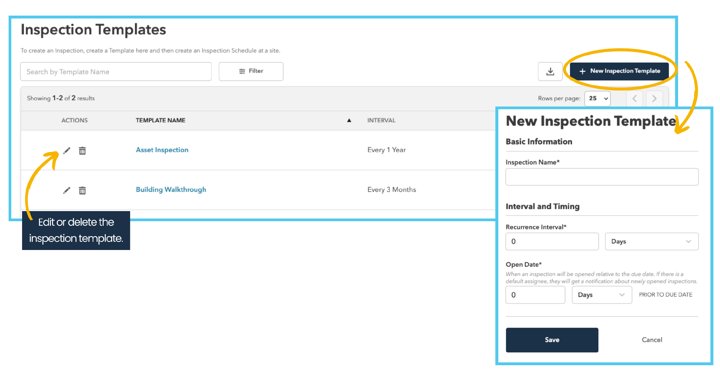
Cove and Visitt UI task journeys
*AI-generated recommendations for discussion. These are not Nick’s recommendations or approved JLL/PRISM guidance.
13 goal-based maps connect all 58 documented flow maps. Start with the two screen-by-screen reservation examples, then use the broader operational maps to follow actor handoffs.
Start with a matched task: Cove reservation · Visitt reservation · Suggested demo questions .
Evidence boundary. Stages inside each source flow are documented. Arrows between flows are analytical reconstructions unless a cited page explicitly states the handoff. No authenticated end-to-end journey was executed; historical video frames do not prove the current screen layout.
CompanyBoth Cove Visitt Map typeAll screen-level example connected task map related task branches Find a goal or feature Clear filters
No matches. Clear filters or try a broader task name.
Cove · Launch a building and invite its tenant team Cove · Resolve a tenant request and create its charge Cove · Plan, inspect and close maintenance work Cove · Reserve a room from the tenant app Cove · Register arrivals and manage access Cove · Publish building content and measure response Cove · Operate compliance, procurement and incident controls Visitt · Configure a property and onboard a tenant Visitt · Turn a tenant issue into completed, billable work Visitt · Complete an inspection and correct a missed task Visitt · Book a room and prepare it for use Visitt · Handle a tenant's visitors, packages and building updates Visitt · Manage vendor insurance and operational documents Launch a building and invite its tenant team Cove · connected task map
Make a configured property usable by the right building and tenant roles.
Trigger A new site or tenant organization is added.
Result A tenant can enter the branded app with the correct permissions.
Evidence 5 linked task segments · 2 video/animation references
Left to right: reconstructed cross-module handoffs. Read the numbered evidence cards below to inspect each documented segment.
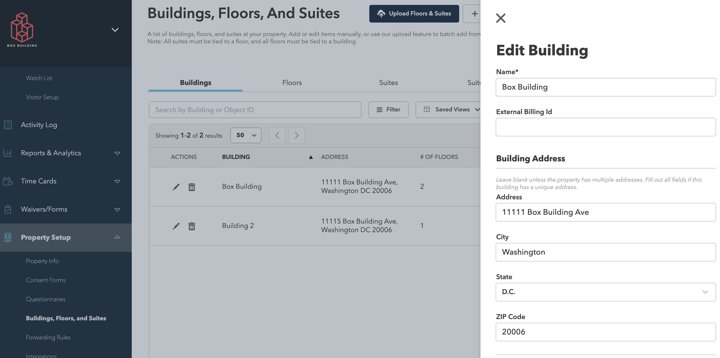
01 Configure property structure and information Buildings, floors, suites → Property Info → Resources
Actor: Property administrator
Define buildings and spaces Edit property information Publish resources Configure the web address Handoff: Property record and hierarchy are available for tenant setup.
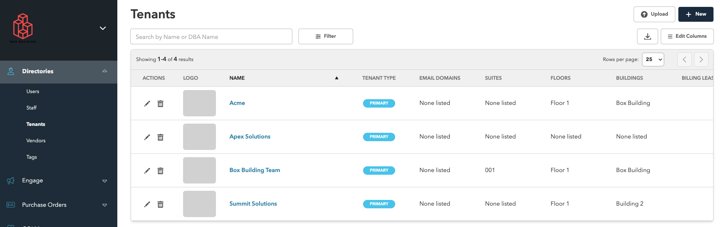
02 Manage tenants, leases and offboarding Directory → Tenant organizations → Leases
Actor: Property administrator
Create an organization Associate people and leases Update tenancy Offboard the tenant Handoff: Associate the organization and its people with the site.
03 Invite users and assign access Directory → Add users / bulk upload → Roles
Actor: Property administrator
Create or import users Select roles Send invitations Review access Handoff: Invite building and tenant users.
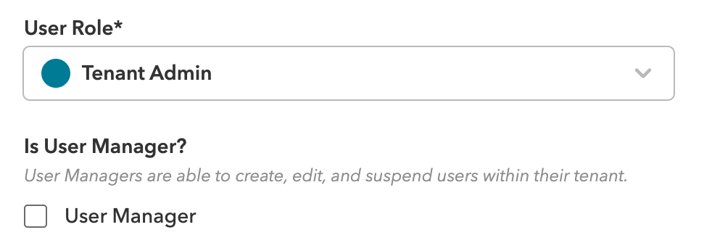
04 Tenant administrator user management Tenant Admin User Manager
Actor: Tenant administrator
Find a person Update access Suspend access Review offboarding Handoff: Delegate people management to the tenant administrator.
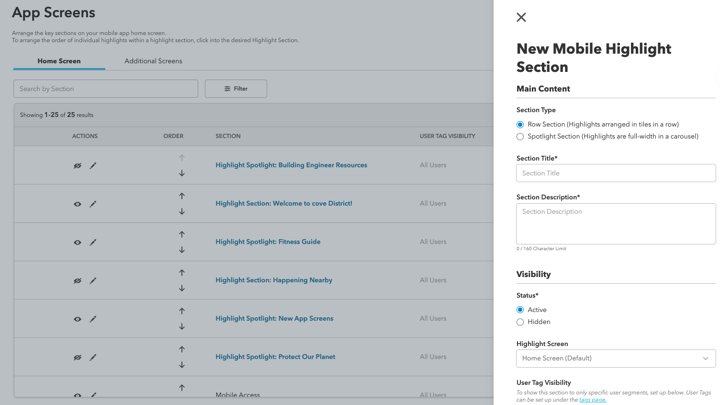
05 Configure the tenant home and content App Screens → Highlights → Spotlights → Quick Actions
Actor: Property administrator
Arrange app screens Add highlights Configure spotlights Set quick actions Handoff: Publish the actions and content the tenant will see.
Decision points Which role can see each building, space and app action? What happens when a tenant or user is offboarded? Live-demo validation Create a test tenant and user; confirm visibility in the mobile app and dashboard. Relevant recordings and animations Resolve a tenant request and create its charge Cove · connected task map
Follow a tenant issue from intake through assignment, field execution, charging and review.
Trigger A tenant submits a service request.
Result The work record is completed and the appropriate tenant charge is visible.
Evidence 9 linked task segments · 6 video/animation references
Left to right: reconstructed cross-module handoffs. Read the numbered evidence cards below to inspect each documented segment.
01 Create a service request Tenant app / dashboard → Submit Work Order
Actor: Tenant and property team
Select the request entry point Enter request details Attach context Review the submitted record Handoff: A request record enters the property team's queue.
02 Route, assign and escalate work Work Orders → Assignments & Routing → Work Groups
Actor: Operations manager
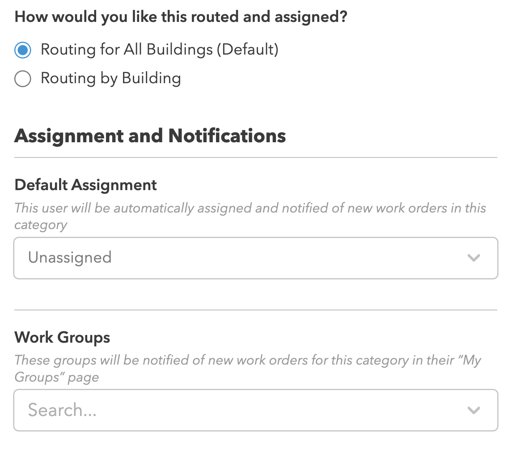
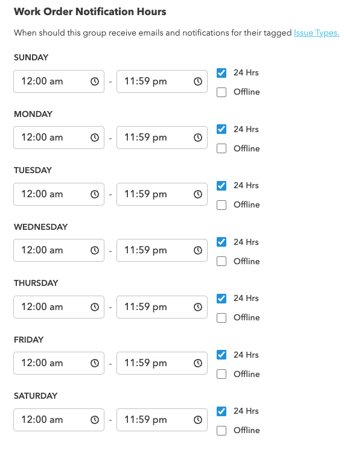
Configure routing Organize work groups Set escalation rules Set notifications Handoff: Rules or a manager assign the responsible team.
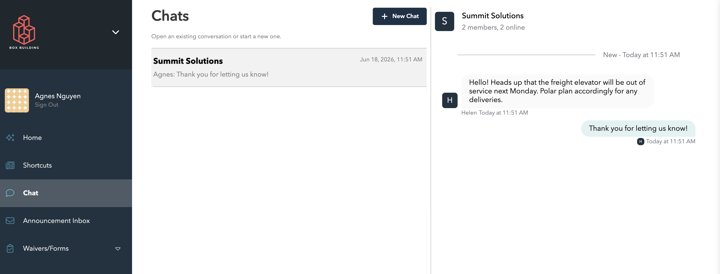
03 Coordinate tenant and property-team chat Tenant / property-team conversation
Actor: Tenant and property team
Open a conversation Exchange messages Review the other role’s conversation view Handoff: Clarify scope and communicate status where chat is enabled.
04 Record field work and satisfy completion rules Mobile Work Order → Notes, labor, materials → Complete
Actor: Engineer
Open assigned work Record notes, labor and materials Add travel where enabled Resolve missing completion information Handoff: Engineer records work and satisfies required completion fields.
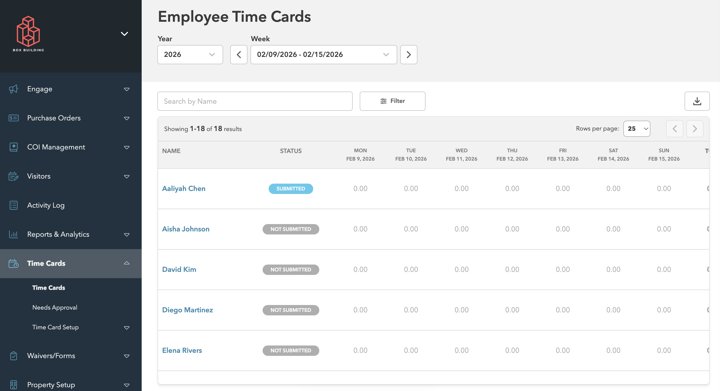
05 Configure and use time cards Time Cards
Actor: Engineer and property manager
Configure time-card settings Record time Review team time cards Handoff: Time is recorded or reviewed if that module is used.
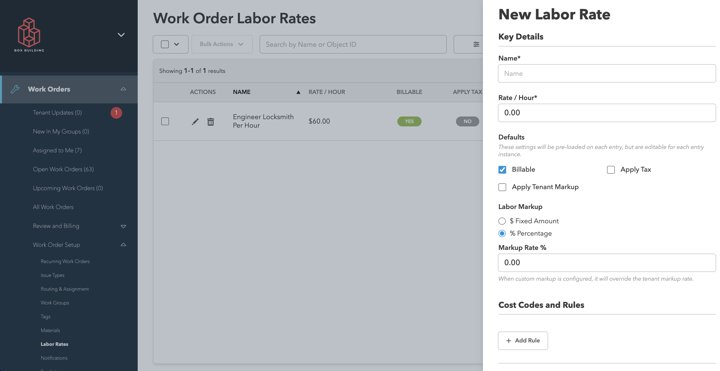
06 Estimate and bill tenant work Estimates → Billable Charges → Tenant Invoices
Actor: Property team and tenant approver
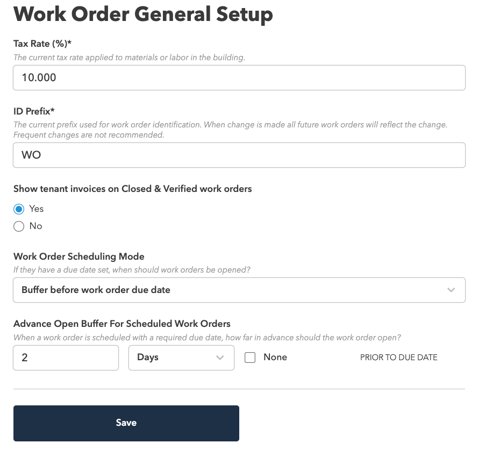
Configure labor and material rates Review estimates Add charges Create the tenant invoice Handoff: Property team reviews estimate and creates the tenant invoice.
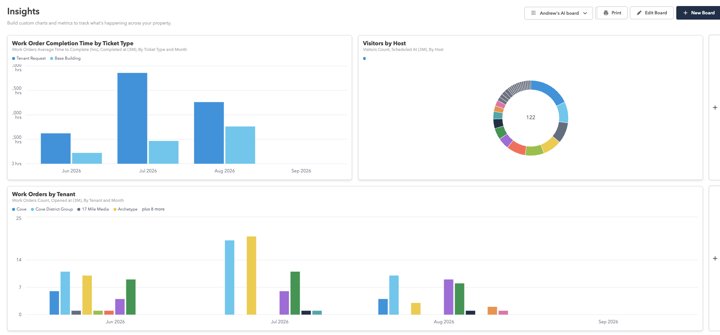
07 Build views, reports and insight boards Reports / Insight Boards
Actor: Property and regional manager
Select the data and metric Configure filters and grouping Arrange report cards Review records or export Handoff: Manager reviews service and billing metrics.
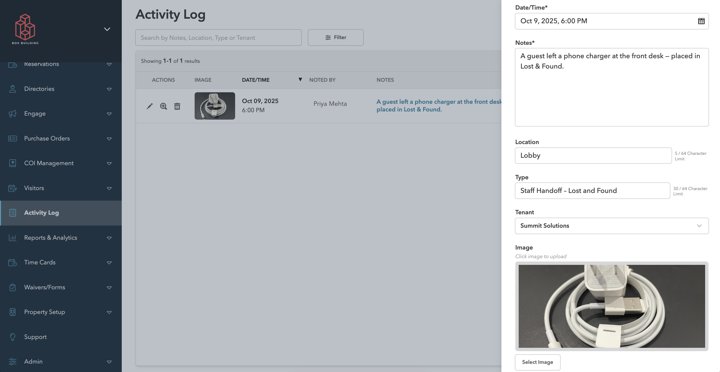
08 Inspect the activity log Activity Log
Actor: Property administrator
Open the activity log Filter events Inspect recorded changes Handoff: Administrator inspects recorded changes.
09 Review CoveAI entry points and review controls CoveAI entry points
Actor: Property team and engineer
Review content-generation entry points Inspect work-order assistance Review certificate extraction Identify assistant release limitations Handoff: AI assistance may help with writing or extraction; human review remains a separate step.
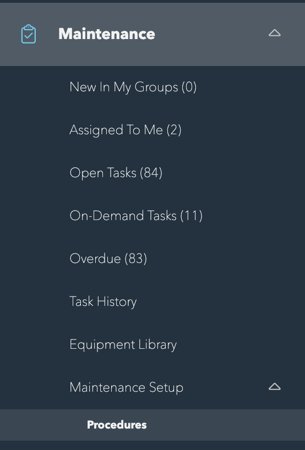
Decision points Is approval needed before billable work? Can the engineer close without required evidence? Is a tenant invoice the final accounting record? Live-demo validation Submit one billable and one non-billable request; trace record IDs across assignment, completion and invoice. Relevant recordings and animations Plan, inspect and close maintenance work Cove · connected task map
Set up equipment and recurring tasks, execute on site and inspect performance across buildings.
Trigger Equipment or a recurring procedure is created.
Result Completed work and inspection history can be reviewed at site or network level.
Evidence 6 linked task segments · 8 video/animation references
Left to right: reconstructed cross-module handoffs. Read the numbered evidence cards below to inspect each documented segment.
01 Associate and scan equipment QR codes Equipment → Associate QR → Scan
Actor: Engineer
Associate a QR code Scan from the field Open equipment context Handoff: The engineer can open equipment context in the field.
02 Schedule recurring work orders Recurring Work Orders → Template / Schedule
Actor: Operations manager
Create a recurring template Edit its recurrence Configure when work opens Handoff: A recurring work item is generated when due.
03 Set up and execute preventive maintenance Maintenance → Equipment → Procedure → Task
Actor: Engineer and operations manager
Create equipment records Configure procedures and schedules Assign scheduled work Complete tasks Review history Handoff: Assigned preventive work can be executed and recorded.
04 Create, assign and complete inspections Inspections → Create → Assign → Complete
Actor: Operations manager and engineer
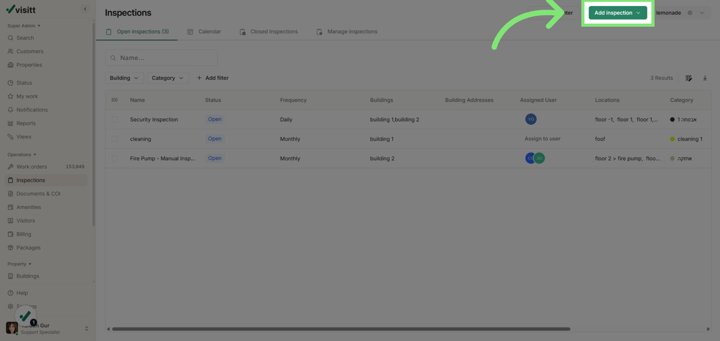
Create an inspection Manage assignments Open the inspection Record completion Handoff: Inspection evidence and status are recorded.
05 Manage maintenance across a network Network Maintenance → Site switcher
Actor: Regional manager and engineer
Select network scope Review maintenance Switch sites on mobile Review personal and group work Handoff: Regional staff can review work across sites.
06 Build views, reports and insight boards Reports / Insight Boards
Actor: Property and regional manager
Select the data and metric Configure filters and grouping Arrange report cards Review records or export Handoff: Manager reviews completion and exception patterns.
Decision points Does a failed inspection automatically create corrective work? How are overdue tasks escalated? Live-demo validation Scan equipment at a property; finish a PM and an inspection; trace any corrective record. Relevant recordings and animations Reserve a room from the tenant app Cove · screen-level example
Configure a reservable space, let a tenant choose a slot, then handle approval and charges.
Trigger A tenant needs a conference room or other amenity.
Result A requested or confirmed reservation is visible to tenant and property team.
Evidence 6 linked task segments · 4 video/animation references
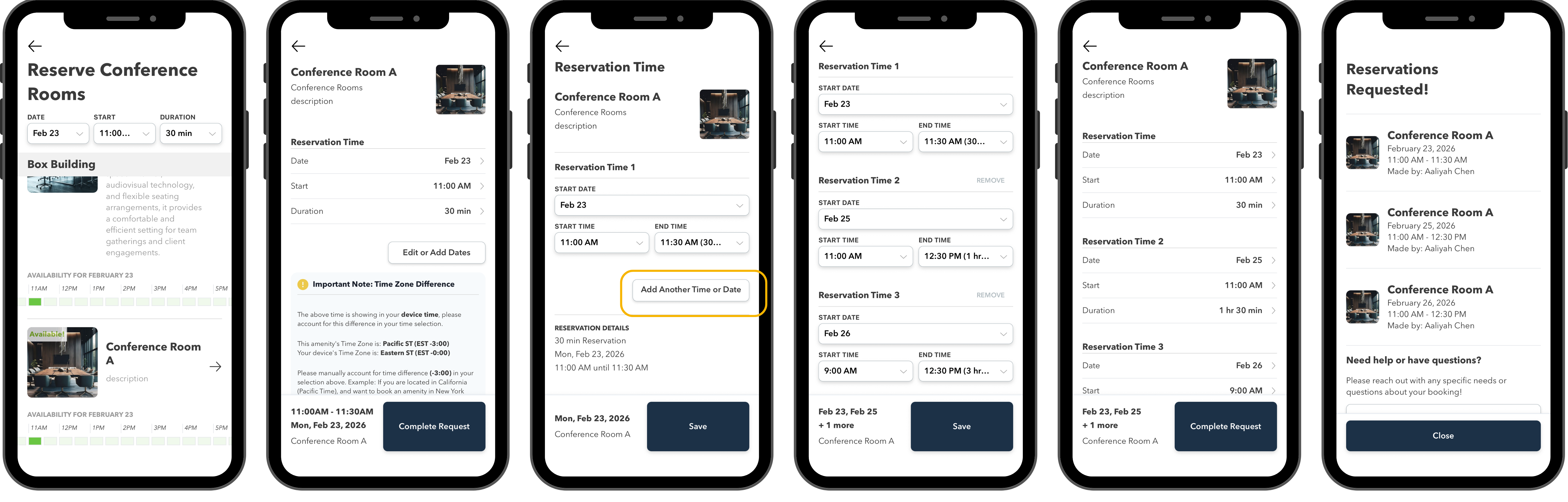
Screen-by-screen example These are the most concrete public screen sequences. The labels describe the documented action and do not imply a measured click count.
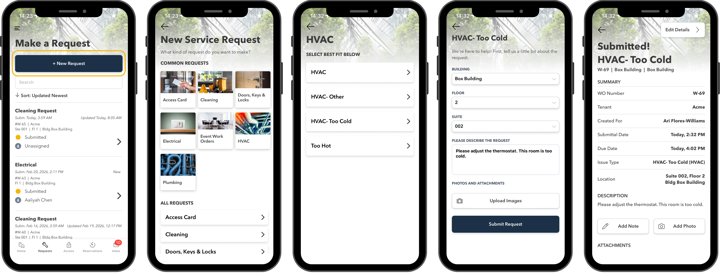
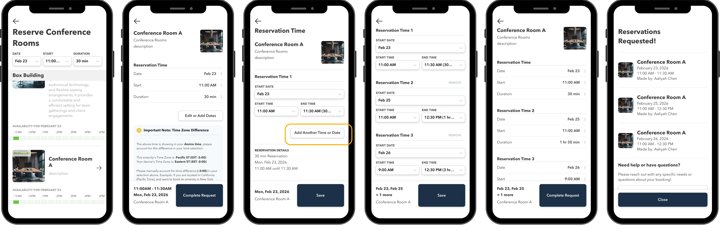
Cove tenant sequence — original composite, screens 1–6 from left to right. Availability → room details → edit date → add dates → review / Complete Request → Requested. Scroll horizontally to read the screens, or open the original. This image does not show a waiver, questionnaire or accounting completion.1. Entry and availability Tenant · Tenant home → Reserve Amenities quick action or Highlight → date, start and duration → available spaces.
Composite screen 1 shows availability and a room choice; the home-screen entry is documented rather than pictured here. Original source · Gallery
2. Space and time Tenant · Open space → review room details and availability → edit date/time; optional multi-date selection.
Composite screens 2–4 show room details, date editing and multiple dates. Original source · Gallery
3. Review and submit Tenant · Review the selected dates, then tap Complete Request (composite screen 5).
The composite does not show a questionnaire or waiver. Any conditional requirements need their own guide or live demonstration. Original source · Gallery
4. Result Tenant · View Requested or Confirmed reservation; each selected date is a separate record.
Composite screen 6 visibly shows Requested. A Confirmed result and the approval rules require the linked guide or a live demonstration. Original source · Gallery
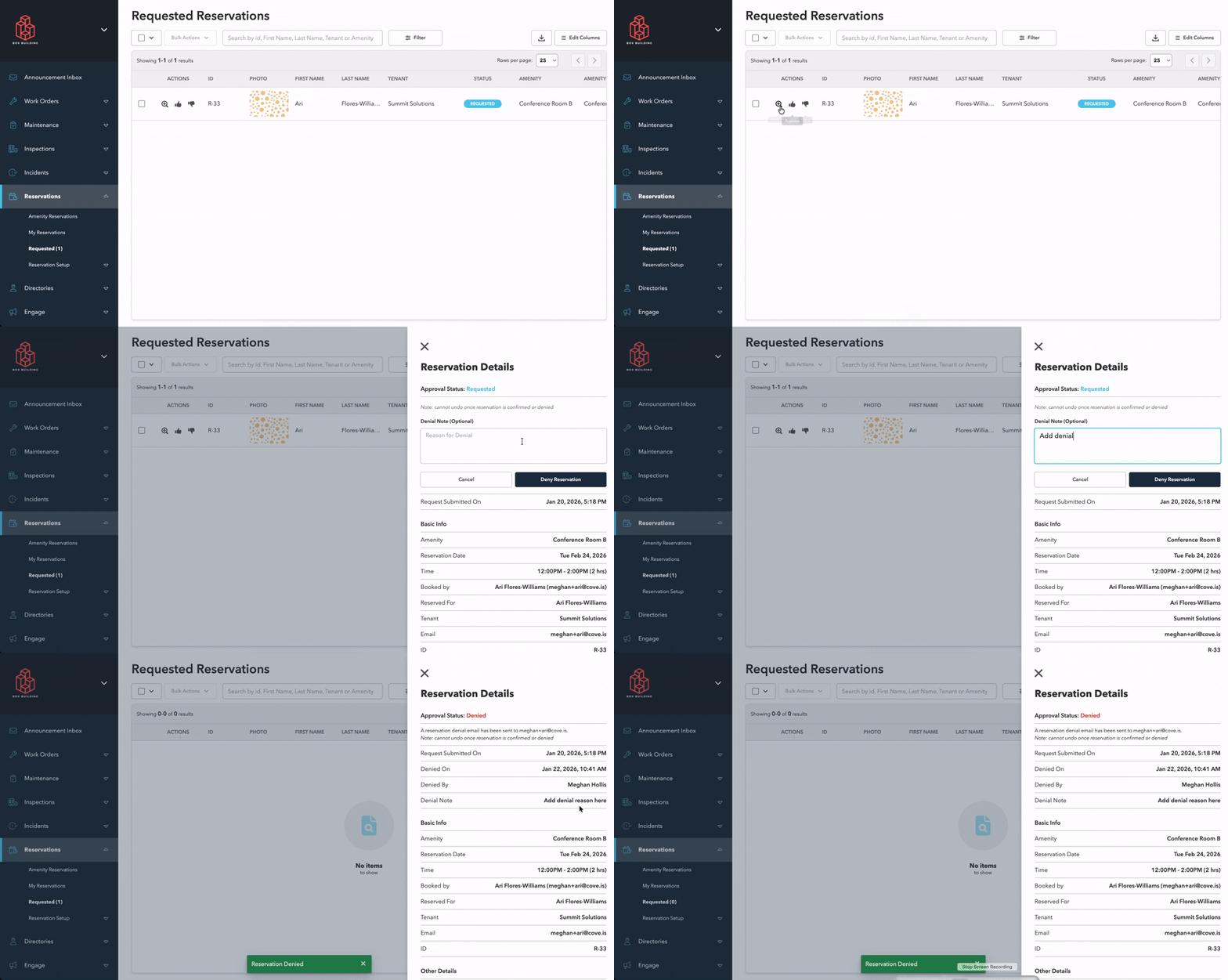
5. Approval branch Property team · Requested Reservations → Reservation Details → approve or deny, with optional reason.
Animated official help-center sequence; current layout may differ. Original source · Gallery
6. After booking Property team · Amenity Reservations → open record → review charge, reminder and linked work orders when configured.
Final payment/accounting posting is not established by the public UI evidence. Original source · Gallery
Left to right: reconstructed cross-module handoffs. Read the numbered evidence cards below to inspect each documented segment.
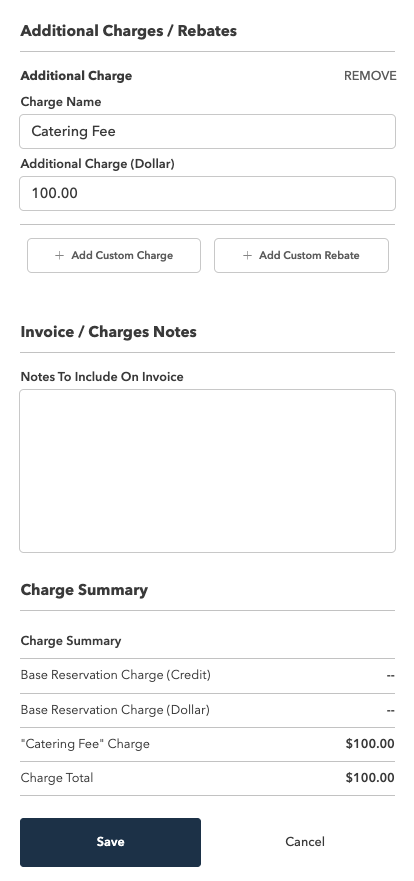
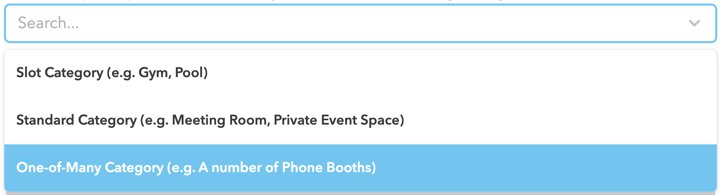
01 Configure amenity inventory and booking policies Reservation Setup → Amenity Setup → Category / Space / Policies
Actor: Property administrator
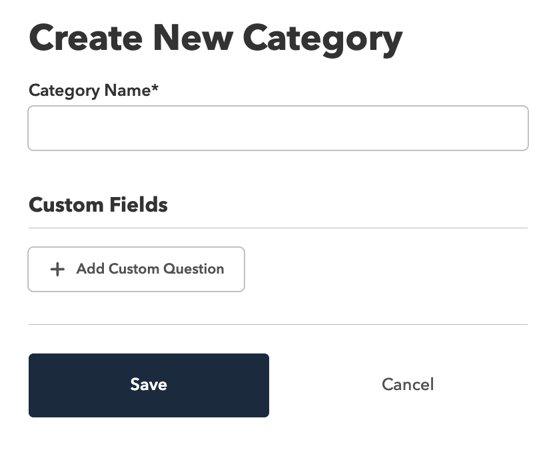
Create categories and spaces Define reservation policies Set seating options Configure reservation credits Handoff: Building team publishes capacity, schedule, rules and optional credits.
02 Configure the tenant home and content Tenant home → Reserve Amenities quick action / Highlight
Actor: Property administrator
Arrange app screens Add highlights Configure spotlights Set quick actions Handoff: The tenant reaches the booking entry point.
03 Reserve, approve and bill amenities Reserve Amenities → Availability → Space → Reservation Time → Complete Request
Actor: Tenant and property team
Choose a space and time Review the reservation Handle approval Review charges and reminders View tablet entry points Handoff: Each selected date becomes an individual reservation record.
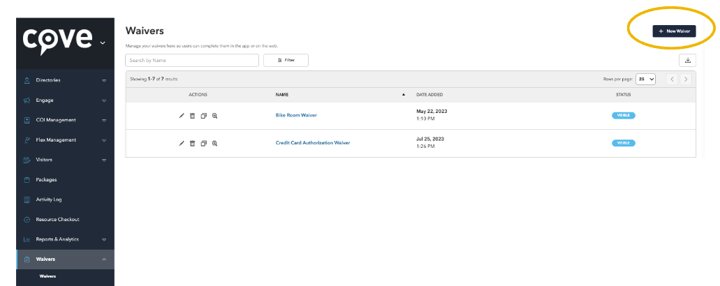
04 Configure waiver questions and capture responses Waivers / booking questions
Actor: Property team and tenant
Create the waiver Configure questions and signatures Set visibility and notifications Review responses Handoff: The tenant supplies required questions or signatures when configured.
05 Reserve, approve and bill amenities Requested Reservations → Reservation Details → Approve / Deny
Actor: Tenant and property team
Choose a space and time Review the reservation Handle approval Review charges and reminders View tablet entry points Handoff: Property team resolves a request when approval is required.
06 Reserve, approve and bill amenities Amenity Reservations → Billing / Reminders
Actor: Tenant and property team
Choose a space and time Review the reservation Handle approval Review charges and reminders View tablet entry points Handoff: Team reviews fees, reminders and any linked work orders.
Decision points Available slot? Approval required? Fee or credit applies? Edit or cancel after submission? Live-demo validation Show the tenant, approver and billed-booking views on one test reservation; verify time-zone behavior and linked work orders. Relevant recordings and animations Register arrivals and manage access Cove · related task branches
Prepare individual or group guests, handle check-in and connect related access and package tasks.
Trigger A tenant expects visitors or a delivery.
Result The arrival and any package handoff have a visible status.
Evidence 4 linked task segments · 4 video/animation references
Parallel task branches share the same operating context; they are not one enforced transaction.
01 Register and check in visitors Visitor Management → Register → Check-in
Actor: Tenant administrator and front desk
Configure visitor rules Register an individual or recurring visit Check in the visitor Review a watchlist match Handoff: Guest is expected and front desk can process arrival.
02 Manage group visits and bulk uploads Groups → Bulk Visitor Upload
Actor: Tenant administrator and front desk
Set up a group Prepare visitor rows Upload the list Review imported visitors Handoff: For events or larger visits, import multiple attendees.
03 Set up and revoke mobile credentials Mobile Credential Setup → Issue / Revoke
Actor: Tenant and property administrator
Enable the applicable access integration Add the mobile credential Review device setup Revoke a credential Handoff: Tenant access credential is a separate related path.
04 Record and manage delivered packages Packages → Register → Notify → Collect
Actor: Front desk and tenant
Register the package Associate its recipient Track notification and collection Handoff: Delivery reception and pickup run as a parallel front-desk path.
Decision points Individual or group arrival? Watchlist or access exception? Is credential issuance required for this person? Live-demo validation Register one visitor and one group; show front-desk check-in, notifications and access exception handling. Relevant recordings and animations Publish building content and measure response Cove · related task branches
Run tenant-facing campaigns, events, building displays and feedback collection.
Trigger Property team has an announcement or event to publish.
Result Tenant sees the content and the team can inspect participation or responses.
Evidence 5 linked task segments · 8 video/animation references
Parallel task branches share the same operating context; they are not one enforced transaction.
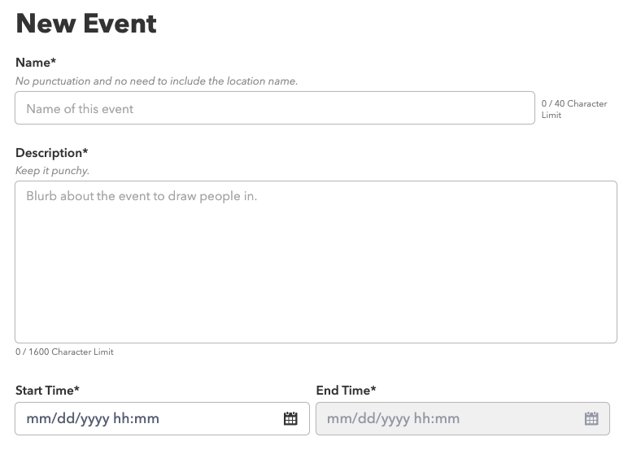
01 Publish events and manage participation Events → Create → RSVP → Check-in
Actor: Property team
Create the event Configure recurrence or RSVP slots Check in attendees Gather feedback Handoff: Publish an event and track attendance.
02 Compose, target and measure announcements Email Builder → Recipients → Send → Metrics
Actor: Property team
Select or build an email template Prepare recipients Send the announcement Inspect delivery and engagement metrics Handoff: Target an announcement and review delivery.
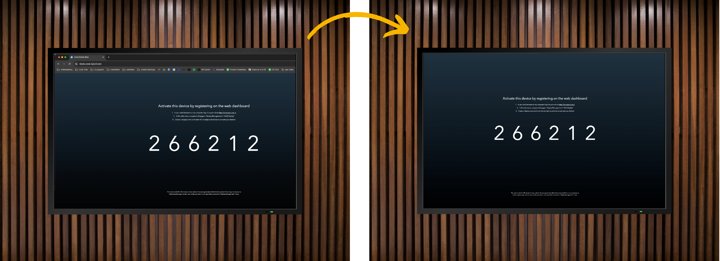
03 Configure building displays Displays → Layout → Device setup
Actor: Property administrator
Create display content Configure display layout Connect and troubleshoot the display device Handoff: Publish building display content as a separate channel.
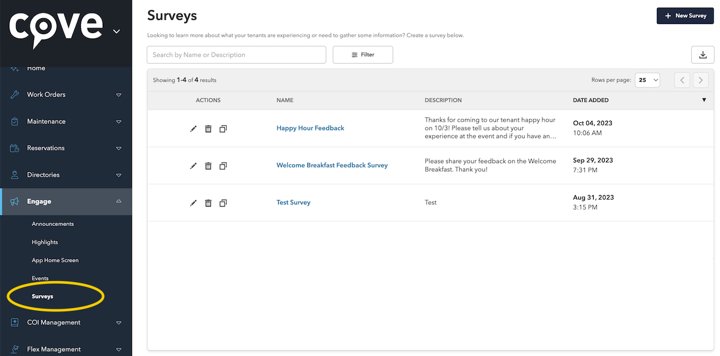
04 Create, distribute and review surveys Surveys → Audience → Send → Responses
Actor: Property team
Build the survey Select the audience Send it Review responses Handoff: Collect feedback from the chosen audience.
05 Build views, reports and insight boards Reports / Insight Boards
Actor: Property and regional manager
Select the data and metric Configure filters and grouping Arrange report cards Review records or export Handoff: Review engagement data where available.
Decision points Which tenant segments see the content? Is event attendance linked to survey response? Live-demo validation Publish one test event and announcement, then inspect tenant rendering and response records. Relevant recordings and animations Operate compliance, procurement and incident controls Cove · related task branches
Map related administrator tasks that share oversight but are not proven as one enforced workflow.
Trigger A COI, purchase request or incident needs handling.
Result Each record has an owner, state and review path.
Evidence 4 linked task segments · 6 video/animation references
Parallel task branches share the same operating context; they are not one enforced transaction.
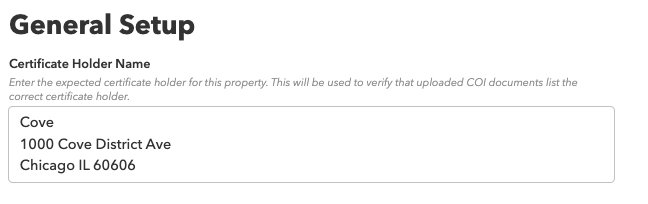
01 Configure, review and track insurance certificates COI → Requirements → Extraction Review → Compliance
Actor: Compliance administrator
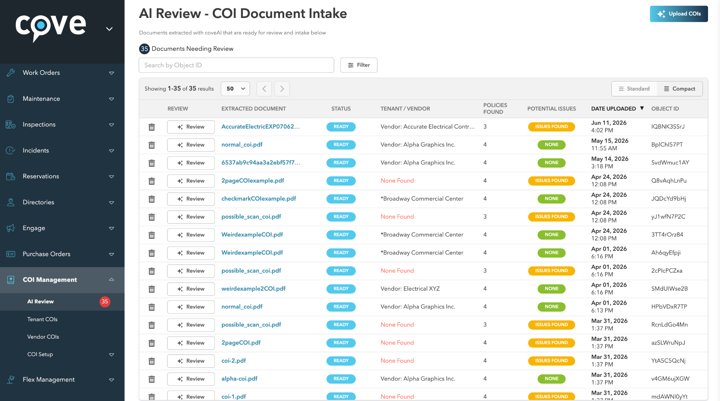
Configure requirements Upload and review extraction Manage coverage versions Track compliance and notifications Handoff: Review certificate evidence and exceptions.
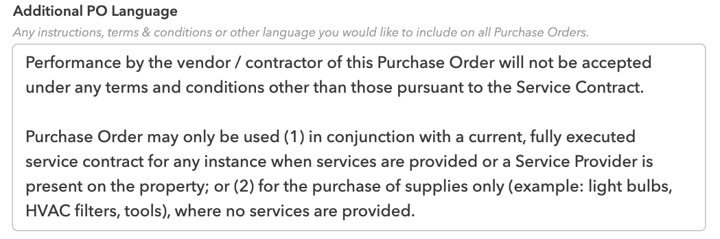
02 Create and manage purchase orders Purchase Orders → Request → Approval → Export
Actor: Property team and approver
Configure purchase orders Create a request Review approval behavior Export or print Handoff: Create and approve a purchase record.
03 Configure incident routing and review reports Incidents → Categories → Routing → Report
Actor: Property manager and operations team
Set categories and incident types Configure routing Open an incident report Review response and status Handoff: Route and review an incident report.
04 Inspect the activity log Activity Log
Actor: Property administrator
Open the activity log Filter events Inspect recorded changes Handoff: Inspect the resulting changes where recorded.
Decision points Who owns each exception? Do PO, incident and COI records actually link to one another? Live-demo validation Ask for a live exception trace, including permission checks and audit event IDs. Relevant recordings and animations Configure a property and onboard a tenant Visitt · connected task map
Create the property structure, access roles and tenant-facing entry point.
Trigger A new property or tenant is being launched.
Result Staff and tenant can enter the right property context.
Evidence 7 linked task segments · 1 video/animation references
Left to right: reconstructed cross-module handoffs. Read the numbered evidence cards below to inspect each documented segment.
01 Configure properties and operational scope Global Settings → Buildings / Properties
Actor: Global administrator
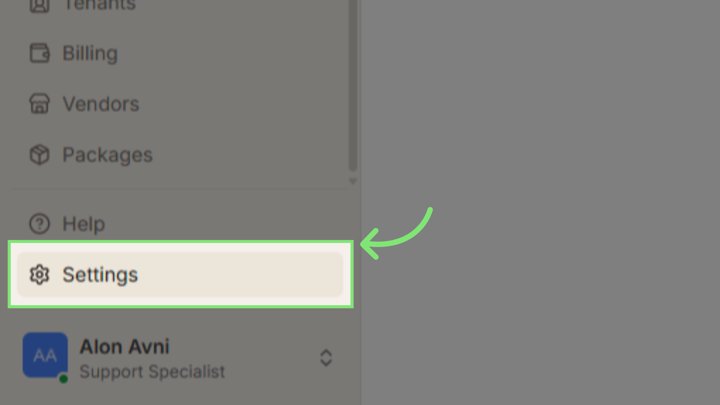
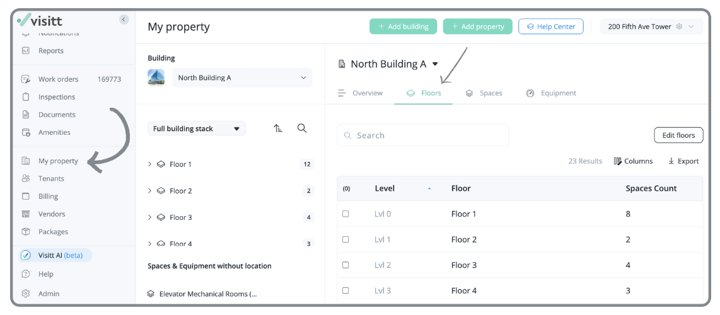
Open global settings Manage buildings and properties Set primary properties Inspect property structure Handoff: Define the operating scope.
02 Configure global categories and templates Global Categories → Local Categories → Templates
Actor: Property and global administrator
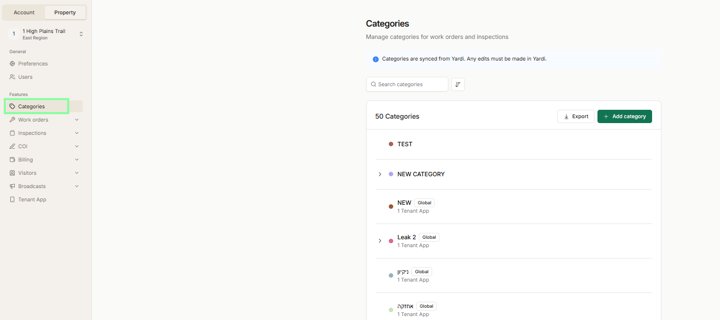
Create global categories Manage local categories Create or edit reusable templates Handoff: Standardize classifications and reusable work.
03 Invite users, assign access and hand off responsibilities Users → Invite → Property Access → Permissions
Actor: Property and global administrator
Invite a user Assign property access Configure permissions Transfer responsibilities Deactivate access Handoff: Grant staff the appropriate scope.
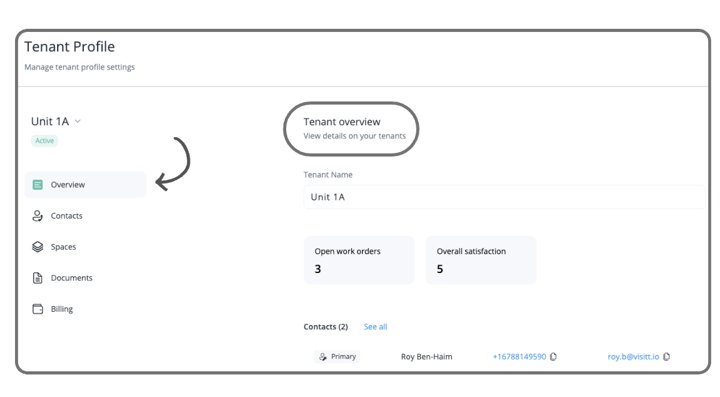
04 Manage tenant records, contacts and access Tenants → Contacts → Property association
Actor: Property team
Create or edit a tenant Associate contacts and properties Archive contacts Restore access when appropriate Handoff: Set the tenant directory and contacts.
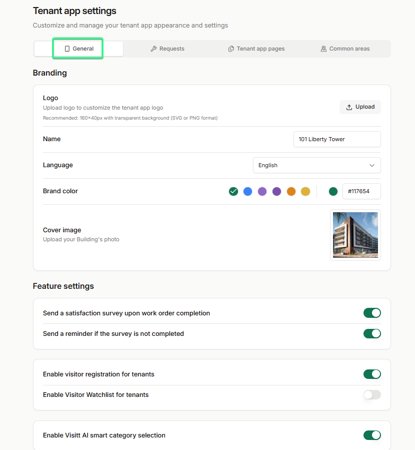
05 Configure tenant branding and content pages Tenant App Settings → Branding → Pages
Actor: Property administrator
Configure branding and app features Create pages and links Arrange tenant content Review the tenant presentation Handoff: Publish the tenant-facing property experience.
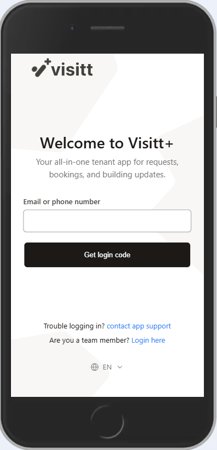
06 Tenant login, property switching and preferences Login code → Home → Property switcher
Actor: Tenant
Enter the login code Review the home screen Switch property context Set profile and notification preferences Handoff: Tenant enters the app and chooses property context.
07 Configure staff profile and notification settings Profile → Notifications / Preferences
Actor: Property team member
Log in Open the profile Configure personal details and preferences Review notification and permission controls Handoff: Staff member tunes personal settings.
Decision points What data is inherited globally versus overridden by a property? Can a tenant see only their assigned locations? Live-demo validation Launch a sandbox property, invite one manager and tenant, and verify effective access. Relevant recordings and animations Turn a tenant issue into completed, billable work Visitt · connected task map
Trace intake, work-order ownership, field updates, tenant approval, accounting transfer and reporting.
Trigger Tenant submits an issue in Visitt+.
Result Completed work and eligible charges reach a visible export or sync state.
Evidence 8 linked task segments · 0 video/animation references
Left to right: reconstructed cross-module handoffs. Read the numbered evidence cards below to inspect each documented segment.
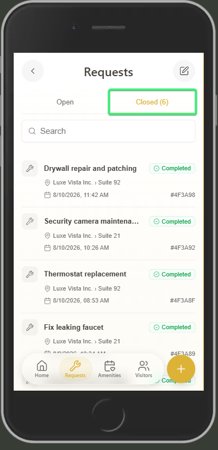
01 Submit and track tenant requests Visitt+ → + → New request → Open / Closed requests
Actor: Tenant
Create a request Add category, description and attachments Inspect open and closed requests Message the property team Handoff: Request is visible to the tenant and property team.
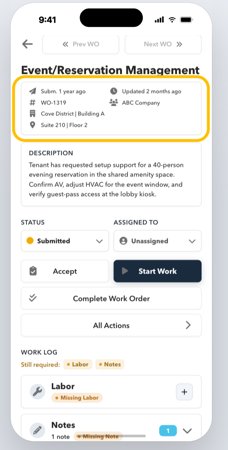
02 Create, accept and manage work requests Work Orders → Open → Detail / Acceptance
Actor: Property team
Create a work order Review and accept it Manage subscribers Inspect removal controls Handoff: Manager accepts and owns the operational ticket.
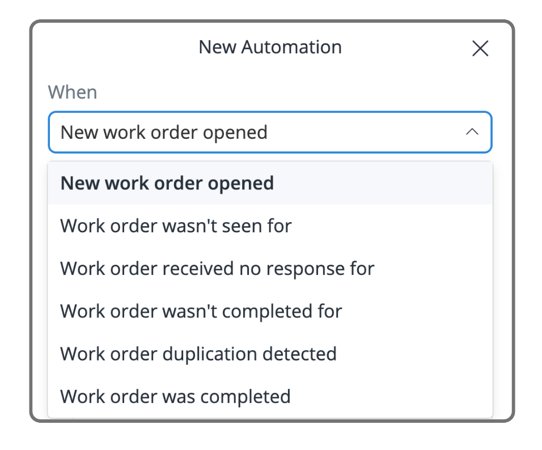
03 Configure routing and recurring requests Work Orders → Automation / Recurring Schedules
Actor: Operations manager
Choose a trigger Define conditions and actions Set default assignment Create recurring work Handoff: Rules assign people, priority or SLA where configured.
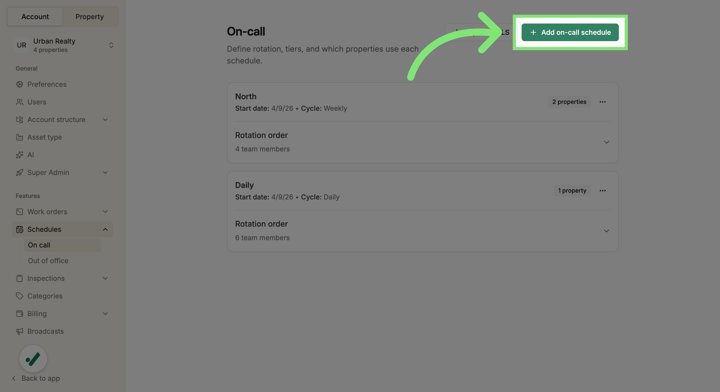
04 Create on-call schedules and arrange coverage On-call Schedule → Rotation / Replacement
Actor: Global administrator and on-call engineer
Define properties and rotation Assign tiers Request replacement coverage Review on-call assignment context Set out-of-office periods Handoff: Coverage handles after-hours assignment.
05 Complete work from the field My Work → Request detail → Updates → Complete
Actor: Engineer
Find assigned work Open request context Record updates Complete the work Review visibility troubleshooting Handoff: Engineer records work and status.
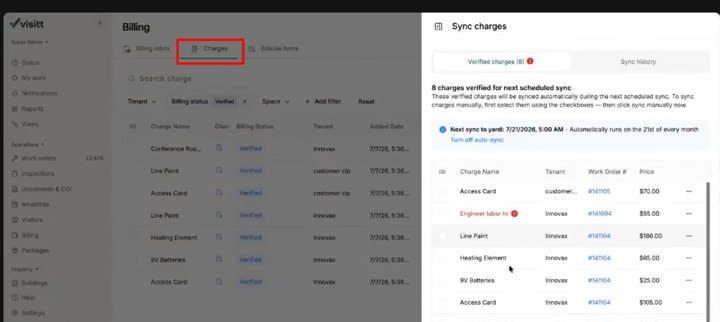
06 Approve charges and verify accounting transfer Billable Items → Tenant Approval → Sync / Export
Actor: Property manager, tenant approver and accounting
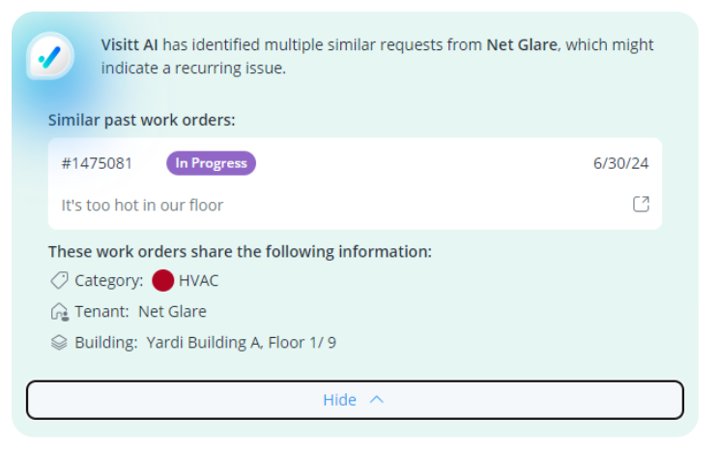
Add billable items Request tenant approval Verify completed work Queue eligible charges for synchronization Inspect export and synchronization states Handoff: Manager and accounting review eligible charges and transfer state.
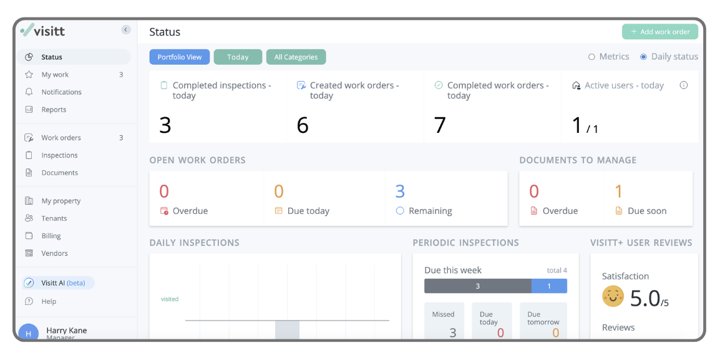
07 Use portfolio status, reports and shared views Reports → Views → Export
Actor: Property and regional manager
Review status metrics Inspect operational reports Define a saved view Configure sharing and export Handoff: Portfolio team examines completion and cost patterns.
08 Inspect AI assistance in operational workflows Work-order AI assistance
Actor: Property team and engineer
Review related-request suggestions Inspect title and category assistance Review writing assistance Inspect certificate analysis Handoff: Related-request, title, category or writing assistance is reviewed in context.
Decision points Awaiting acceptance or auto-assigned? On-call coverage needed? Tenant approval required? Did the accounting system acknowledge the export? Live-demo validation Use a billable tenant request and trace IDs from tenant chat through posted accounting entry; public evidence stops at export/sync state. Complete an inspection and correct a missed task Visitt · connected task map
Set up assets and a scheduled inspection, verify field presence and deal with exceptions.
Trigger A scheduled inspection is due.
Result A completed or reopened inspection has an auditable reason and any corrective work is tracked.
Evidence 6 linked task segments · 4 video/animation references
Left to right: reconstructed cross-module handoffs. Read the numbered evidence cards below to inspect each documented segment.
01 Manage spaces, equipment and lifecycle information Spaces / Equipment → QR context
Actor: Property manager and engineer
Manage floors and spaces Add equipment Record lifecycle fields Open QR-linked context Handoff: Define the location and equipment being checked.
02 Design inspections and require on-site verification Inspections → Template → Tasks / Locations / QR requirement
Actor: Operations manager
Define the inspection Add tasks and locations Set order and schedule Require a QR scan where appropriate Handoff: Design the route and verification rules.
03 Complete, review and reopen inspections Open Inspections → Task detail → Complete / Reopen
Actor: Engineer and operations manager
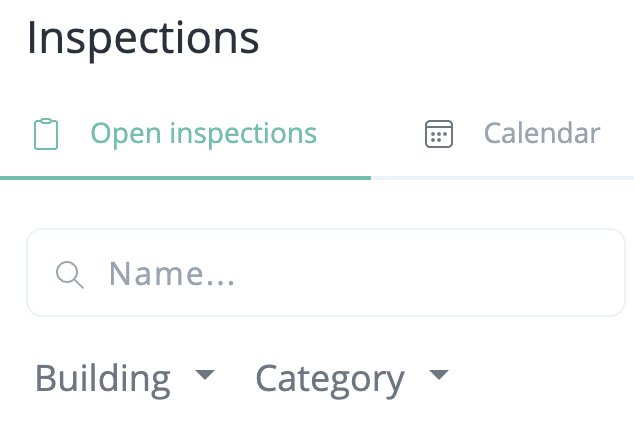
Open scheduled inspections Record task completion Inspect closed records Reopen an eligible missed task; record a late-completion reason when finishing Handoff: Engineer completes tasks; manager may reopen an eligible missed item.
04 Create, accept and manage work requests Inspection → New Work Order → Finish inspection → Work Orders
Actor: Property team
Create a work order Review and accept it Manage subscribers Inspect removal controls Handoff: The Visitt inspection guide says a work order started during an inspection is officially created after the inspection is finished.
05 Complete work from the field My Work → Updates → Complete
Actor: Engineer
Find assigned work Open request context Record updates Complete the work Review visibility troubleshooting Handoff: Engineer closes any related corrective ticket.
06 Use portfolio status, reports and shared views Reports / Shared Views
Actor: Property and regional manager
Review status metrics Inspect operational reports Define a saved view Configure sharing and export Handoff: Manager reviews missed and late work.
Decision points QR scan required? What happens when the inspection is missed? Does the corrective work order appear only after Finish inspection? Live-demo validation Run one on-time and one missed inspection; show reopen reason and the corrective work-order linkage after completion. Relevant recordings and animations Book a room and prepare it for use Visitt · screen-level example
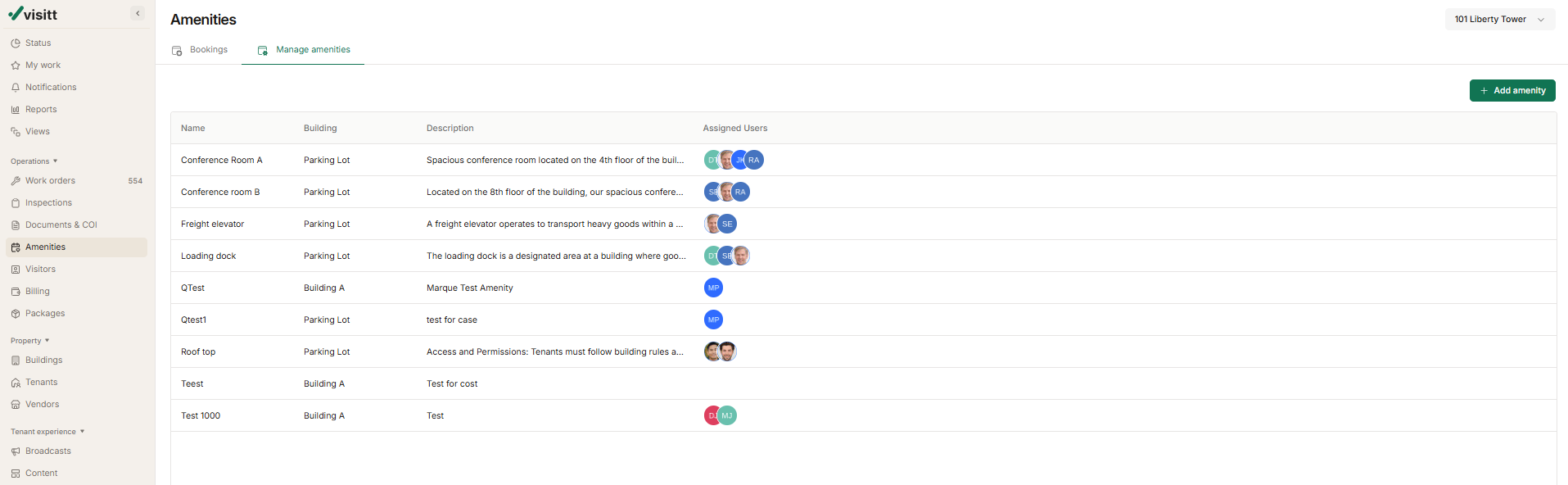
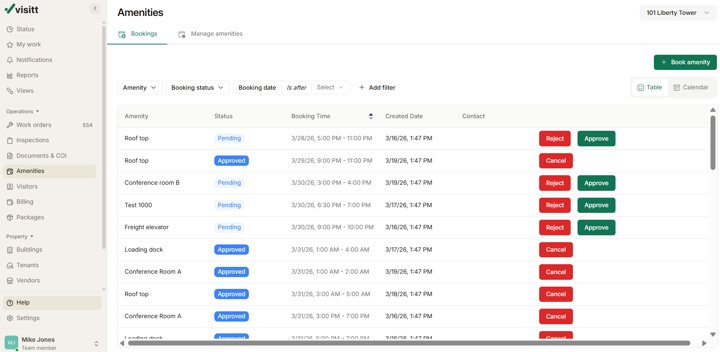
Configure an amenity, let the tenant book it, and show the manager's approval, work-order and billing paths.
Trigger A tenant wants a reservable room or resource.
Result Tenant sees booking state, property team handles it, and preparation work is completed.
Evidence 6 linked task segments · 1 video/animation references
Screen-by-screen example These are the most concrete public screen sequences. The labels describe the documented action and do not imply a measured click count.
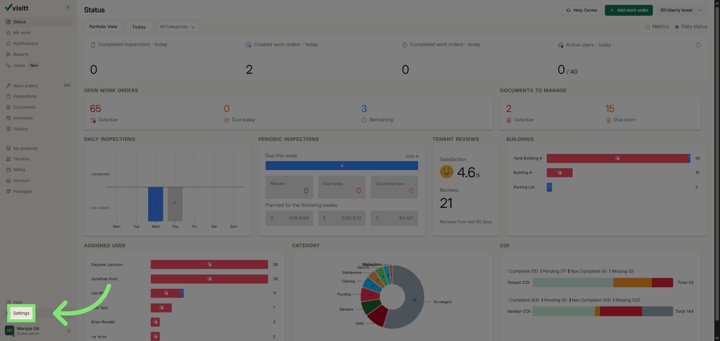
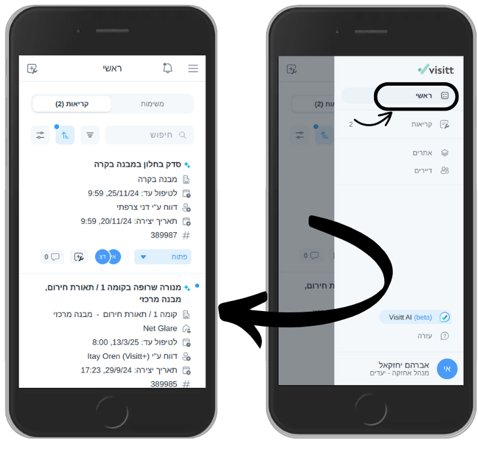
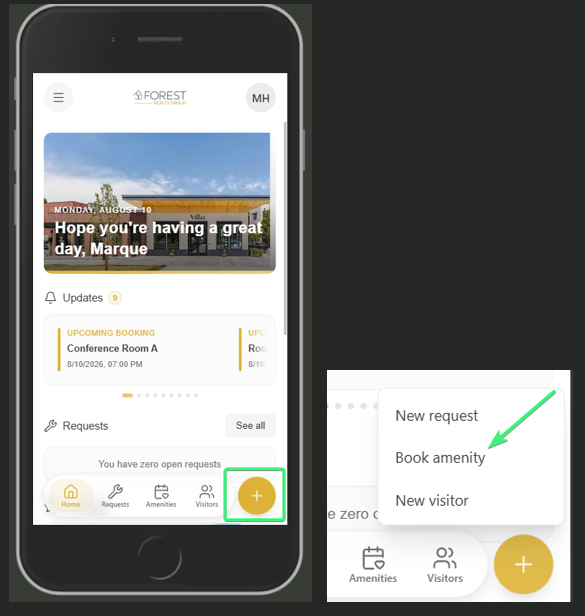
1. Entry Tenant · Visitt+ home → yellow + → Book amenity.
Official help-center screenshot. Original source · Gallery
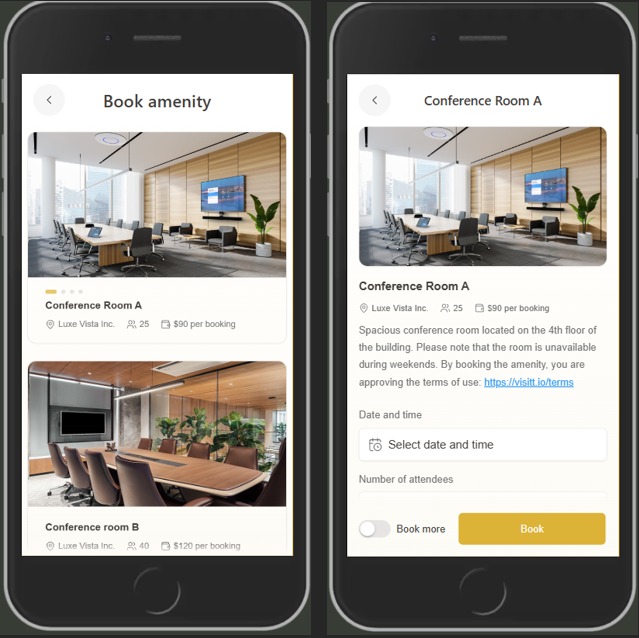
2. Space and form Tenant · Choose a space → review image, capacity and price → select date/time and enter required details → Book.
Official help-center screenshot; specific fields vary by property. Original source · Gallery
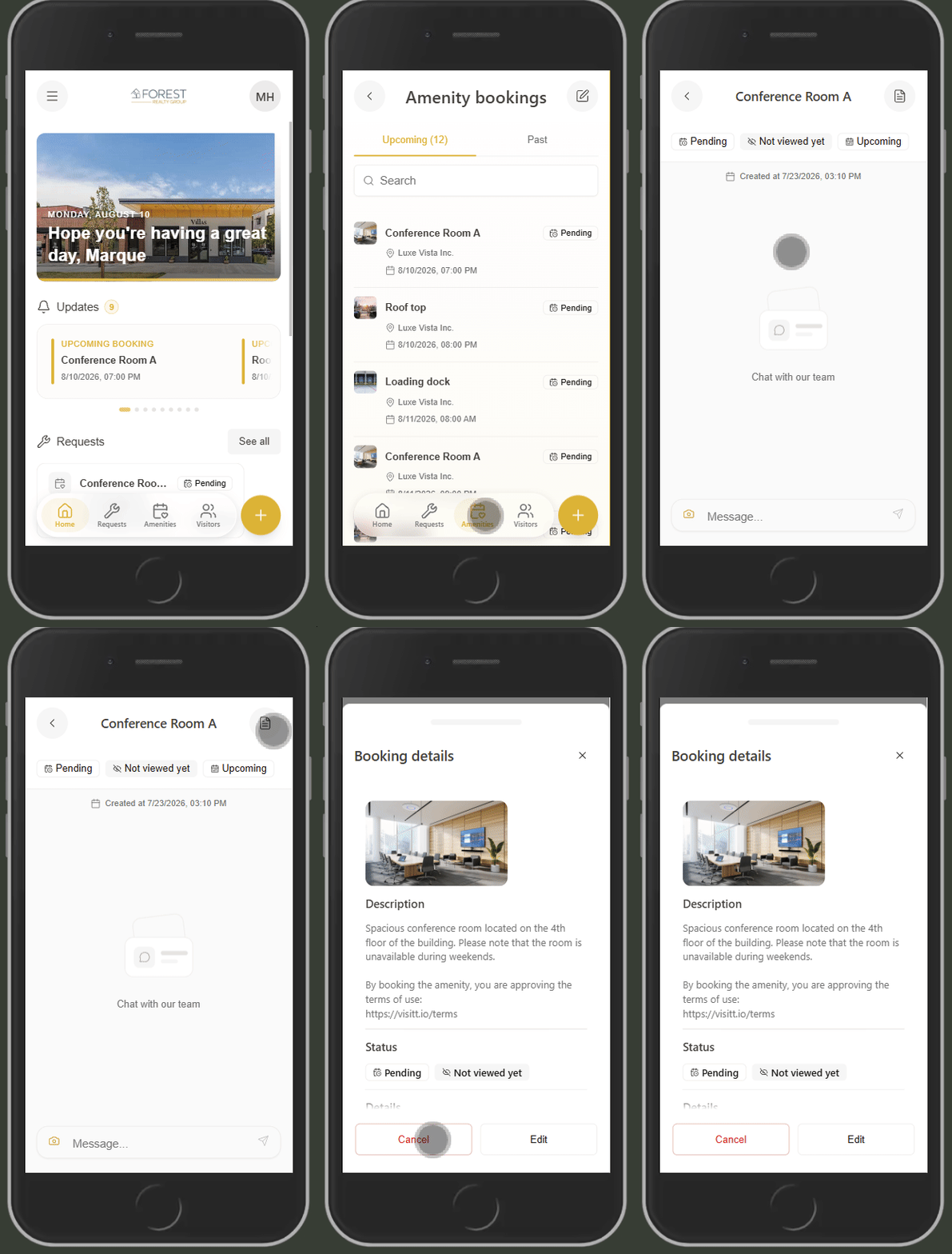
3. Booking status Tenant · Amenities → booking list → open booking; see status and chat with the building team.
Official animated help-center UI shows later booking views, not the creation tap sequence. Original source · Gallery
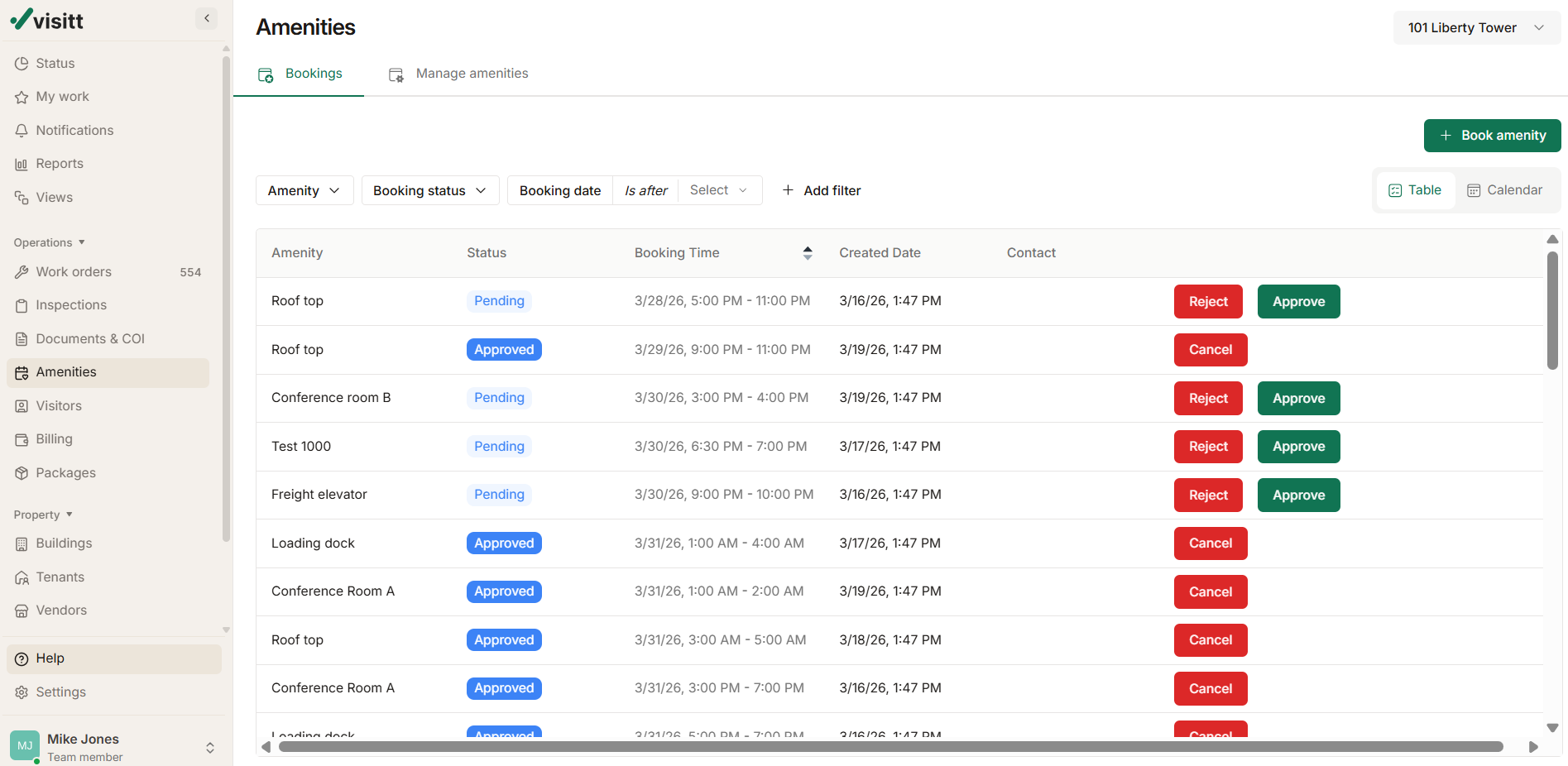
4. Approval branch Property team · Amenities → Bookings → approve, reject, edit or cancel; switch to calendar if needed.
Documented manager guide; exact tenant notification handoff should be checked. Original source · Gallery
5. Preparation and charge Property team · Open the work order triggered by the booking → complete preparation; inspect billable charge/export state where configured.
Work-order trigger is documented; complete accounting handoff is vendor claim plus analytical join. Original source · Gallery
Left to right: reconstructed cross-module handoffs. Read the numbered evidence cards below to inspect each documented segment.
01 Configure and reserve amenities Amenities → Manage Amenities → Rules / Pricing
Actor: Tenant and property team
Review amenity settings Select the space and time Submit a booking Inspect booking details and communication Handoff: Property manager sets capacity, slots, cost, hours and booking questions.
02 Tenant login, property switching and preferences Visitt+ home → + → Book amenity
Actor: Tenant
Enter the login code Review the home screen Switch property context Set profile and notification preferences Handoff: Tenant opens the creation path.
03 Configure and reserve amenities Book amenity → Space → Date and time → Notes → Book
Actor: Tenant and property team
Review amenity settings Select the space and time Submit a booking Inspect booking details and communication Handoff: Booking appears under Amenities with its status.
04 Configure and reserve amenities Amenities → Bookings → Approve / Reject / Edit
Actor: Tenant and property team
Review amenity settings Select the space and time Submit a booking Inspect booking details and communication Handoff: Manager handles the pending request; the animated UI illustrates later booking views.
05 Create, accept and manage work requests Work Orders → Amenity preparation record
Actor: Property team
Create a work order Review and accept it Manage subscribers Inspect removal controls Handoff: Official manager guide says a booking creates a work order for preparation.
06 Approve charges and verify accounting transfer Billable item / export state
Actor: Property manager, tenant approver and accounting
Add billable items Request tenant approval Verify completed work Queue eligible charges for synchronization Inspect export and synchronization states Handoff: Vendor marketing says bookings flow to billing; exact ledger handoff needs a live demonstration.
Decision points Is the slot available? Is approval needed? Does a charge appear before or after approval? Who completes the setup work order? Live-demo validation Book a paid room in a sandbox account; follow the same booking ID through approval, preparation work and accounting export. Relevant recordings and animations Handle a tenant's visitors, packages and building updates Visitt · related task branches
Show parallel tenant-app tasks around a typical on-site day.
Trigger A visitor, package or building notice needs handling.
Result Tenant receives the relevant invite, pickup alert or broadcast.
Evidence 4 linked task segments · 2 video/animation references
Parallel task branches share the same operating context; they are not one enforced transaction.
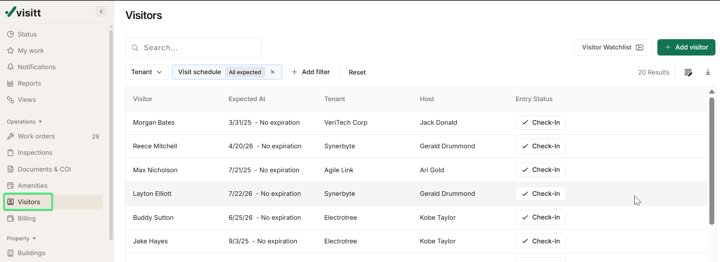
01 Invite visitors and review entry controls Visitt+ → New visitor → Scheduled visitors
Actor: Tenant and front desk
Create a visitor invitation Inspect scheduled visitors Manage arrival records Review watchlist controls Handoff: Tenant pre-registers a visitor; front desk manages arrival.
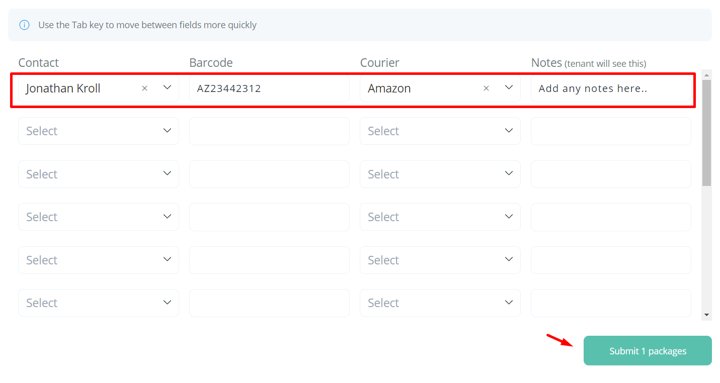
02 Track package delivery and collection Packages → Record → Notify → Collect
Actor: Front desk and tenant
Record a package Associate the tenant or contact Review collection status Handoff: Front desk records delivery and tenant confirms pickup.
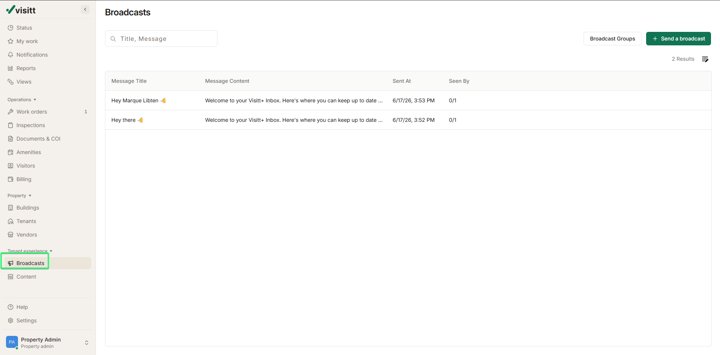
03 Send broadcast messages to tenants Broadcasts → Audience / Channel → Preview / Send
Actor: Property team
Create the broadcast Select recipients and channels Preview and send Review the tenant message entry point Handoff: Property team publishes a building update.
04 Tenant login, property switching and preferences Visitt+ home → Messages / Preferences
Actor: Tenant
Enter the login code Review the home screen Switch property context Set profile and notification preferences Handoff: Tenant receives content in the chosen property context.
Decision points Does a watchlist match require manual review? Which channel actually delivered the broadcast? Live-demo validation Demonstrate visitor QR arrival, package e-signature and one targeted broadcast in the same tenant account. Relevant recordings and animations Manage vendor insurance and operational documents Visitt · related task branches
Track vendor scope, certificate requirements and document expiry as related compliance tasks.
Trigger A vendor is engaged or a certificate nears expiry.
Result Compliance reviewer sees the current evidence and outstanding exceptions.
Evidence 5 linked task segments · 0 video/animation references
Parallel task branches share the same operating context; they are not one enforced transaction.
01 Manage property and global vendor records Vendors → Property links → Verification
Actor: Property and global administrator
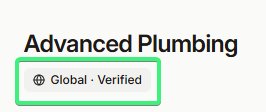
Create or find a vendor Link properties Upgrade or merge records Review verification and property-specific compliance Handoff: Identify the vendor and affected properties.
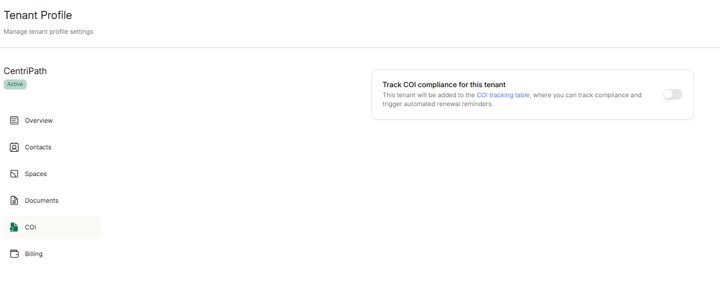
02 Set requirements and review tenant or vendor COIs COI → Requirements → Analysis → Exceptions
Actor: Compliance administrator
Configure tracking and requirements Upload certificate evidence Review analysis Configure reminders and exceptions Handoff: Review tenant or vendor coverage and reminders.
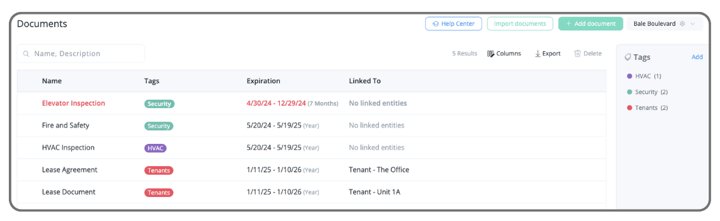
03 Manage operational documents Documents → Upload → Context / Expiry
Actor: Property team
Upload a document Set its context and expiry Validate its status Remove a document when appropriate Handoff: Maintain related operational evidence.
04 Use portfolio status, reports and shared views Reports / Shared Views
Actor: Property and regional manager
Review status metrics Inspect operational reports Define a saved view Configure sharing and export Handoff: Review status across the portfolio.
05 Inspect AI assistance in operational workflows COI analysis assistance
Actor: Property team and engineer
Review related-request suggestions Inspect title and category assistance Review writing assistance Inspect certificate analysis Handoff: AI-supported analysis is a claimed control; exception resolution remains to validate.
Decision points Which documents are required for each vendor? Can an expired COI block dispatch? Who approves an AI exception? Live-demo validation Create an expiring certificate and show reminders, exception review, access rules and audit history. How to use these maps Use each journey to plan a competitor demo, compare actor handoffs, and identify the next proof point. Treat a related-task branch as a set of adjacent jobs, not a single product-enforced transaction. A missing public video or screen is an evidence gap, not proof that a feature is absent.
Full video and animation index · Original flow catalog · Image provenance