Skip to content
Product evidence / Workflow referenceDownload Markdown

How Cove and Visitt work

*AI-generated recommendations for discussion. These are not Nick’s recommendations or approved JLL/PRISM guidance.

Look up a product workflow, inspect its controls and exceptions, and follow the evidence into the UI library.

58 workflow references · 16 with reviewed configuration details · 42 with AI-extracted details (not reviewed) · 304 indexed help articles. Public documentation snapshot: September 13, 2026; AI-extracted details use articles captured September 28, 2026.

This page searches the saved reference by words and a small synonym list. It does not generate a new answer. Outlines organize source material; detailed notes cover specific documented behavior. Neither is an authenticated product test. Use the original guide for exact controls, prerequisites and newer changes. A detail not addressed here remains unknown; do not infer a missing capability.

Results are relevant references, not proof that every part of your question is answered. Read the limits and dated sources. For competitive judgments, use the claim register.

Matched jobs for a live demo

These pair the closest public Cove and Visitt flows for a fair side-by-side comparison. They do not establish equal scope or a product winner; compare the same configured use case in a live demo.

Launch access

Add the right user to the right property and confirm the tenant view.

Ask in the demo: Which permissions are inherited, delegated and revoked when tenancy ends?

Workflow references

Cove / Users & permissions · AI-extracted details + outline

Invite users and assign access

Role: Property administrator

Starts at
Directory → Add users / bulk upload → Roles
Ends when
Review access
Evidence
AI-extracted controls / exceptions (not reviewed); 9 UI assets, 1 video

Cove documents this as a workflow for property administrator. The source sequence covers create or import users, select roles, send invitations, then review access.

  1. Create or import users
  2. Select roles
  3. Send invitations
  4. Review access

AI-extracted, not reviewed: Claude extracted the notes below from the cited help articles as captured on September 28, 2026. No person has reviewed them; check the source before relying on one.

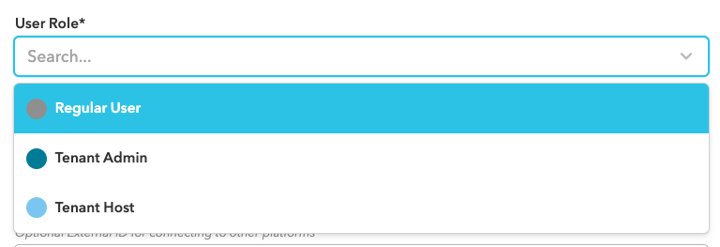
Documented behavior: Users can be added one at a time (first name, last name, company, login email and role), by CSV bulk upload, or by self-enrollment through a tenant's email domain. Self-enrolled users always start as Regular Users and lose access when they lose that work email.

Adding Users · Manually Adding A User

Exception / edge case: Bulk upload, for Building Admins and Building Managers, fails unless tenant names exactly match the directory, including case and symbols, and roles use exact codes such as tenant-admin. Headers must not change. A preview shows new, cross-site and skipped users with reasons, and no invitation messages are sent.

Bulk User Upload & Formatting Guide

Documented behavior: Building Admins can configure every module; Building Managers differ mainly in not configuring Work Orders. Engineering Managers configure maintenance, Security and Reservation Managers cover visitors and bookings, Tenant Admins can submit work orders and register visitors, Tenant Hosts only register guests, and Regular Users can do neither.

User Roles

Exception / edge case: Regular users with dashboard access receive no dashboard login code until they first sign in through the mobile app. At sites with an access control integration, users also need a matching profile in that system.

Adding Users

Inspect 9 linked UI assets →

Connected journeys: Launch a building and invite its tenant team

All linked sources and dates (5)

Stable agent record: workflow:cove-user-onboarding

Cove / Directory & tenancy · AI-extracted details + outline

Manage tenants, leases and offboarding

Role: Property administrator

Starts at
Directory → Tenant organizations → Leases
Ends when
Offboard the tenant
Evidence
AI-extracted controls / exceptions (not reviewed); 18 UI assets

Cove documents this as a workflow for property administrator. The source sequence covers create an organization, associate people and leases, update tenancy, then offboard the tenant.

  1. Create an organization
  2. Associate people and leases
  3. Update tenancy
  4. Offboard the tenant

AI-extracted, not reviewed: Claude extracted the notes below from the cited help articles as captured on September 28, 2026. No person has reviewed them; check the source before relying on one.

Documented behavior: Building Admins and Building Managers add leases on a tenant's Leases tab with start date, end date or a Month-to-Month flag, billing lease code, floors and suites, one record per suite. Properties with the RentRoll integration get leases created and updated nightly from the file instead.

Managing Tenant Leases

Documented behavior: A work order takes the billing lease code of the lease linked to its suite, falls back to the billing ID on the tenant profile, and otherwise gets none, which can block billing verification and Yardi exports. The code is fixed when the ticket is created or last saved; re-saving re-evaluates it.

Managing Tenant Leases

Exception / edge case: Archive ended leases rather than delete them: two active leases on one suite can apply the wrong code. RentRoll creates month-to-month leases from blank end dates only if Allow Month-to-Month Lease Creation is on, and archives them when they drop out of the file.

Managing Tenant Leases

Limitation / verification point: Cove's tenant offboarding article repeats its staff-suspension guidance (suspend rather than delete, to keep history), and the article on adding tenant organizations is no longer public, so tenant-organization creation and closure steps are not recorded here.

Best Practices for Offboarding Tenants · Adding and Managing Tenant Organizations

Inspect 18 linked UI assets →

Connected journeys: Launch a building and invite its tenant team

All linked sources and dates (3)

Stable agent record: workflow:cove-tenant-lifecycle

Cove / Users & permissions · AI-extracted details + outline

Tenant administrator user management

Role: Tenant administrator

Starts at
Tenant Admin User Manager
Ends when
Review offboarding
Evidence
AI-extracted controls / exceptions (not reviewed); 11 UI assets

Cove documents this as a workflow for tenant administrator. The source sequence covers find a person, update access, suspend access, then review offboarding.

  1. Find a person
  2. Update access
  3. Suspend access
  4. Review offboarding

AI-extracted, not reviewed: Claude extracted the notes below from the cited help articles as captured on September 28, 2026. No person has reviewed them; check the source before relying on one.

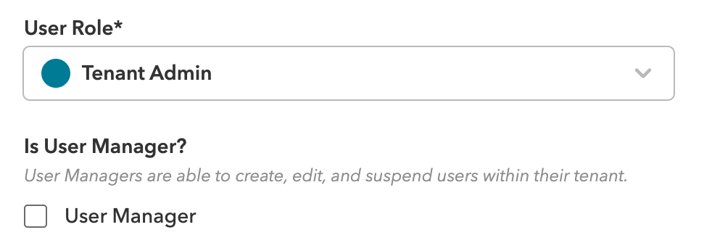
Permissions: A Tenant Admin can manage users only after a Building Admin or Building Manager ticks User Manager on their profile. User Managers can add users, switch roles between Regular User, Tenant Host and Tenant Admin, appoint other User Managers and suspend or reactivate accounts.

Tenant Admin User Manager

Documented behavior: Property teams can switch off tenant user management with Disable Tenant User Management in Property Info, which hides the User Manager option so all user changes go through the property team. A new user needs only first name, last name, login email and role.

Tenant Admin User Manager

Exception / edge case: Suspending logs the user out immediately and blocks the app, dashboard and mobile building access, but keeps waivers, reservations, attendance and work order history attached for reporting. Suspended users are hidden from the directory unless filtered for, and can be suspended in bulk.

Suspend or Unsuspend Users · Best Practices for Offboarding Users

Documented behavior: Before suspending a staff member, Cove advises removing them from work groups and routing rules for work orders, maintenance and inspections, and from notification emails in Property Info, amenities and Visitor Setup, so assignments and alerts are not lost.

Best Practices for Offboarding Users

Inspect 11 linked UI assets →

Connected journeys: Launch a building and invite its tenant team

All linked sources and dates (3)

Stable agent record: workflow:cove-tenant-user-admin

Cove / Property & portfolio setup · AI-extracted details + outline

Configure property structure and information

Role: Property administrator

Starts at
Buildings, floors, suites → Property Info → Resources
Ends when
Configure the web address
Evidence
AI-extracted controls / exceptions (not reviewed); 12 UI assets

Cove documents this as a workflow for property administrator. The source sequence covers define buildings and spaces, edit property information, publish resources, then configure the web address.

  1. Define buildings and spaces
  2. Edit property information
  3. Publish resources
  4. Configure the web address

AI-extracted, not reviewed: Claude extracted the notes below from the cited help articles as captured on September 28, 2026. No person has reviewed them; check the source before relying on one.

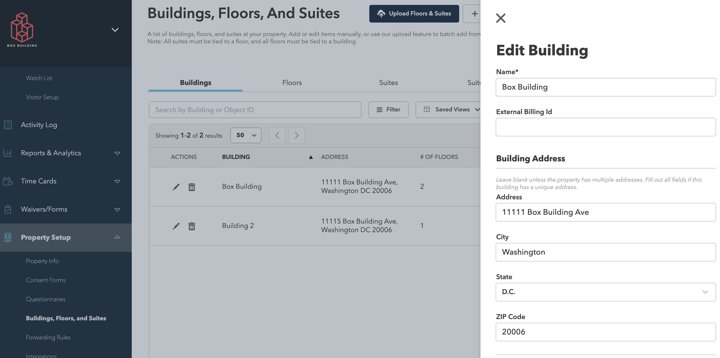
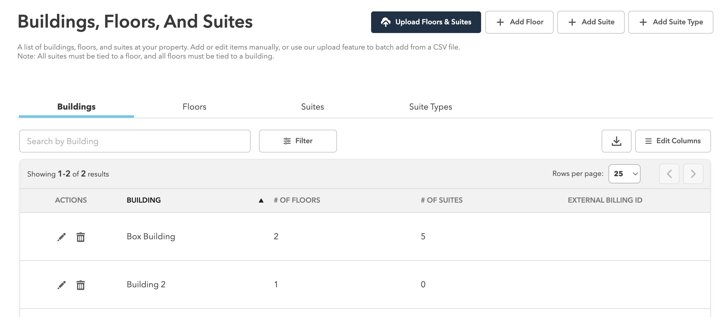
Documented behavior: Cove creates buildings during onboarding; property teams add floors, suite types and suites manually or by CSV, which creates but never updates records. Suite type visibility (Shared, Tenant or Internal) controls who can raise work orders in a suite and drives inspection routing.

Buildings, Floors, And Suites

Exception / edge case: Suites must be removed before their floor, and floors before their building. Deleting a suite removes it from tenants and future use but keeps past work. A separate building address makes visitor invitations show that building rather than the site address.

Buildings, Floors, And Suites

Documented behavior: Property Info holds timezone, currency, default amenity hours and closure dates, logos, notification emails, per-category email sender names, enrollment approval, profile-editing and tenant user management switches, and billing settings such as remit-to address, billing period and cross-site credit use.

Property Info

Exception / edge case: A closure date blocks new bookings on every reservable amenity for the whole day but does not cancel existing reservations; staff must review them. Building Admins and Managers can override closures.

Property Info

Documented behavior: The dashboard-only Resources page, enabled by Cove, shows property hours and PDF handbooks up to 20 MB, each visible to all tenants or chosen user tags. The site short name in Property Info sets the branded login addresses at manage.cove.is and mybuilding.cove.is.

Resources Page · Create a Custom URL for Your Web Dashboard

Inspect 12 linked UI assets →

Connected journeys: Launch a building and invite its tenant team

All linked sources and dates (4)

Stable agent record: workflow:cove-property-setup

Cove / Tenant app & content · AI-extracted details + outline

Configure the tenant home and content

Role: Property administrator

Starts at
App Screens → Highlights → Spotlights → Quick Actions
Ends when
Set quick actions
Evidence
AI-extracted controls / exceptions (not reviewed); 13 UI assets, 1 video

Cove documents this as a workflow for property administrator. The source sequence covers arrange app screens, add highlights, configure spotlights, then set quick actions.

  1. Arrange app screens
  2. Add highlights
  3. Configure spotlights
  4. Set quick actions

AI-extracted, not reviewed: Claude extracted the notes below from the cited help articles as captured on September 28, 2026. No person has reviewed them; check the source before relying on one.

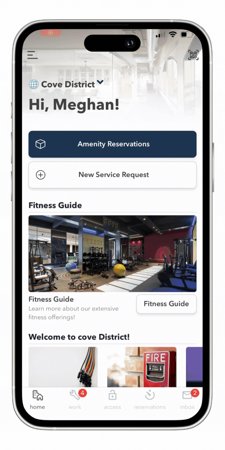
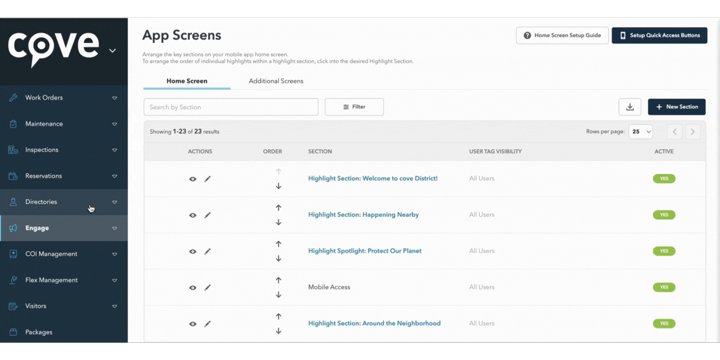
Documented behavior: The home screen is built from sections: Row sections show highlights as tiles, Spotlight sections show full-width carousels with an optional call-to-action button. A section can be hidden, and sections or individual highlights can be limited to chosen user tags.

Highlights: Creating & Managing Mobile Highlights · App Spotlights

Documented behavior: A highlight always has an image, title and description, and can add a web link, phone number, an inquiry form emailed to staff, or a link to an in-app feature. Highlights also feed building displays, and the highlight list can be exported to CSV.

Highlights: Creating & Managing Mobile Highlights

Exception / edge case: Additional app screens are invisible until linked from a home-screen highlight, and a highlight section can belong to only one screen. When a Spotlight section holds several highlights, the first one shown is random on each app load.

App Screens · App Spotlights

Documented behavior: Up to four quick action buttons can open an amenity booking, a new service request (optionally for one issue type), visitor management or an external link, optionally in the phone's browser. Each button is shown to all roles or to the internal team only.

Quick Action Buttons

Inspect 13 linked UI assets →

Connected journeys: Launch a building and invite its tenant team · Reserve a room from the tenant app

All linked sources and dates (5)

Stable agent record: workflow:cove-tenant-home

Cove / Work orders · AI-extracted details + outline

Create a service request

Role: Tenant and property team

Starts at
Tenant app / dashboard → Submit Work Order
Ends when
A submitted work-order record is available to the property team
Evidence
AI-extracted controls / exceptions (not reviewed); 11 UI assets, 1 video

Cove documents this as a workflow for tenant and property team. The source sequence covers select the request entry point, enter request details, attach context, then review the submitted record.

  1. Select the request entry point
  2. Enter request details
  3. Attach context
  4. Review the submitted record

AI-extracted, not reviewed: Claude extracted the notes below from the cited help articles as captured on September 28, 2026. No person has reviewed them; check the source before relying on one.

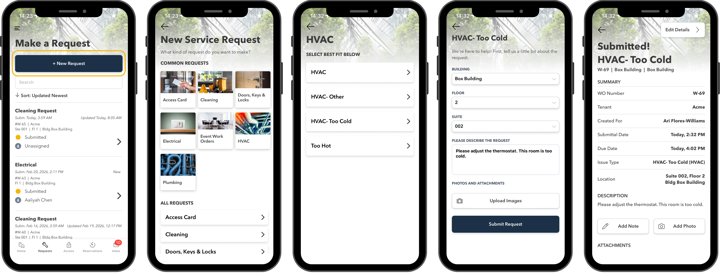
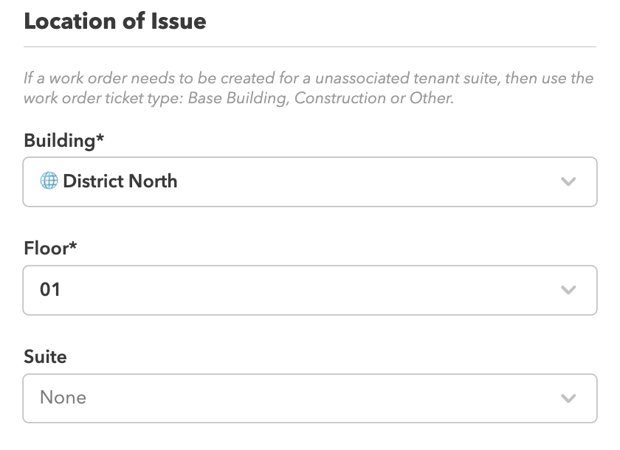
Documented behavior: Tenant Admins submit from the app's Requests tab or quick action and building staff from the Work tab or the dashboard's New Ticket. Buildings can require a due date or extra questions. Equipment can be linked only after choosing building and floor, and staff can set assignee, work groups and extra email recipients.

Submitting a Work Order

Limitation / verification point: Work order attachments accept JPG and PNG images, PDFs and office files, and MP4 video up to five minutes, with several files at once. The public work order form accepts images and PDFs but not video.

Submitting a Work Order · Public Work Orders

Documented behavior: Public work orders, set up with Cove's CSM or Support, let anyone without a Cove account submit after verifying their email with a one-time code. Requests follow normal routing; the submitter's contact details are written into the description and status emails go to the verified address, which staff can change.

Public Work Orders

Permissions: Building Admins and Building Managers configure the Work Order module and create recurring work orders. Tenant Admins and Regular Users can submit and track work orders only if the building has configured them to; users without the option need their admin to set up access.

Work Order Overview

Inspect 11 linked UI assets →

Connected journeys: Resolve a tenant request and create its charge

All linked sources and dates (3)

Stable agent record: workflow:cove-request-intake

Cove / Automation & staffing · Reviewed details + outline

Route, assign and escalate work

Role: Operations manager

Starts at
Work Orders → Assignments & Routing → Work Groups
Ends when
A routing rule or manager assigns the responsible work group and notifications
Evidence
Reviewed controls / exceptions; 24 UI assets, 1 video

Cove documents this as a workflow for operations manager. The source sequence covers configure routing, organize work groups, set escalation rules, then set notifications.

  1. Configure routing
  2. Organize work groups
  3. Set escalation rules
  4. Set notifications

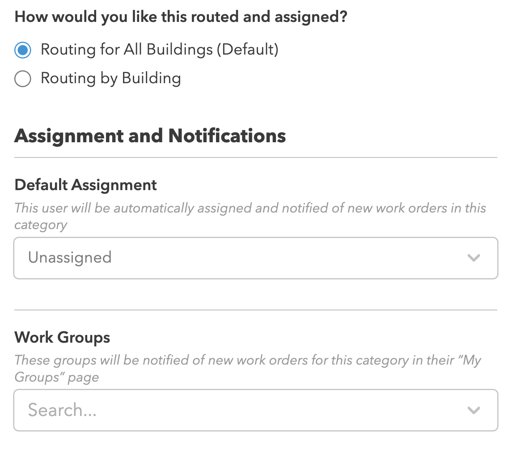
Documented behavior: Make team members assignable and set up work groups before configuring issue-type or category routing. Rules can use a default for all buildings or building-specific assignments within a campus.

Work Order Assignments and Routing

Limitation / verification point: The guide’s general rule says that when a default assignee and a work group are both selected, the assignee receives notifications while the group retains visibility. Some examples in the same article are inconsistent; verify the actual notification behavior in a demonstration.

Work Order Assignments and Routing

Inspect 24 linked UI assets →

Connected journeys: Resolve a tenant request and create its charge

All linked sources and dates (5)

Stable agent record: workflow:cove-dispatch

Cove / Work orders · Reviewed details + outline

Record field work and satisfy completion rules

Role: Engineer

Starts at
Mobile Work Order → Notes, labor, materials → Complete
Ends when
The work order reaches Complete or Closed after required fields are satisfied
Evidence
Reviewed controls / exceptions; 28 UI assets

Cove documents this as a workflow for engineer. The source sequence covers open assigned work, record notes, labor and materials, add travel where enabled, then resolve missing completion information.

  1. Open assigned work
  2. Record notes, labor and materials
  3. Add travel where enabled
  4. Resolve missing completion information

Documented behavior: Building admins can require labor hours, a note and/or mileage before completion. Mileage depends on Travel being enabled. Missing requirements block Complete or Closed transitions on web and mobile. Bulk completion evaluates each work order separately and reports the blocked records.

Work Order Completion Requirements

Inspect 28 linked UI assets →

Connected journeys: Resolve a tenant request and create its charge

All linked sources and dates (4)

Stable agent record: workflow:cove-field-work

Cove / Billing & accounting · AI-extracted details + outline

Estimate and bill tenant work

Role: Property team and tenant approver

Starts at
Work Order → Estimate / Billable Charges; then Tenant Invoices
Ends when
A tenant invoice is created from the reviewed billable work
Evidence
AI-extracted controls / exceptions (not reviewed); 30 UI assets, 2 videos

Cove documents this as a workflow for property team and tenant approver. The source sequence covers configure labor and material rates, review estimates, add charges, then create the tenant invoice.

  1. Configure labor and material rates
  2. Review estimates
  3. Add charges
  4. Create the tenant invoice

AI-extracted, not reviewed: Claude extracted the notes below from the cited help articles as captured on September 28, 2026. No person has reviewed them; check the source before relying on one.

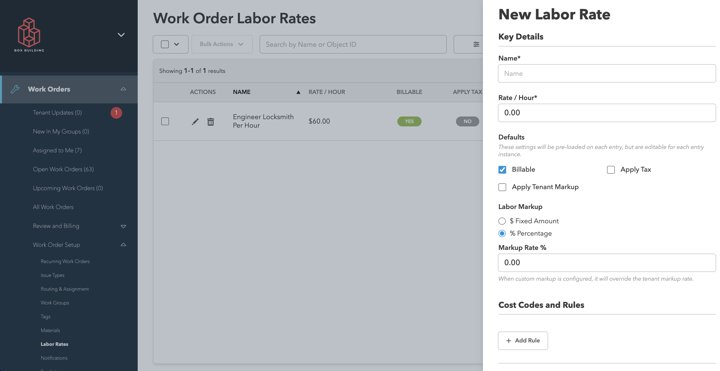
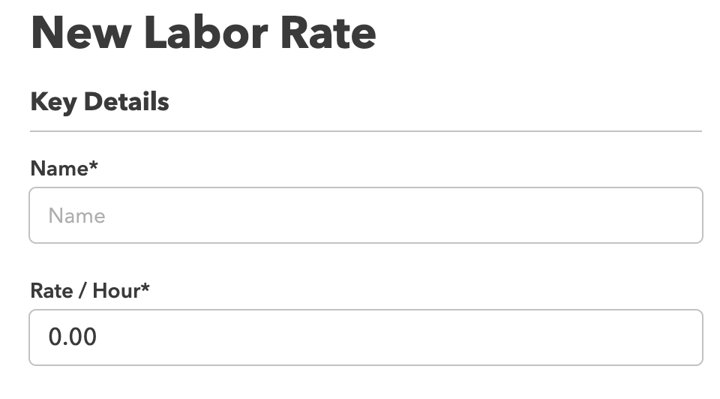
Permissions: Only Building Admins create labor rates and materials. Each carries defaults for billable, tax and tenant markup, an optional fixed or percentage markup that overrides the tenant rate, and cost code rules mapping base, markup or total amounts to GL accounts. Engineers can adjust lines on a work order.

Adding Labor Rates to Your Work Order Library · Adding Materials to Your Work Order Library

Documented behavior: Once labor or materials are on a work order, staff send an estimate from its Invoice tab with a note that appears in the tenant email and the activity log. The estimate becomes Proposed, and the tenant, notified by email and push, can accept it or request changes.

Work Order Estimates

Documented behavior: Work orders with charges move To Close, then Billing Verification, then Closed & Verified, and only verified ones are billed. Cove advises separating whoever adds charges from whoever verifies, and enabling restrictions so verification needs a lease code and cost rules, optionally locking later edits.

Adding Billable Charges & Creating Tenant Invoices

Documented behavior: Tenant statements are produced in Batch Reporting by verification date and can be stored, emailed internally or sent to tenant billing contacts. Single PDF invoices, overviews or statements can be exported from Closed & Verified, and reservation fees are added on the reservation or via a triggered work order.

Adding Billable Charges & Creating Tenant Invoices

Exception / edge case: Charges on a verified work order are corrected with Reverse Charges, which turns every amount negative, keeps the order Closed & Verified and logs one Charges Reversed event. Cove's audit checklist compares the tenant billing report with a billables breakdown to catch missing lease codes or unmapped items.

Adding Billable Charges & Creating Tenant Invoices

Inspect 30 linked UI assets →

Connected journeys: Resolve a tenant request and create its charge

All linked sources and dates (5)

Stable agent record: workflow:cove-chargeback

Cove / Automation & staffing · AI-extracted details + outline

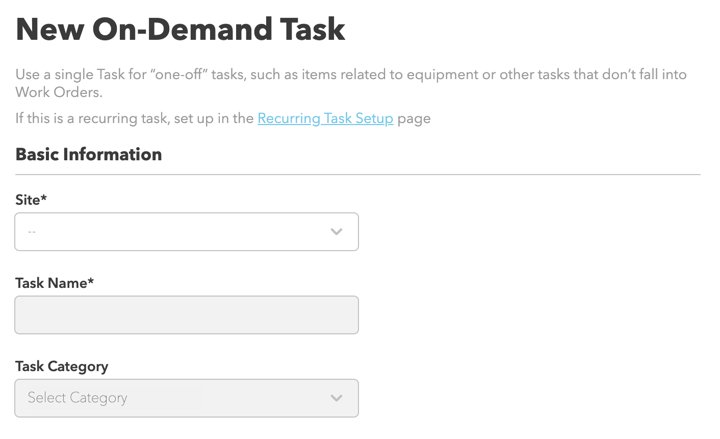
Schedule recurring work orders

Role: Operations manager

Starts at
Recurring Work Orders → Template / Schedule
Ends when
Configure when work opens
Evidence
AI-extracted controls / exceptions (not reviewed); 16 UI assets, 2 videos

Cove documents this as a workflow for operations manager. The source sequence covers create a recurring template, edit its recurrence, then configure when work opens.

  1. Create a recurring template
  2. Edit its recurrence
  3. Configure when work opens

AI-extracted, not reviewed: Claude extracted the notes below from the cited help articles as captured on September 28, 2026. No person has reviewed them; check the source before relying on one.

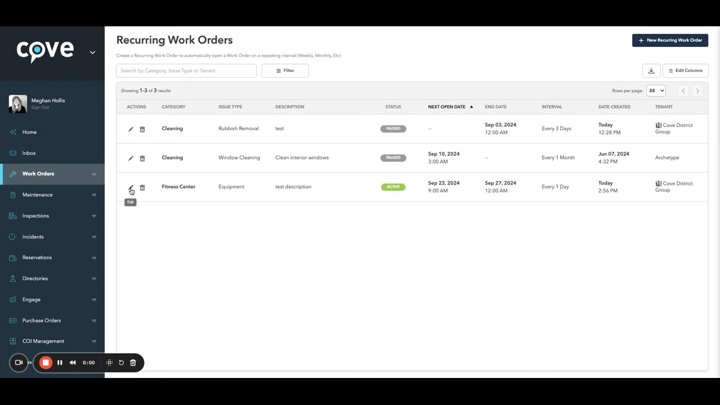
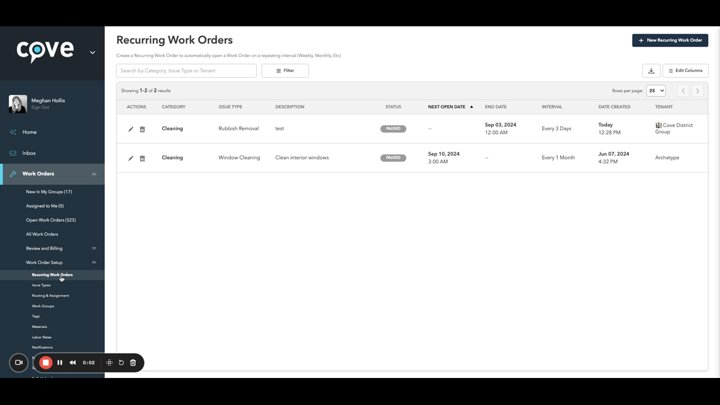
Documented behavior: Recurring work order templates are created from Work Order Setup with status, an interval in days, weeks, months or years, a next open date and an optional end date. Each occurrence fires as an ordinary work order and follows the normal category, issue-type and building routing rules.

Recurring Work Orders

Documented behavior: When dated work opens is set site-wide in General Setup (at creation, a set buffer before the due date, or on the due date) and can be overridden per issue type. The per-issue-type mode appears only when Collect Due Date? is checked. Notifications go out when work is scheduled and again when it opens.

Work Order Scheduling

Inspect 16 linked UI assets →

Connected journeys: Plan, inspect and close maintenance work

All linked sources and dates (2)

Stable agent record: workflow:cove-recurring-work

Cove / Maintenance & equipment · AI-extracted details + outline

Set up and execute preventive maintenance

Role: Engineer and operations manager

Starts at
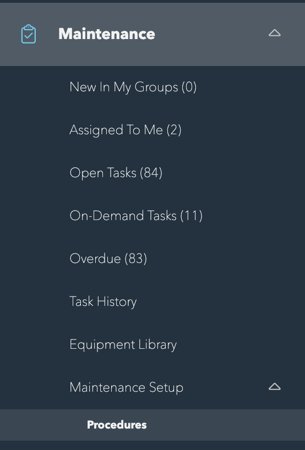
Maintenance → Equipment → Procedure → Task
Ends when
Review history
Evidence
AI-extracted controls / exceptions (not reviewed); 14 UI assets, 1 video

Cove documents this as a workflow for engineer and operations manager. The source sequence covers create equipment records, configure procedures and schedules, assign scheduled work, complete tasks, then review history.

  1. Create equipment records
  2. Configure procedures and schedules
  3. Assign scheduled work
  4. Complete tasks
  5. Review history

AI-extracted, not reviewed: Claude extracted the notes below from the cited help articles as captured on September 28, 2026. No person has reviewed them; check the source before relying on one.

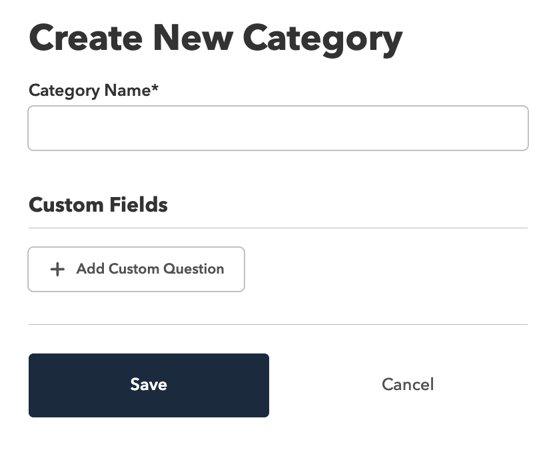
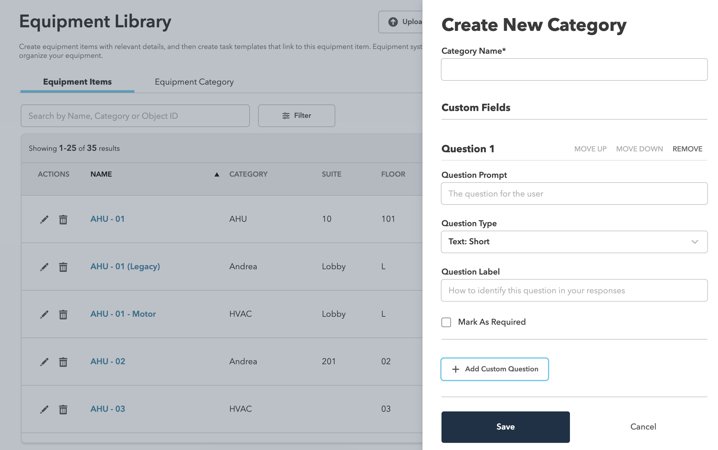
Permissions: Only Building Admins create, upload or delete equipment and categories, including bulk delete; engineers, security, building and engineering managers can view and edit records on the dashboard and mobile. Categories can carry custom fields that appear on every item and as table and export columns.

Equipment Libraries

Documented behavior: A task template combines equipment, schedules and steps, with a projection calendar. Procedures are shared step lists whose edits apply to every template using them. A template can have several schedules with different procedures or assignees, skip weekends, or run seasonally in selected months only.

Maintenance Task Templates, Procedures and Schedules · Seasonal Maintenance Schedules

Exception / edge case: Task progress saves automatically and tasks can be put on hold and resumed. Completing without every step requires a reason under Important Notes. Marking equipment inactive excludes it from maintenance schedules when they fire.

Completing Maintenance Tasks · Equipment Libraries

Documented behavior: Open tasks can be batch-assigned or batch-status-changed, for example to On Hold. Completed work is reviewed in Task History with search, filters and sorting, or per item under the equipment's All Task History.

Bulk Assigning and Editing Maintenance Tasks · Maintenance Task History

Inspect 14 linked UI assets →

Connected journeys: Plan, inspect and close maintenance work

All linked sources and dates (7)

Stable agent record: workflow:cove-maintenance

Cove / Maintenance & equipment · AI-extracted details + outline

Associate and scan equipment QR codes

Role: Engineer

Starts at
Equipment → Associate QR → Scan
Ends when
Open equipment context
Evidence
AI-extracted controls / exceptions (not reviewed); 8 UI assets, 2 videos

Cove documents this as a workflow for engineer. The source sequence covers associate a QR code, scan from the field, then open equipment context.

  1. Associate a QR code
  2. Scan from the field
  3. Open equipment context

AI-extracted, not reviewed: Claude extracted the notes below from the cited help articles as captured on September 28, 2026. No person has reviewed them; check the source before relying on one.

Documented behavior: QR codes or existing barcodes must be generated and attached to equipment before linking; any generator works, and Cove's CSM can help with bulk codes. The item must already exist in the equipment library.

Assigning QR Codes to Equipment

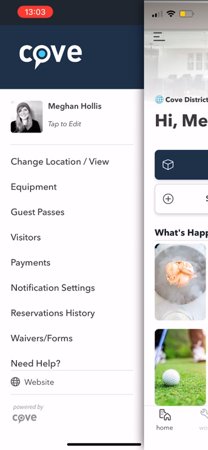
Documented behavior: Linking and scanning happen in the mobile building app with camera access: open Equipment, pick the item and tap Link Asset Tracking Code to scan it. Later, Scan on the Equipment page opens the item directly, for example to create an on-demand task.

Assigning QR Codes to Equipment

Inspect 8 linked UI assets →

Connected journeys: Plan, inspect and close maintenance work

All linked sources and dates (1)

Stable agent record: workflow:cove-equipment-qr

Cove / Property & portfolio setup · AI-extracted details + outline

Manage maintenance across a network

Role: Regional manager and engineer

Starts at
Network Maintenance → Site switcher
Ends when
Review personal and group work
Evidence
AI-extracted controls / exceptions (not reviewed); 9 UI assets

Cove documents this as a workflow for regional manager and engineer. The source sequence covers select network scope, review maintenance, switch sites on mobile, then review personal and group work.

  1. Select network scope
  2. Review maintenance
  3. Switch sites on mobile
  4. Review personal and group work

AI-extracted, not reviewed: Claude extracted the notes below from the cited help articles as captured on September 28, 2026. No person has reviewed them; check the source before relying on one.

Documented behavior: Choosing the network in the dashboard's site selector shows Maintenance across all sites, with each task labelled by site. A new task first asks for the site, then uses only that site's data. Batch reassignment lists only users with access to every site in the selection.

Maintenance at the Network Level

Limitation / verification point: At network level, equipment can be viewed and edited but must be created at the site. Only Building Admins can create network procedures, scoped to all or selected sites, and those procedures can no longer be edited at site level.

Maintenance at the Network Level

Documented behavior: Building Engineers assigned to several properties automatically get a Snapshot tab when they select the network in the mobile app: sites listed alphabetically with work order and maintenance counts for me, my groups and all, filterable by type. An AI site summary was still listed as coming soon.

Mobile Engineer Experience

Inspect 9 linked UI assets →

Connected journeys: Plan, inspect and close maintenance work

All linked sources and dates (2)

Stable agent record: workflow:cove-network-work

Cove / Inspections · AI-extracted details + outline

Create, assign and complete inspections

Role: Operations manager and engineer

Starts at
Inspections → Create → Assign → Complete
Ends when
Inspection completion is recorded
Evidence
AI-extracted controls / exceptions (not reviewed); 13 UI assets, 1 video

Cove documents this as a workflow for operations manager and engineer. The source sequence covers create an inspection, manage assignments, open the inspection, then record completion.

  1. Create an inspection
  2. Manage assignments
  3. Open the inspection
  4. Record completion

AI-extracted, not reviewed: Claude extracted the notes below from the cited help articles as captured on September 28, 2026. No person has reviewed them; check the source before relying on one.

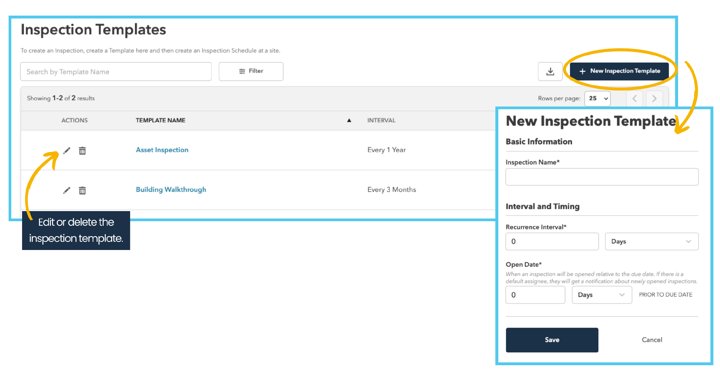
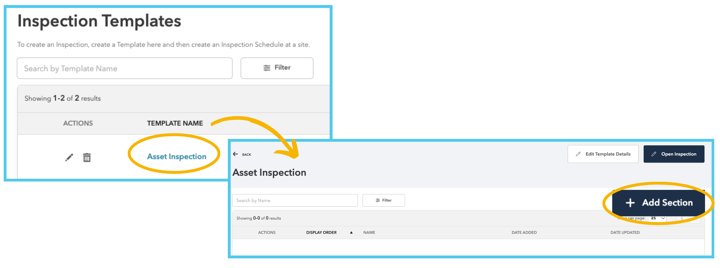
Documented behavior: Inspections are built in three stages: a template with a default recurrence interval and an open-date buffer before the due date, then sections of grouped questions, then an inspection schedule that activates it. The setup articles list the forms' fields only at a high level.

Creating Inspections

Documented behavior: Inspections are listed by assignment (New In My Group, Assigned To Me, Open) with the statuses To Do, In Progress and Completed. Staff complete one section at a time, Start Section then Complete Section, from the dashboard or the mobile Work tab.

Managing Inspections · Viewing and Completing Inspections

Limitation / verification point: Cove's own articles disagree on mobile support: some still label mobile inspections as coming soon, while the completion article (updated July 2026) describes completing them in the mobile app. Confirm current mobile behavior before relying on it.

Creating Inspections · Viewing and Completing Inspections

Inspect 13 linked UI assets →

Connected journeys: Plan, inspect and close maintenance work

All linked sources and dates (4)

Stable agent record: workflow:cove-inspections

Cove / COI · Reviewed details + outline

Configure, review and track insurance certificates

Role: Compliance administrator

Starts at
COI → Requirements → Extraction Review → Compliance
Ends when
The coverage set and compliance state are reviewed
Evidence
Reviewed controls / exceptions; 18 UI assets

Cove documents this as a workflow for compliance administrator. The source sequence covers configure requirements, upload and review extraction, manage coverage versions, then track compliance and notifications.

  1. Configure requirements
  2. Upload and review extraction
  3. Manage coverage versions
  4. Track compliance and notifications

Documented behavior: Cove separates configured insurance requirements, document extraction and reviewer correction. Its extraction guide retains manual questions and property-specific matching; a reviewed document must be associated with the correct tenant or vendor.

COI Extraction: AI Review

Documented behavior: Each tenant or vendor has one current coverage set and historical sets. Creating a new set archives the previous version with its compliance snapshot; editing current coverage changes that version in place. Current coverage drives compliance and notifications. Separate tabs expose past coverage, documents, requirements, notes and activity.

Coverage Sets and Coverage Versioning

Inspect 18 linked UI assets →

Connected journeys: Operate compliance, procurement and incident controls

All linked sources and dates (4)

Stable agent record: workflow:cove-coi

Cove / Purchase orders · Reviewed details + outline

Create and manage purchase orders

Role: Property team and approver

Starts at
Purchase Orders → Request → Approval → Export
Ends when
Export or print
Evidence
Reviewed controls / exceptions; 13 UI assets, 2 videos

Cove documents this as a workflow for property team and approver. The source sequence covers configure purchase orders, create a request, review approval behavior, then export or print.

  1. Configure purchase orders
  2. Create a request
  3. Review approval behavior
  4. Export or print

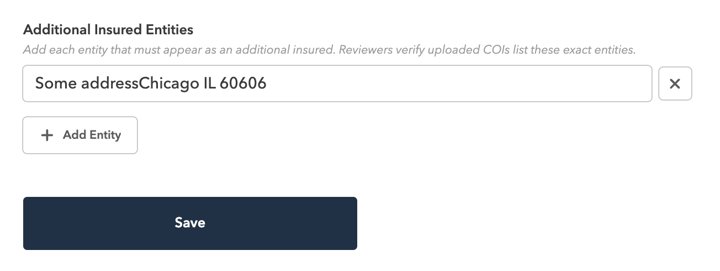
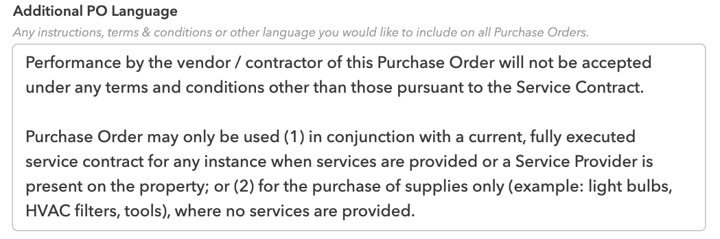
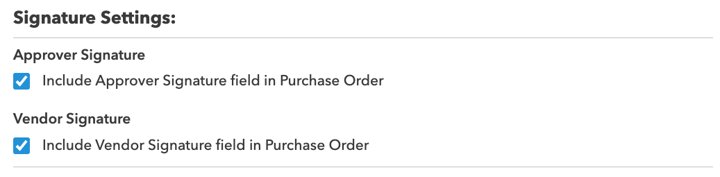
Documented behavior: Purchase Order General Setup controls shipping and billing addresses, additional document language, required approver or vendor signatures and approval-notification recipients. These settings are applied to generated purchase-order PDFs.

Purchase Order Setup

Inspect 13 linked UI assets →

Connected journeys: Operate compliance, procurement and incident controls

All linked sources and dates (3)

Stable agent record: workflow:cove-purchase-orders

Cove / Incidents · AI-extracted details + outline

Configure incident routing and review reports

Role: Property manager and operations team

Starts at
Incidents → Categories → Routing → Report
Ends when
Review response and status
Evidence
AI-extracted controls / exceptions (not reviewed); 26 UI assets, 4 videos

Cove documents this as a workflow for property manager and operations team. The source sequence covers set categories and incident types, configure routing, open an incident report, then review response and status.

  1. Set categories and incident types
  2. Configure routing
  3. Open an incident report
  4. Review response and status

AI-extracted, not reviewed: Claude extracted the notes below from the cited help articles as captured on September 28, 2026. No person has reviewed them; check the source before relying on one.

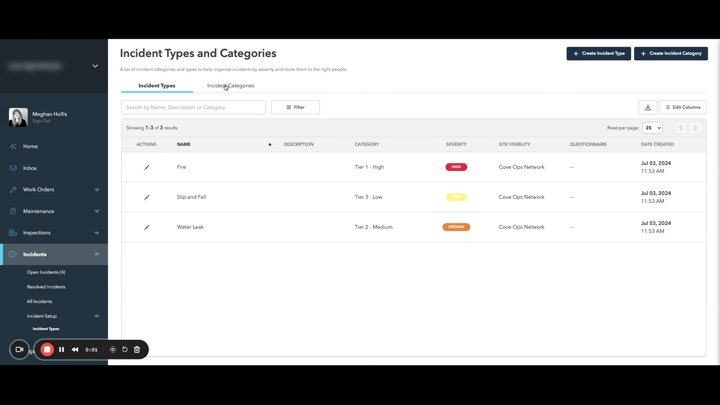
Documented behavior: Incident categories and types (with severity, optional description and optional questionnaire) can be created at network level and limited to specific sites. The module must be enabled by Cove; if it is missing, contact Customer Success or Tech Support.

Incident Setup

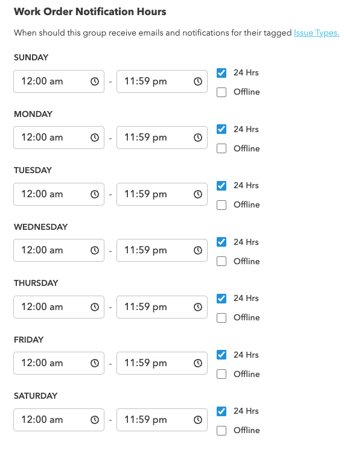
Documented behavior: Routing is set per building and per incident type by choosing a work group from the Work Order module, so groups and their notification hours must exist first. The person who creates an incident does not receive its notification.

Incident Setup

Documented behavior: Incidents can be opened from the dashboard or mobile app with category, type, location and optional tenant and attachments. Open covers open and on-hold reports; Resolved covers resolved, cancelled and closed. Each incident keeps a history and chronology, and its status and work groups can be edited.

Incident Response and Management

Inspect 26 linked UI assets →

Connected journeys: Operate compliance, procurement and incident controls

All linked sources and dates (2)

Stable agent record: workflow:cove-incidents

Cove / Time cards · AI-extracted details + outline

Configure and use time cards

Role: Engineer and property manager

Starts at
Time Cards
Ends when
Review team time cards
Evidence
AI-extracted controls / exceptions (not reviewed); 8 UI assets

Cove documents this as a workflow for engineer and property manager. The source sequence covers configure time-card settings, record time, then review team time cards.

  1. Configure time-card settings
  2. Record time
  3. Review team time cards

AI-extracted, not reviewed: Claude extracted the notes below from the cited help articles as captured on September 28, 2026. No person has reviewed them; check the source before relying on one.

Documented behavior: Time Cards must be enabled by Cove, then each staff profile needs Can Submit Time Cards? ticked. Property teams define time types such as Standard, Overtime and Vacation, each optionally requiring a note; entries follow the site's time increment, typically 15 minutes, and daily maximum.

Time Cards Setup (Property Teams) · Using Time Cards (Building Team Members)

Documented behavior: Staff record hours in the mobile app under My Labor Hours, by start and stop time or total hours, saving drafts during the week. A submitted week is locked until an approver acts; a denied week comes back editable with the approver's note.

Using Time Cards (Building Team Members)

Exception / edge case: Approved weeks are locked for payroll and cannot be edited in the app. To correct one, the approver denies it for resubmission or adds a separate adjustment entry with an admin note on the dashboard, which the activity log records with who and when.

Time Cards Management (Property Teams) · Using Time Cards (Building Team Members)

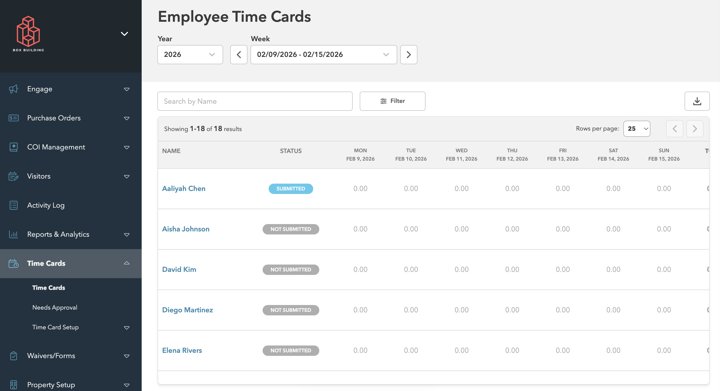
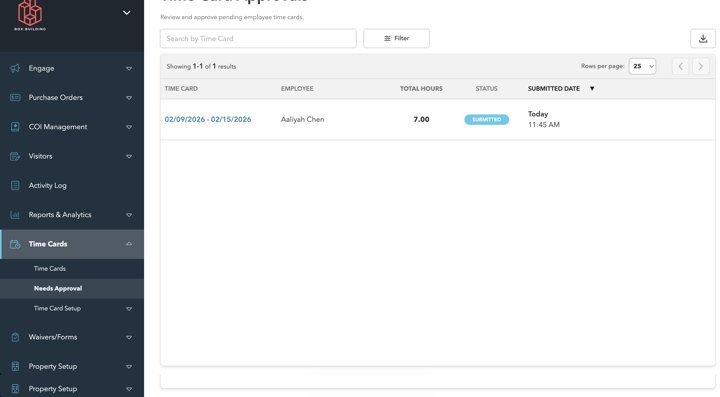
Documented behavior: Approvers work from a Needs approval queue of submitted weeks with bulk and inline approve or deny, and a Time Cards list filterable by date, employee, status and site that can be exported for payroll reconciliation.

Time Cards Management (Property Teams)

Inspect 8 linked UI assets →

Connected journeys: Resolve a tenant request and create its charge

All linked sources and dates (3)

Stable agent record: workflow:cove-time-cards

Cove / Amenities · Reviewed details + outline

Configure amenity inventory and booking policies

Role: Property administrator

Starts at
Reservation Setup → Amenity Setup → Category / Space / Policies
Ends when
Configure reservation credits
Evidence
Reviewed controls / exceptions; 26 UI assets

Cove documents this as a workflow for property administrator. The source sequence covers create categories and spaces, define reservation policies, set seating options, then configure reservation credits.

  1. Create categories and spaces
  2. Define reservation policies
  3. Set seating options
  4. Configure reservation credits

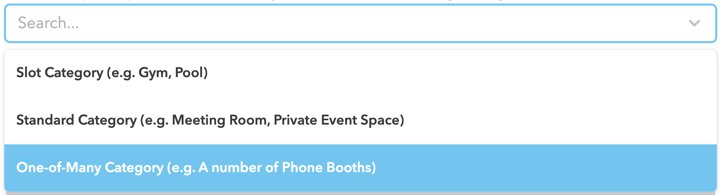
Documented behavior: Administrators create a category and a reservable space, then configure availability, approval, visibility, payment options and any questionnaires or operational follow-up.

Create an Amenity Space

Documented behavior: Reservation policies are enabled through Cove support or the customer-success manager. Create them at site level, then attach them to individual spaces. A policy can vary booking windows by tenant or user tag. When both restrictions are set, both must match; the highest-priority matching policy wins.

Amenity Space Reservation Policies

Limitation / verification point: Credits are allocated by tenant and billing cycle. The guide distinguishes displayed booking costs from later usage reconciliation and describes potentially confusing cash or invoice messaging when credits are used. Check the configured payment combination and cycle-end export.

Understanding and Managing Credits in Reservations

Inspect 26 linked UI assets →

Connected journeys: Reserve a room from the tenant app

All linked sources and dates (5)

Stable agent record: workflow:cove-amenity-setup

Cove / Amenities · Reviewed details + outline

Reserve, approve and bill amenities

Role: Tenant and property team

Starts at
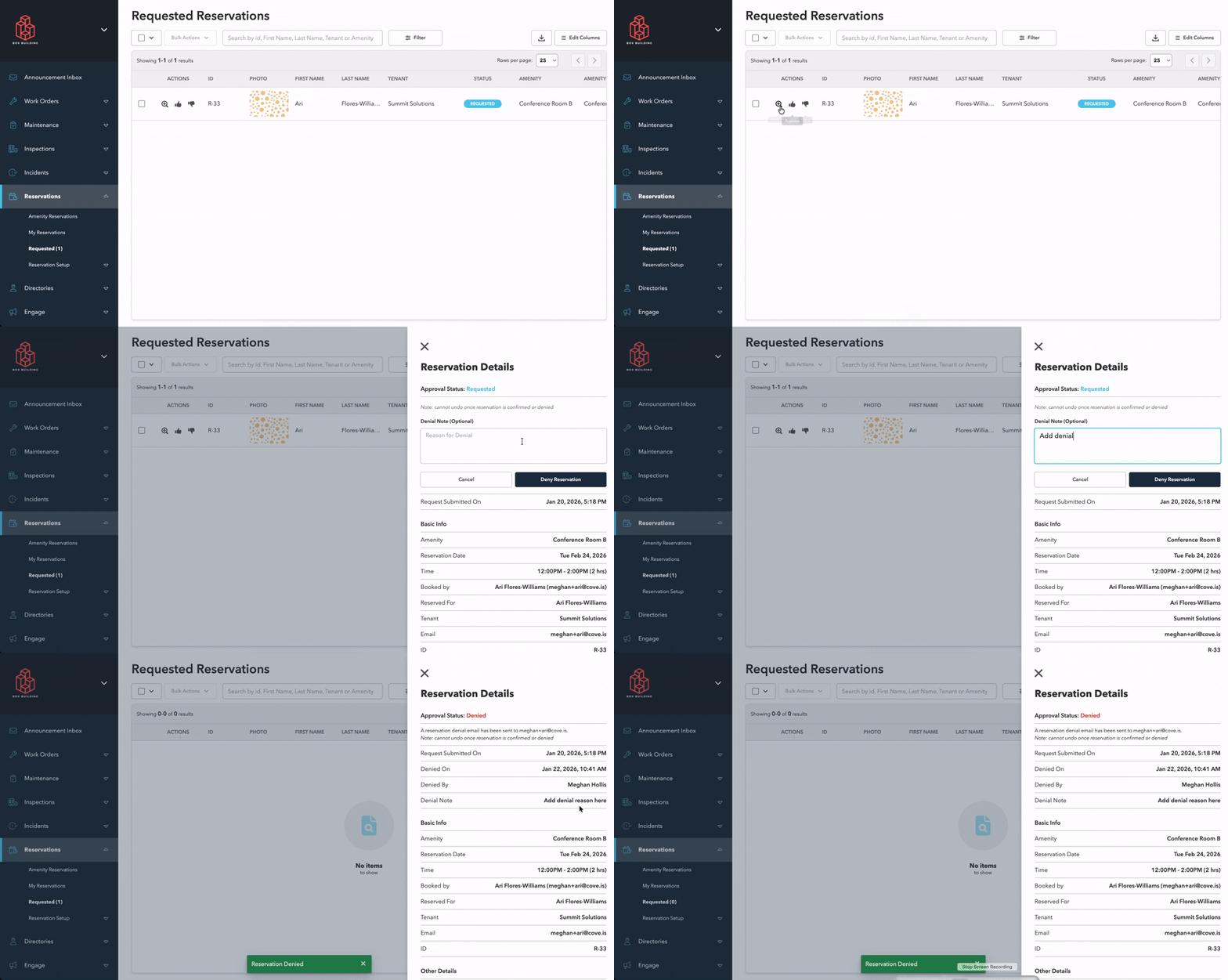
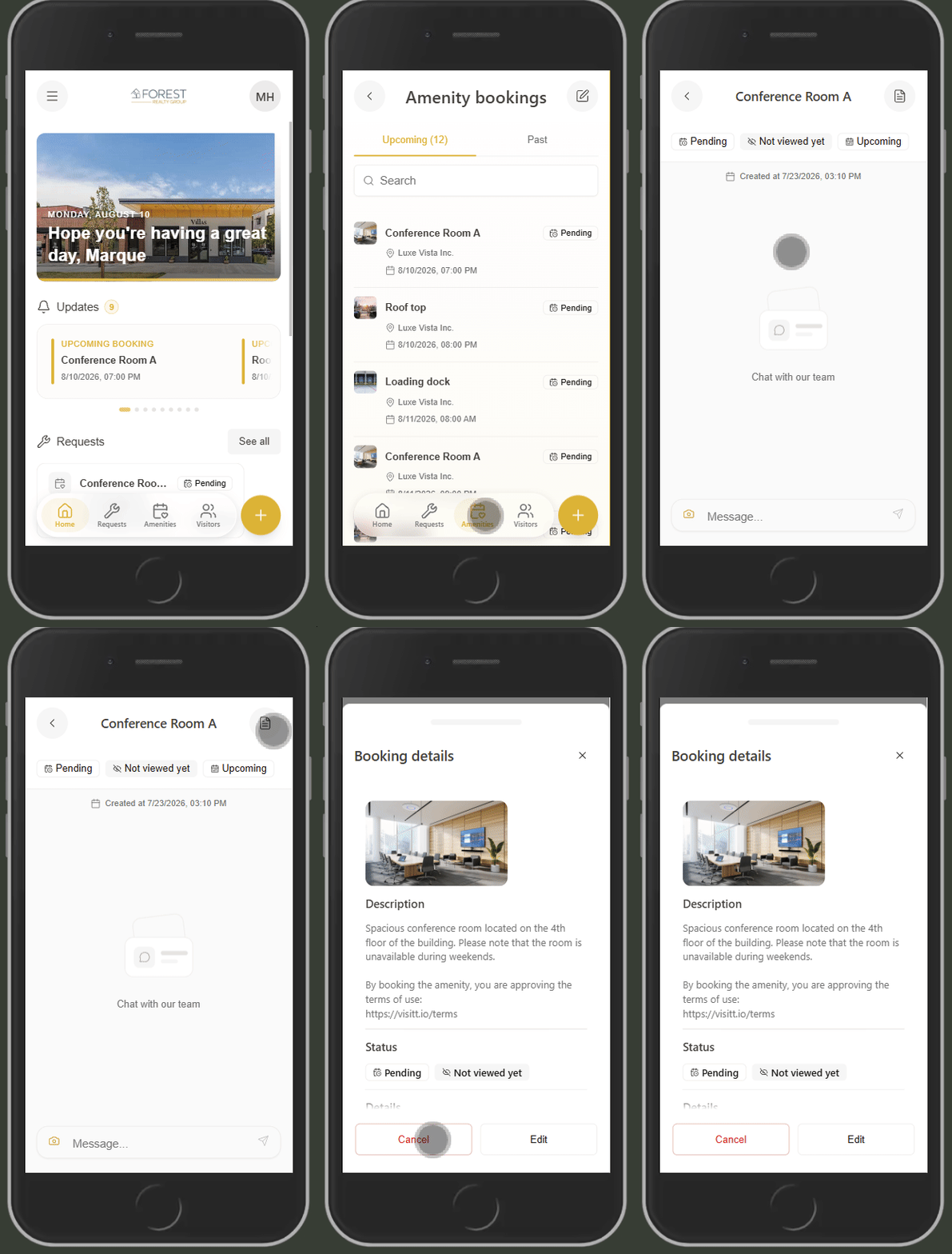
Tenant app → Reserve Amenities quick action or Highlight; manager: Reservations → Requested
Ends when
Each date has a Requested or Confirmed reservation record
Evidence
Reviewed controls / exceptions; 17 UI assets, 3 videos

Cove documents this as a workflow for tenant and property team. The source sequence covers choose a space and time, review the reservation, handle approval, review charges and reminders, then view tablet entry points.

  1. Choose a space and time
  2. Review the reservation
  3. Handle approval
  4. Review charges and reminders
  5. View tablet entry points

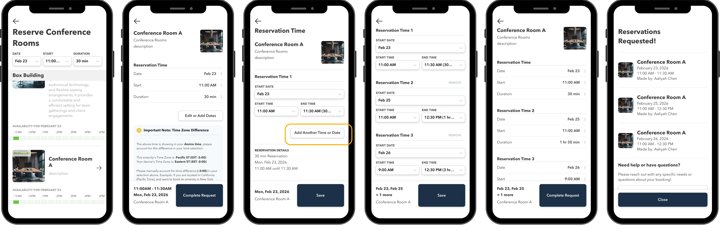
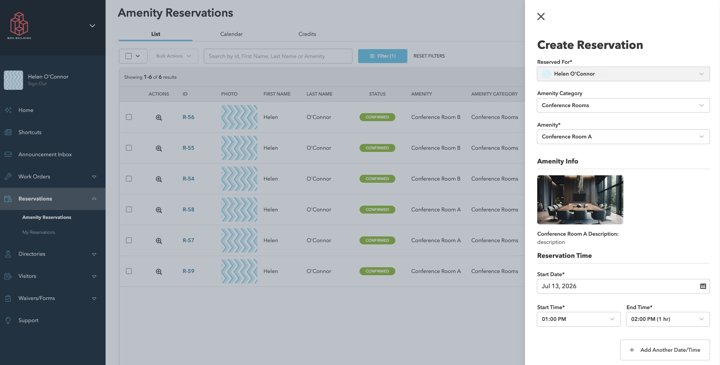
Limitation / verification point: The current property-team guide supports entering several dates together, while retaining separate reservation records. Test later edits, cancellations and charges for the whole series instead of assuming they behave as one record.

Reserving Amenities: Property Teams

Inspect 17 linked UI assets →

Connected journeys: Reserve a room from the tenant app

All linked sources and dates (7)

Stable agent record: workflow:cove-amenity-booking

Cove / Events · AI-extracted details + outline

Publish events and manage participation

Role: Property team

Starts at
Events → Create → RSVP → Check-in
Ends when
Gather feedback
Evidence
AI-extracted controls / exceptions (not reviewed); 50 UI assets, 3 videos

Cove documents this as a workflow for property team. The source sequence covers create the event, configure recurrence or RSVP slots, check in attendees, then gather feedback.

  1. Create the event
  2. Configure recurrence or RSVP slots
  3. Check in attendees
  4. Gather feedback

AI-extracted, not reviewed: Claude extracted the notes below from the cited help articles as captured on September 28, 2026. No person has reviewed them; check the source before relying on one.

Documented behavior: The RSVP limit counts people, not bookings, and a per-user limit allows plus-ones. With a waitlist, users can be auto-promoted oldest first and optionally made to confirm within a set time or drop to the bottom; otherwise staff convert them manually, which sends no email. Waitlisted users cannot be checked in.

Creating & Managing Events

Documented behavior: Recurring events use a template with an interval and an Advance Open Window that controls how far ahead each occurrence is created, and so becomes visible in the app and on displays. Template changes affect only occurrences not yet created, and each created event can be edited individually.

Recurring Events

Limitation / verification point: RSVP Slot events let users book a labelled time slot with optional capacity, but slot events have no waitlist. Ticket prices need Stripe, publishing to displays needs displays enabled and a landscape image of at least 1344x1080, and a waiver can be required before anyone RSVPs.

Event Type: RSVP Slots · Creating & Managing Events

Documented behavior: Building Admins, Building Managers and Reservation Managers can run check-in on an iPad Cove Kiosk app or kiosk.cove.is, logged in with a Building Admin's email code; guests scan their personal QR code. Each kiosk is set to one event, and switching events means tapping the Cove logo ten times.

Event Check-In Tablet

Documented behavior: Post-event surveys go to all RSVPs or only checked-in users, by push and/or email, either automatically a set time after the event or manually later. Users on older app versions are taken to the event page instead of the survey. Results appear on the event and in Surveys.

Event Surveys

Inspect 50 linked UI assets →

Connected journeys: Publish building content and measure response

All linked sources and dates (6)

Stable agent record: workflow:cove-events

Cove / Communication · Reviewed details + outline

Compose, target and measure announcements

Role: Property team

Starts at
Email Builder → Recipients → Send → Metrics
Ends when
The targeted announcement is sent and delivery metrics are available
Evidence
Reviewed controls / exceptions; 27 UI assets, 2 videos

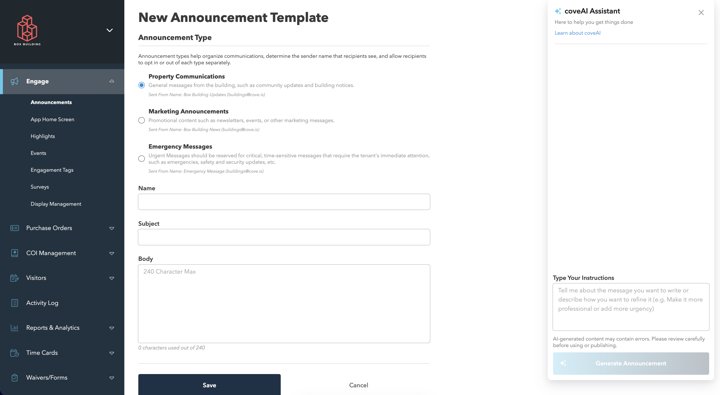
Cove documents this as a workflow for property team. The source sequence covers select or build an email template, prepare recipients, send the announcement, then inspect delivery and engagement metrics.

  1. Select or build an email template
  2. Prepare recipients
  3. Send the announcement
  4. Inspect delivery and engagement metrics

Limitation / verification point: The email-metrics guide documents delivery and user detail. Its wording differs on open-rate availability: one passage presents it as forthcoming, while another describes support-led activation. Treat current entitlement and the exact report as questions to verify.

Track Email Announcement Metrics

Inspect 27 linked UI assets →

Connected journeys: Publish building content and measure response

All linked sources and dates (8)

Stable agent record: workflow:cove-announcements

Cove / Communication · AI-extracted details + outline

Coordinate tenant and property-team chat

Role: Tenant and property team

Starts at
Tenant / property-team conversation
Ends when
Review the other role’s conversation view
Evidence
AI-extracted controls / exceptions (not reviewed); 11 UI assets

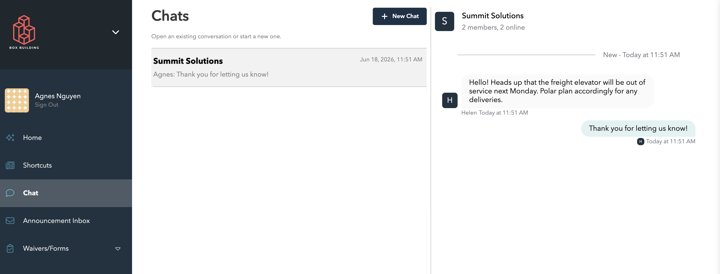
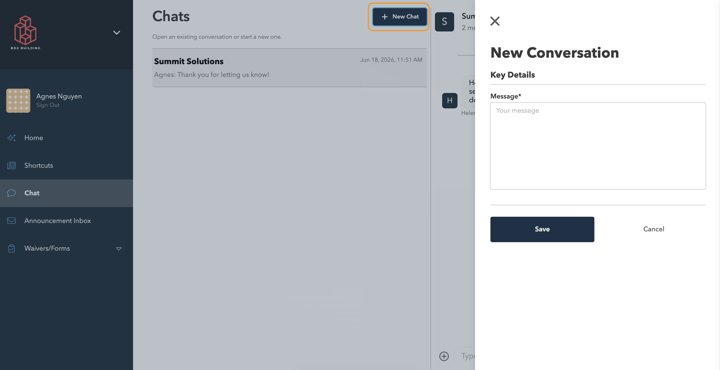
Cove documents this as a workflow for tenant and property team. The source sequence covers open a conversation, exchange messages, then review the other role’s conversation view.

  1. Open a conversation
  2. Exchange messages
  3. Review the other role’s conversation view

AI-extracted, not reviewed: Claude extracted the notes below from the cited help articles as captured on September 28, 2026. No person has reviewed them; check the source before relying on one.

Documented behavior: Chat must be enabled for the site by Cove, and every participant, staff and tenant users alike, needs Is Chat Contact? checked on their Directory profile by a Building Admin before they can take part.

Chat: Property Teams · Chat: Tenants

Documented behavior: Building Admins and Building Managers can open a conversation with one or more tenant organizations; each organization gets its own thread that automatically includes all of its Chat Contacts. Tenant Chat Contacts can also start a conversation with the property team.

Chat: Property Teams

Limitation / verification point: Tenants see property-team messages as coming from the building, with no individual sender name, while staff see each tenant sender's first name. Read status and unread badges sync across the dashboard and mobile app in real time.

Chat: Property Teams · Chat: Tenants

Inspect 11 linked UI assets →

Connected journeys: Resolve a tenant request and create its charge

All linked sources and dates (2)

Stable agent record: workflow:cove-chat

Cove / Visitors · AI-extracted details + outline

Register and check in visitors

Role: Tenant administrator and front desk

Starts at
Visitor Management → Register → Check-in
Ends when
The visitor is registered and check-in status is available
Evidence
AI-extracted controls / exceptions (not reviewed); 45 UI assets, 1 video

Cove documents this as a workflow for tenant administrator and front desk. The source sequence covers configure visitor rules, register an individual or recurring visit, check in the visitor, then review a watchlist match.

  1. Configure visitor rules
  2. Register an individual or recurring visit
  3. Check in the visitor
  4. Review a watchlist match

AI-extracted, not reviewed: Claude extracted the notes below from the cited help articles as captured on September 28, 2026. No person has reviewed them; check the source before relying on one.

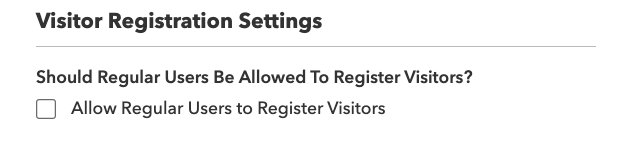
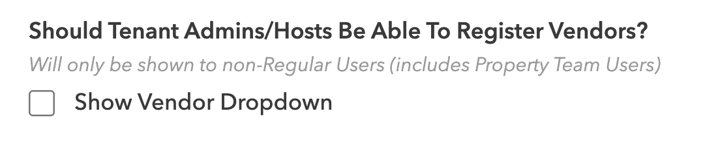
Documented behavior: Visitor Setup decides whether Regular Users and Tenant Admins or Hosts may register visitors, the maximum consecutive visit days (up to 365), whether email is required, SMS invitations and host arrival texts, QR codes in invitations, photos, check-out, and badge printing with QR, barcode or logo formats.

Visitor Management Setup

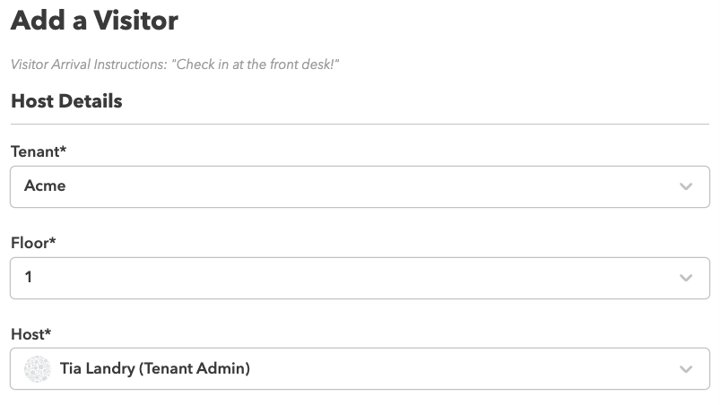
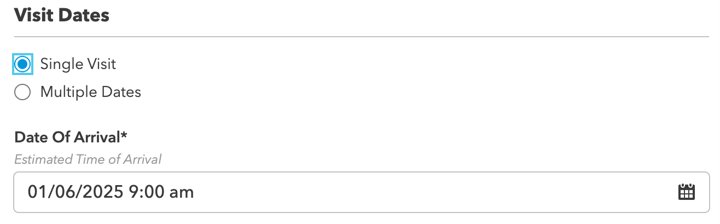
Documented behavior: Visits can be single, up to ten separate dates, or recurring (daily, weekdays or chosen days). With access control, hosts can override the site's default access window. Staff can re-invite past visitors and paste lists; notes for the building stay internal while the host note and reason appear in the invitation.

Visitor Registration: Tenant Admins · Visitor Registration: Property Teams

Documented behavior: Building Admins, Building Managers and Security Managers check visitors in individually or in bulk, by scanning a QR code, driver's license or passport, or automatically at a turnstile. ID scans use only first and last name, fuzzy-matched against today's visitors; Cove does not store birth date or document number.

Checking Visitors In

Exception / edge case: Visitors can be checked in only on their scheduled date and only once. Bulk and turnstile check-ins skip photos and badges. With access control, a failed credential disables check-in and badge printing until retried or re-registered, and Activate on Check-In keeps access off until check-in.

Checking Visitors In

Exception / edge case: Watch list matches are never blocked automatically. Security is alerted when a matching visitor is registered; check-in then requires ticking approval and a mandatory note, which is emailed to watch list recipients. Unregistered walk-ins are not flagged, so staff must search the watch list manually.

Watch List

Documented behavior: Only Building Admins, plus Tenant Admins given permission, edit the watch list. Matching is Sensitive by default (nicknames and small first-name variations, exact last name) or Strict (exact names); a change applies only to visitors created afterwards. Custom threat levels can be site- or network-wide.

Watch List

Inspect 45 linked UI assets →

Connected journeys: Register arrivals and manage access

All linked sources and dates (5)

Stable agent record: workflow:cove-visitors

Cove / Visitors · AI-extracted details + outline

Manage group visits and bulk uploads

Role: Tenant administrator and front desk

Starts at
Groups → Bulk Visitor Upload
Ends when
Review imported visitors
Evidence
AI-extracted controls / exceptions (not reviewed); 28 UI assets, 3 videos

Cove documents this as a workflow for tenant administrator and front desk. The source sequence covers set up a group, prepare visitor rows, upload the list, then review imported visitors.

  1. Set up a group
  2. Prepare visitor rows
  3. Upload the list
  4. Review imported visitors

AI-extracted, not reviewed: Claude extracted the notes below from the cited help articles as captured on September 28, 2026. No person has reviewed them; check the source before relying on one.

Documented behavior: A group visit registers any number of people, each marked Visitor or Vendor, for one date or up to ten dates at once. Each person gets a separate record and credential per date, editable individually afterwards. Host floor appears only if Visitor Settings enable it and the tenant has several floors.

Group Visits

Documented behavior: Bulk upload, for Building and Tenant Administrators, accepts a CSV template (per-guest times, hosts and companies) or a pasted list that shares one date, time and host. Rows with errors are flagged in a preview and are not registered until corrected; a blank host email assigns the visit to the uploader.

Bulk Visitor Uploads

Exception / edge case: Guests need an email or phone number to receive notifications and a mobile pass. The Feb 2025 group-visit article says the feature was live for standard visitor management and coming soon for access-control sites; with access control, a guest's QR code may appear only hours before the visit.

Bulk Visitor Uploads · Group Visits

Inspect 28 linked UI assets →

Connected journeys: Register arrivals and manage access

All linked sources and dates (2)

Stable agent record: workflow:cove-group-visitors

Cove / Access & device setup · AI-extracted details + outline

Set up and revoke mobile credentials

Role: Tenant and property administrator

Starts at
Mobile Credential Setup → Issue / Revoke
Ends when
Revoke a credential
Evidence
AI-extracted controls / exceptions (not reviewed); 12 UI assets

Cove documents this as a workflow for tenant and property administrator. The source sequence covers enable the applicable access integration, add the mobile credential, review device setup, then revoke a credential.

  1. Enable the applicable access integration
  2. Add the mobile credential
  3. Review device setup
  4. Revoke a credential

AI-extracted, not reviewed: Claude extracted the notes below from the cited help articles as captured on September 28, 2026. No person has reviewed them; check the source before relying on one.

Permissions: Building Admins can revoke a user's HID Wallet passes from the bottom of the user's Directory profile; the Revoke All Wallet Passes button appears only at sites with the HID Wallet integration. It is used for a new or lost phone, or when there are too many passes on one account.

Revoking a User's Wallet Credentials

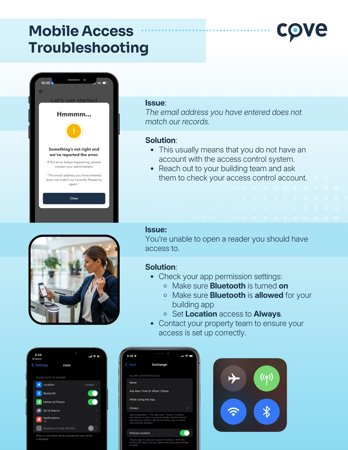
Exception / edge case: Revoking is immediate, cannot be undone and removes passes on every device on the account. Before revoking, confirm the access-control email exactly matches the Cove login (the most common cause of failed reissues) and that the user is not suspended.

Revoking a User's Wallet Credentials

Documented behavior: After revoking, the user deletes old passes, waits 5 to 10 minutes for HID to sync with the access control system, then sets up mobile access again in the Cove app. Errors about not finding the account mean the emails do not match.

Revoking a User's Wallet Credentials

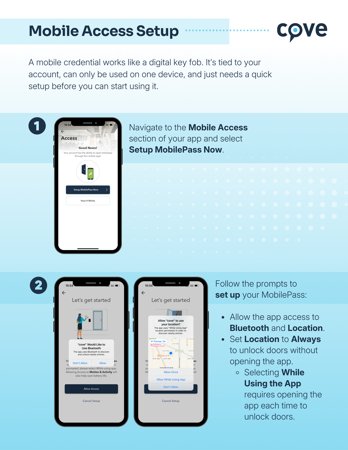
Limitation / verification point: The captured setup guides for HID Bluetooth, HID Wallet, Kastle Wallet and Swiftconnect contain only section headings, so per-provider setup steps and device requirements are not recorded in PRISM. Check the original guides.

HID Bluetooth (Apple & Google) · HID Wallet (Apple) · Swiftconnect (Apple)

Inspect 12 linked UI assets →

Connected journeys: Register arrivals and manage access

All linked sources and dates (7)

Stable agent record: workflow:cove-mobile-access

Cove / Packages · AI-extracted details + outline

Record and manage delivered packages

Role: Front desk and tenant

Starts at
Packages → Register → Notify → Collect
Ends when
The package is associated with a recipient and collection is tracked
Evidence
AI-extracted controls / exceptions (not reviewed); 5 UI assets

Cove documents this as a workflow for front desk and tenant. The source sequence covers register the package, associate its recipient, then track notification and collection.

  1. Register the package
  2. Associate its recipient
  3. Track notification and collection

AI-extracted, not reviewed: Claude extracted the notes below from the cited help articles as captured on September 28, 2026. No person has reviewed them; check the source before relying on one.

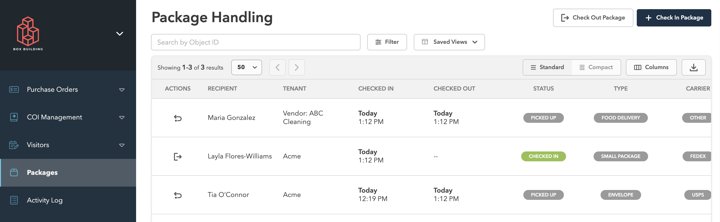
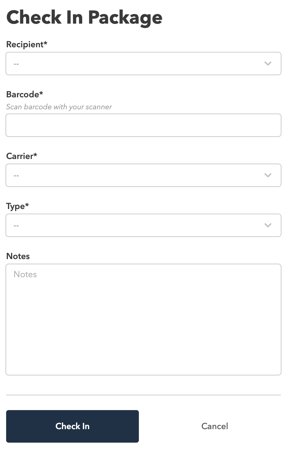
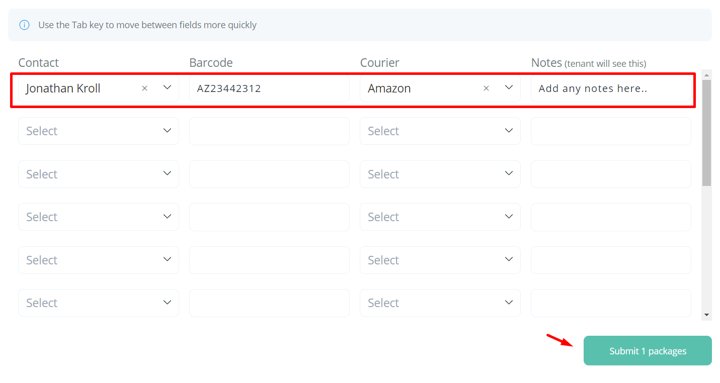
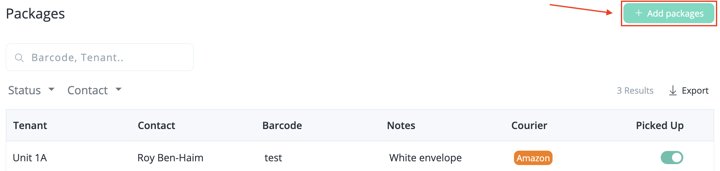
Permissions: Package handling is available to Security Managers, Building Managers and Building Admins from the dashboard. Check-in requires recipient, barcode (scanned or typed), carrier and type; notes are optional.

Packages

Documented behavior: Check-in automatically notifies the recipient by email, and by SMS if their profile has a phone number. Check-out is done by scanning or picking from a list; if the property enables signature collection, staff must capture a signature before the status changes to Picked Up with a timestamp.

Packages

Inspect 5 linked UI assets →

Connected journeys: Register arrivals and manage access

All linked sources and dates (1)
  • Packages
    Source date: 2026-06-10T13:37:27Z · en-us

Stable agent record: workflow:cove-packages

Cove / Surveys & waivers · AI-extracted details + outline

Create, distribute and review surveys

Role: Property team

Starts at
Surveys → Audience → Send → Responses
Ends when
Review responses
Evidence
AI-extracted controls / exceptions (not reviewed); 22 UI assets

Cove documents this as a workflow for property team. The source sequence covers build the survey, select the audience, send it, then review responses.

  1. Build the survey
  2. Select the audience
  3. Send it
  4. Review responses

AI-extracted, not reviewed: Claude extracted the notes below from the cited help articles as captured on September 28, 2026. No person has reviewed them; check the source before relying on one.

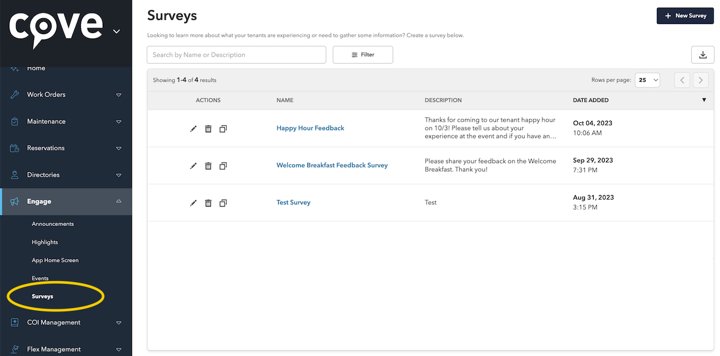
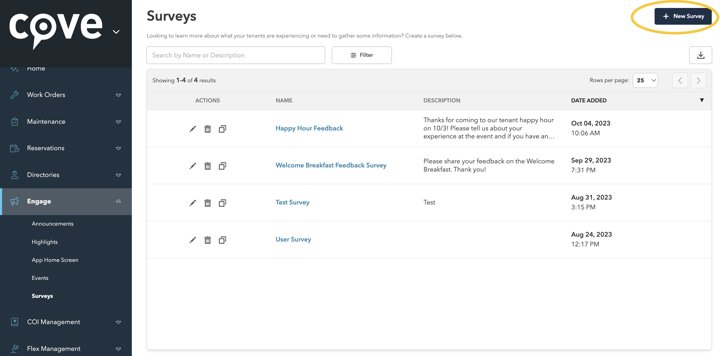
Documented behavior: A Standard survey's results are visible only to the internal team. A Community survey lets other app users see results, and respondents can opt in to share answers with their name. A survey can also be added as its own tile on the app home screen.

Surveys: Creating a Survey

Documented behavior: Surveys are distributed by linking them from a mobile highlight's action button or from a push-notification announcement; the sending article describes no other distribution or audience-targeting step inside the survey itself.

Surveys: Sending A Survey

Documented behavior: Each survey has its own live response table that can be sorted, filtered and downloaded. Questions use 10+ types with a short label that becomes the column name in the response table, and each question can be marked required.

Surveys: Results · Surveys: Creating a Survey

Inspect 22 linked UI assets →

Connected journeys: Publish building content and measure response

All linked sources and dates (3)

Stable agent record: workflow:cove-surveys

Cove / Surveys & waivers · AI-extracted details + outline

Configure waiver questions and capture responses

Role: Property team and tenant

Starts at
Waivers / booking questions
Ends when
Review responses
Evidence
AI-extracted controls / exceptions (not reviewed); 11 UI assets

Cove documents this as a workflow for property team and tenant. The source sequence covers create the waiver, configure questions and signatures, set visibility and notifications, then review responses.

  1. Create the waiver
  2. Configure questions and signatures
  3. Set visibility and notifications
  4. Review responses

AI-extracted, not reviewed: Claude extracted the notes below from the cited help articles as captured on September 28, 2026. No person has reviewed them; check the source before relying on one.

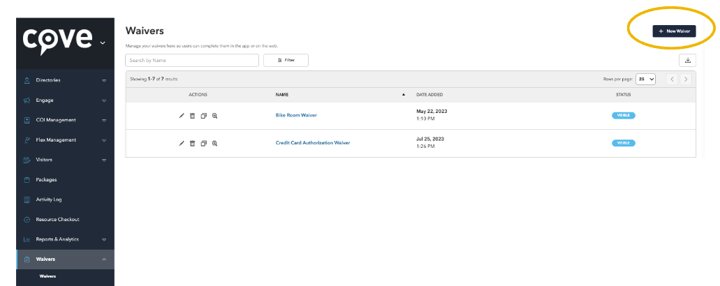
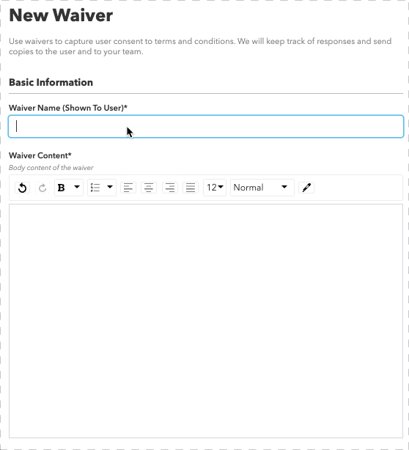
Documented behavior: A waiver can stand alone in the app or be attached to a highlight or event. Name, email and submission date are captured automatically, so custom questions (10+ types, optional required flag) are only needed for anything else. The setup also includes an Openpath configuration section.

Waivers: Overview · Waivers: Creating Custom Questions

Documented behavior: Signature title and electronic signature consent language are pre-filled and editable; that section is required for a digitally signed waiver. Signers get an email confirmation, and extra recipients can be added as comma-separated addresses.

Waivers: Signature Settings · Waivers: Visibility & Notifications

Exception / edge case: Deleting a waiver also deletes its responses, so Cove recommends hiding it instead. Responses can be sorted, filtered by each custom question and downloaded as CSV, and staff can add a manual entry with a photo of a paper copy.

Waivers: Visibility & Notifications · Waivers: Responses

Inspect 11 linked UI assets →

Connected journeys: Reserve a room from the tenant app

All linked sources and dates (5)

Stable agent record: workflow:cove-waivers

Cove / Analytics · Reviewed details + outline

Build views, reports and insight boards

Role: Property and regional manager

Starts at
Reports / Insight Boards
Ends when
Review records or export
Evidence
Reviewed controls / exceptions; 51 UI assets, 2 videos

Cove documents this as a workflow for property and regional manager. The source sequence covers select the data and metric, configure filters and grouping, arrange report cards, then review records or export.

  1. Select the data and metric
  2. Configure filters and grouping
  3. Arrange report cards
  4. Review records or export

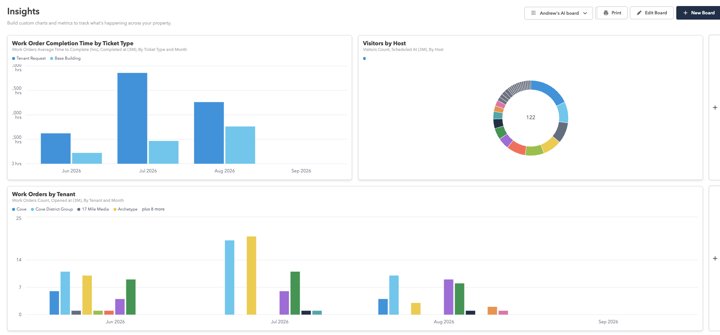
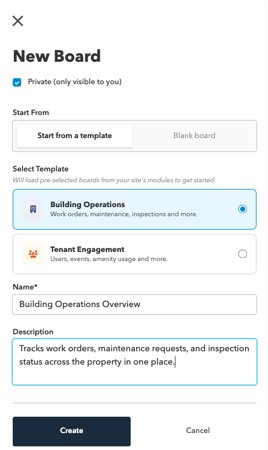
Limitation / verification point: The Insights guide describes configurable Boards and Cards over supported datasets. Inspect available filters and groupings for the buyer’s actual question; the existence of reporting does not establish every cross-event or tenant-level analysis.

Insights Dashboard

Inspect 51 linked UI assets →

Connected journeys: Resolve a tenant request and create its charge · Plan, inspect and close maintenance work · Publish building content and measure response

All linked sources and dates (4)

Stable agent record: workflow:cove-analytics

Cove / Activity & audit · AI-extracted details + outline

Inspect the activity log

Role: Property administrator

Starts at
Activity Log
Ends when
Inspect recorded changes
Evidence
AI-extracted controls / exceptions (not reviewed); 3 UI assets

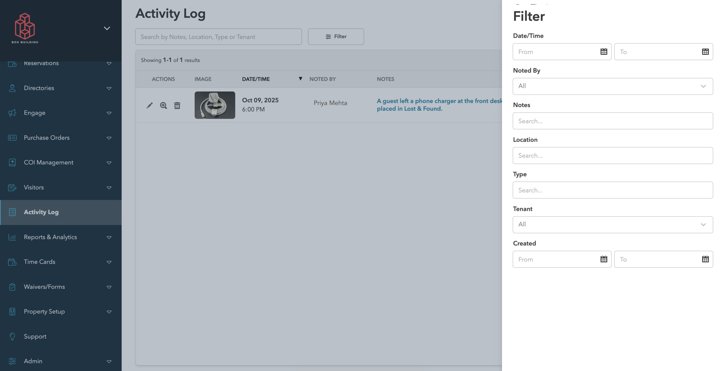
Cove documents this as a workflow for property administrator. The source sequence covers open the activity log, filter events, then inspect recorded changes.

  1. Open the activity log
  2. Filter events
  3. Inspect recorded changes

AI-extracted, not reviewed: Claude extracted the notes below from the cited help articles as captured on September 28, 2026. No person has reviewed them; check the source before relying on one.

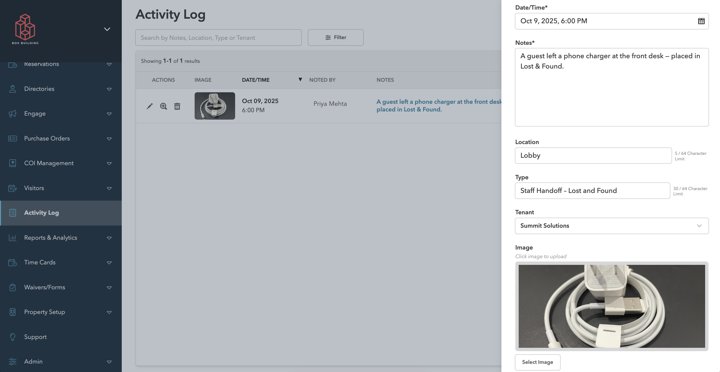
Limitation / verification point: Cove's Activity Log is a manually written record of building events such as front-desk observations or minor incidents. The article does not describe an automatic audit trail of changes made in Cove, so do not treat it as a system change history.

Activity Log

Permissions: Building Admins configure the Activity Log. Reservation, Security, Engineering and Building Managers, Building Engineers and Building Admins can add and view entries. If the module is missing, Cove's Customer Success team must enable it.

Activity Log

Documented behavior: An entry needs a date and time (defaults to now and cannot be in the future) and notes; tenant or household and location are optional. Only the author can edit an entry. The table can be searched and filtered and exports to CSV with the current filters and visible columns.

Activity Log

Inspect 3 linked UI assets →

Connected journeys: Resolve a tenant request and create its charge · Operate compliance, procurement and incident controls

All linked sources and dates (1)

Stable agent record: workflow:cove-audit

Cove / Tenant app & content · AI-extracted details + outline

Configure building displays

Role: Property administrator

Starts at
Displays → Layout → Device setup
Ends when
Connect and troubleshoot the display device
Evidence
AI-extracted controls / exceptions (not reviewed); 24 UI assets, 1 video

Cove documents this as a workflow for property administrator. The source sequence covers create display content, configure display layout, then connect and troubleshoot the display device.

  1. Create display content
  2. Configure display layout
  3. Connect and troubleshoot the display device

AI-extracted, not reviewed: Claude extracted the notes below from the cited help articles as captured on September 28, 2026. No person has reviewed them; check the source before relying on one.

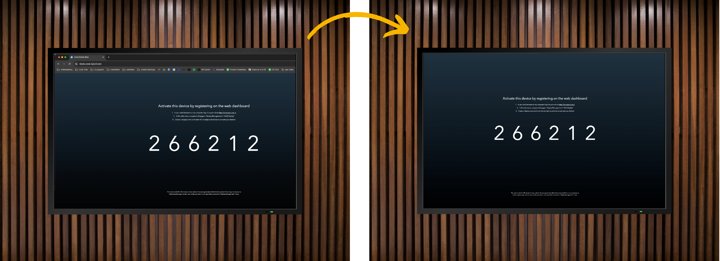
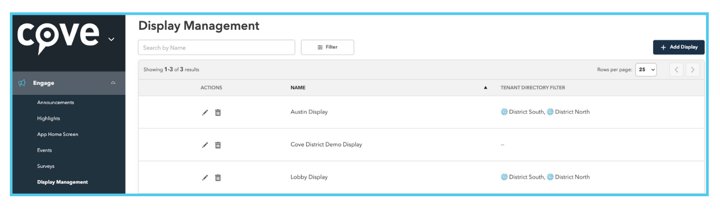
Documented behavior: Displays are web pages: open display.cove.is/activate full screen on a smart TV browser or a signage device such as Airtame, then enter the shown activation code under Engage > Display Management. Smart TVs suit a few screens; Airtame suits campuses that need remote management.

Displays

Documented behavior: Each display shows one of three layouts: full-screen highlights and events only; highlights with a weather widget; or highlights with a tenant directory filtered by building, which needs buildings, floors and suites set up first. Without a directory, weather is shown instead.

Displays

Limitation / verification point: Cove displays do not play MP4 or streamed video, embedded web content or live widgets; content should be static images and text. Pages adapt to portrait screens with the same URL, but some TVs or Airtame devices must be switched to portrait manually.

Vertical Displays

Inspect 24 linked UI assets →

Connected journeys: Publish building content and measure response

All linked sources and dates (3)

Stable agent record: workflow:cove-displays

Cove / AI assistance · AI-extracted details + outline

Review CoveAI entry points and review controls

Role: Property team and engineer

Starts at
CoveAI entry points
Ends when
Identify assistant release limitations
Evidence
AI-extracted controls / exceptions (not reviewed); 23 UI assets

Cove documents this as a workflow for property team and engineer. The source sequence covers review content-generation entry points, inspect work-order assistance, review certificate extraction, then identify assistant release limitations.

  1. Review content-generation entry points
  2. Inspect work-order assistance
  3. Review certificate extraction
  4. Identify assistant release limitations

AI-extracted, not reviewed: Claude extracted the notes below from the cited help articles as captured on September 28, 2026. No person has reviewed them; check the source before relying on one.

Documented behavior: COI AI Review takes several ACORD 25 PDFs at once, one tenant or vendor per file and up to 35 MB each. Extraction can take several minutes and the review table does not refresh itself. Documents that are not ACORD 25 are still processed but flagged for review.

COI Extraction: AI Review

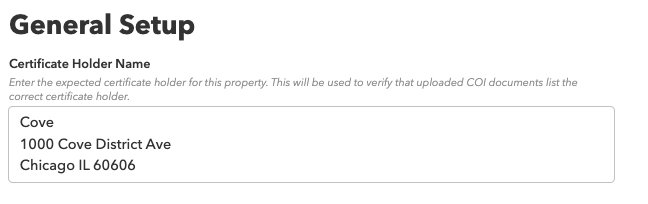
Documented behavior: An admin approves every extraction in two views, a summary and then the PDF side by side, and can override the certificate holder and additional insured matches. New carrier policy names need a one-time mapping that is reused for that property only; custom policy questions are never extracted.

COI Extraction: AI Review

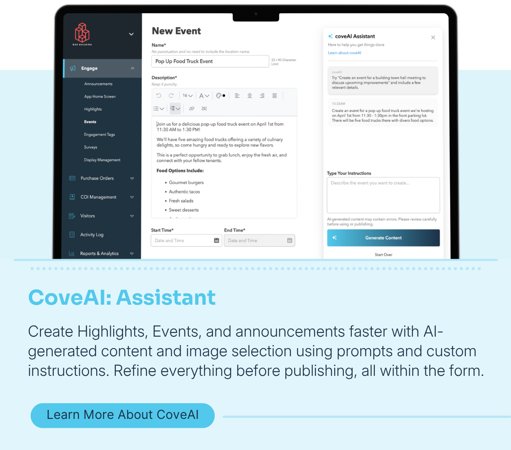
Limitation / verification point: Cove's FAQ says CoveAI uses enterprise model APIs plus Cove's own infrastructure, sends only the data a request needs, and that AI subprocessors do not train on client data. Default instructions set a professional tone and discourage invented facts; users can adjust tone per feature.

CoveAI FAQ

Inspect 23 linked UI assets →

Connected journeys: Resolve a tenant request and create its charge

All linked sources and dates (4)

Stable agent record: workflow:cove-ai-surfaces

Visitt / Users & permissions · AI-extracted details + outline

Invite users, assign access and hand off responsibilities

Role: Property and global administrator

Starts at
Users → Invite → Property Access → Permissions
Ends when
Deactivate access
Evidence
AI-extracted controls / exceptions (not reviewed); 18 UI assets

Visitt documents this as a workflow for property and global administrator. The source sequence covers invite a user, assign property access, configure permissions, transfer responsibilities, then deactivate access.

  1. Invite a user
  2. Assign property access
  3. Configure permissions
  4. Transfer responsibilities
  5. Deactivate access

AI-extracted, not reviewed: Claude extracted the notes below from the cited help articles as captured on September 28, 2026. No person has reviewed them; check the source before relying on one.

Permissions: Visitt has four roles: Global Admin (all properties, fixed permissions), Property Admin (users and settings for assigned properties), Manager (all work orders and inspections, no settings or user management) and Team Member (only assigned work). Only Global Admins change roles, with a comparison prompt and a permission log.

How to Add Users to Your Property · How to Change User Permissions

Documented behavior: Admins add existing users or invite new ones, who get a one-time code by email or SMS and can log in immediately. Access can be per region or property, global (all current and future properties), or via Property Groups, which grant and remove access automatically as properties join or leave a group.

How to Add Users to Your Property · Assign User Access by Property Group

Exception / edge case: Deactivating a user blocks login across all properties and keeps their data, but drops their work orders, inspections and automations without offering reassignment. To hand work over, first unassign them from each property, which lets an admin transfer open responsibilities to another user there.

How to Deactivate or Remove Users from Properties · How to Transfer Responsibilities from One User to Another

Inspect 18 linked UI assets →

Connected journeys: Configure a property and onboard a tenant

All linked sources and dates (5)

Stable agent record: workflow:visitt-user-access

Visitt / Property & portfolio setup · AI-extracted details + outline

Configure properties and operational scope

Role: Global administrator

Starts at
Global Settings → Buildings / Properties
Ends when
Inspect property structure
Evidence
AI-extracted controls / exceptions (not reviewed); 36 UI assets, 1 video

Visitt documents this as a workflow for global administrator. The source sequence covers open global settings, manage buildings and properties, set primary properties, then inspect property structure.

  1. Open global settings
  2. Manage buildings and properties
  3. Set primary properties
  4. Inspect property structure

AI-extracted, not reviewed: Claude extracted the notes below from the cited help articles as captured on September 28, 2026. No person has reviewed them; check the source before relying on one.

Permissions: Only Global Admins see the account-wide Buildings and Properties pages. Buildings lists each building's occupied and total leasable spaces, floors, spaces, area and address, and can add buildings and export; existing buildings are edited inside the property. Properties sets each property's asset type and region.

Global Settings: Buildings · Manage properties in Global Settings

Exception / edge case: Moving a property to another region takes effect immediately and can change which users have access when access is region-based; changing asset type affects only classification and reporting. A building without an address gets no regional holiday logic.

Manage properties in Global Settings · Global Settings: Buildings

Documented behavior: With Primary Properties switched on by a Global Admin, only users marked primary for a property get its routine notifications and appear first when assigning work; others keep access and are notified only when assigned, mentioned, subscribed or delegated. Admins cannot change their own primary properties.

Set Up Primary Properties

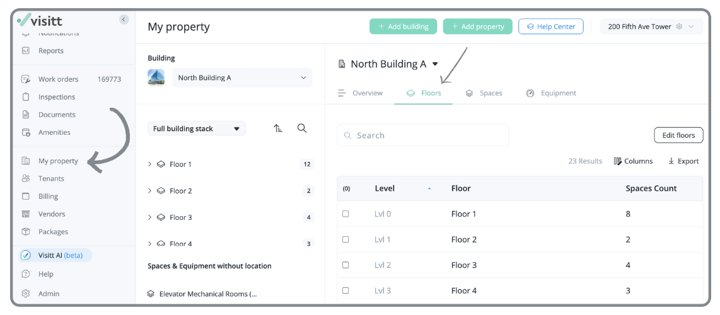
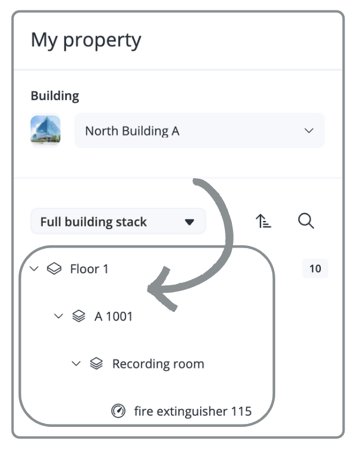
Documented behavior: My Property shows a building tree from floor to space, subspace and equipment, with search and filters for equipment or leasable spaces, plus a section for items with no floor. Building addresses appear in work order forms and filters. Only Visitt technical support can remove a building.

My Property: Page Overview

Inspect 36 linked UI assets →

Connected journeys: Configure a property and onboard a tenant

All linked sources and dates (4)

Stable agent record: workflow:visitt-portfolio-setup

Visitt / Maintenance & equipment · Reviewed details + outline

Manage spaces, equipment and lifecycle information

Role: Property manager and engineer

Starts at
Spaces / Equipment → QR context
Ends when
Open QR-linked context
Evidence
Reviewed controls / exceptions; 25 UI assets

Visitt documents this as a workflow for property manager and engineer. The source sequence covers manage floors and spaces, add equipment, record lifecycle fields, then open QR-linked context.

  1. Manage floors and spaces
  2. Add equipment
  3. Record lifecycle fields
  4. Open QR-linked context

Documented behavior: Use My Property and the Spaces tab to create either a shared/operational building space or a leasable space. A space must be marked leasable to be available as leasable space on tenant records. Its detail view links equipment, work orders, inspection history and QR context.

My Property - Spaces

Inspect 25 linked UI assets →

Connected journeys: Complete an inspection and correct a missed task

All linked sources and dates (5)

Stable agent record: workflow:visitt-assets

Visitt / Property & portfolio setup · AI-extracted details + outline

Configure global categories and templates

Role: Property and global administrator

Starts at
Global Categories → Local Categories → Templates
Ends when
Create or edit reusable templates
Evidence
AI-extracted controls / exceptions (not reviewed); 15 UI assets

Visitt documents this as a workflow for property and global administrator. The source sequence covers create global categories, manage local categories, then create or edit reusable templates.

  1. Create global categories
  2. Manage local categories
  3. Create or edit reusable templates

AI-extracted, not reviewed: Claude extracted the notes below from the cited help articles as captured on September 28, 2026. No person has reviewed them; check the source before relying on one.

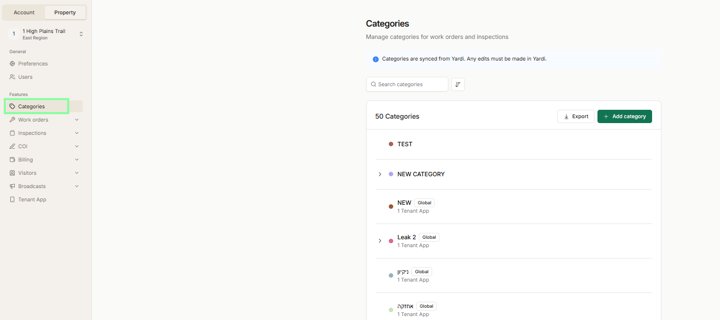
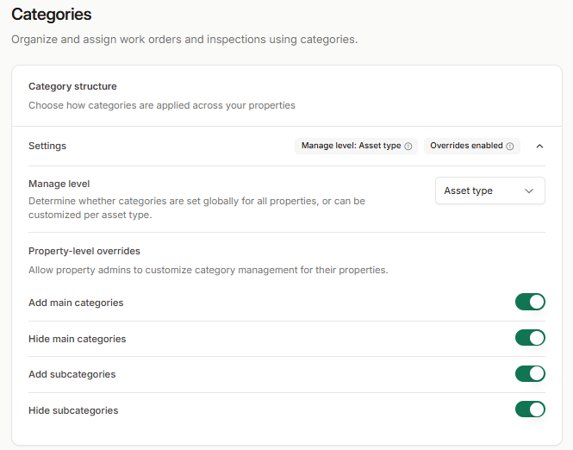
Documented behavior: Global Admins manage work order categories under Settings > Account > Categories, either one list for all properties or scoped by asset type. Four switches decide whether property admins may add or hide main categories and subcategories; all are on by default, and turning all off locks properties to the global list.

Global Categories

Exception / edge case: Hiding a category affects one property and keeps history. Removing one at account level cannot be undone, takes it off linked items and stops integration syncing, with an option to keep it locally where already used. When admins add a local category, Visitt suggests similar existing ones to avoid duplicates.

Global Categories

Documented behavior: Categories and subcategories organize work orders and inspections and sync to Visitt+, where tenants choose one when submitting a request. Each category appears only on the properties it is assigned to.

How to Manage Your Categories

Permissions: Only Global Admins create inspection and broadcast templates shared across all properties; others get an Unauthorized error. An inspection saved as a template drops its spaces, equipment and assigned users, which must be set at each property.

How to Create and Manage Visitt Templates

Inspect 15 linked UI assets →

Connected journeys: Configure a property and onboard a tenant

All linked sources and dates (3)

Stable agent record: workflow:visitt-categories

Visitt / Work orders · AI-extracted details + outline

Create, accept and manage work requests

Role: Property team

Starts at
Work Orders → Open → Detail / Acceptance
Ends when
Inspect removal controls
Evidence
AI-extracted controls / exceptions (not reviewed); 18 UI assets

Visitt documents this as a workflow for property team. The source sequence covers create a work order, review and accept it, manage subscribers, then inspect removal controls.

  1. Create a work order
  2. Review and accept it
  3. Manage subscribers
  4. Inspect removal controls

AI-extracted, not reviewed: Claude extracted the notes below from the cited help articles as captured on September 28, 2026. No person has reviewed them; check the source before relying on one.

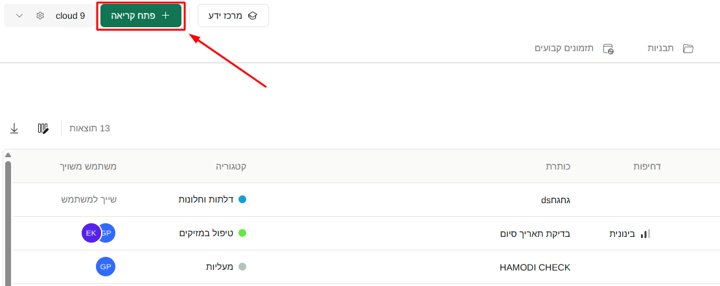
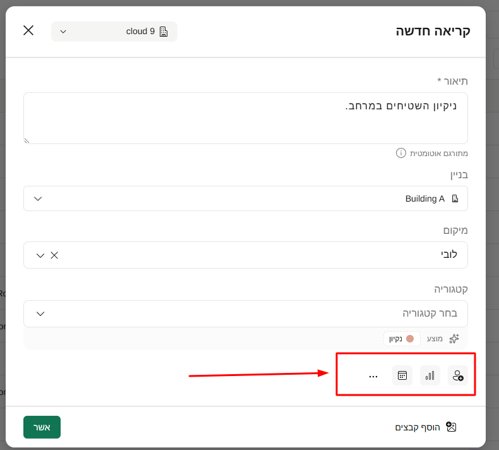
Documented behavior: Per the Hebrew guide, a new work order takes a description from which Visitt AI suggests a category, a building, a location searchable by floor, space, equipment or tenant (which suggests related contacts), an assignee, priority from low to critical and a due date, plus optional template, checklist, recurrence and photo, video or PDF files.

כיצד ליצור קריאת עבודה: תהליך חדש ומשופר (Hebrew)

Exception / edge case: With work order approval enabled, new orders start as Awaiting Accept. Changing status accepts automatically; declining needs a reason and another assignee; reopening a completed or canceled order auto-accepts it for the reopener. Checklists, which record who ticked each item, are hidden from tenants.

כיצד ליצור קריאת עבודה: תהליך חדש ומשופר (Hebrew) · Work Order Acceptance

Documented behavior: Assignees, the creator, chat participants, people mentioned or notified by escalation rules, and self-subscribers receive push notifications for messages, status, due date and overdue changes. Assignees cannot unsubscribe, and team members can manage only their own subscription.

Work Order Subscribers

Documented behavior: Per the Hebrew overview, the work orders page has Open, All, a calendar (web only), automations that assign users and time frames by category or unseen time, and templates. CSV export lets users choose fields and is limited to 5,000 work orders per export.

מבט כולל על עמוד קריאות (Hebrew)

Permissions: Only Admins can delete work orders, singly or in bulk, and deletion is permanent and unrecoverable. Non-admins do not see the Delete option.

How to Delete Work Orders

Inspect 18 linked UI assets →

Connected journeys: Turn a tenant issue into completed, billable work · Complete an inspection and correct a missed task · Book a room and prepare it for use

All linked sources and dates (5)

Stable agent record: workflow:visitt-work-orders

Visitt / Work orders · AI-extracted details + outline

Complete work from the field

Role: Engineer

Starts at
My Work → Request detail → Updates → Complete
Ends when
The assigned work order is completed with its updates recorded
Evidence
AI-extracted controls / exceptions (not reviewed); 16 UI assets

Visitt documents this as a workflow for engineer. The source sequence covers find assigned work, open request context, record updates, complete the work, then review visibility troubleshooting.

  1. Find assigned work
  2. Open request context
  3. Record updates
  4. Complete the work
  5. Review visibility troubleshooting

AI-extracted, not reviewed: Claude extracted the notes below from the cited help articles as captured on September 28, 2026. No person has reviewed them; check the source before relying on one.

Documented behavior: Per the Hebrew guides, managers can view and edit everyone's work orders, while field staff see their open tasks on the main screen and all tickets on the Tickets page. Status, location, due date and assignees can be changed by tapping them, and status can be changed straight from the list.

איך לטפל בקריאות שירות: מדריך למנהלים ואנשי שטח (Hebrew) · ניהול וביצוע קריאות שבר (אנשי שטח) (Hebrew)

Exception / edge case: Files or photos added with the attach button are attached to the work order itself, not the chat message, even in the internal team chat, and become visible to all teams on the ticket. Staff should check a file is suitable before uploading.

ניהול וביצוע קריאות שבר (אנשי שטח) (Hebrew) · איך לטפל בקריאות שירות: מדריך למנהלים ואנשי שטח (Hebrew)

Documented behavior: Each work order has separate team and tenant chats, and Visitt AI can rephrase messages to tenants. In the mobile app, My Work can group tickets by status or due date, and saved column layouts persist between visits.

ניהול וביצוע קריאות שבר (אנשי שטח) (Hebrew)

Exception / edge case: When staff cannot see work orders, the usual cause is assignment or automation changes by property management. Device fixes are clearing site data from the profile, then logging out and back in, before escalating to the property admin or Visitt support.

How can I troubleshoot work order visibility issues in the Visitt app?

Inspect 16 linked UI assets →

Connected journeys: Turn a tenant issue into completed, billable work · Complete an inspection and correct a missed task

All linked sources and dates (3)

Stable agent record: workflow:visitt-field-work

Visitt / Automation & staffing · Reviewed details + outline

Configure routing and recurring requests

Role: Operations manager

Starts at
Work Orders → Automation / Recurring Schedules
Ends when
A saved rule acts on qualifying requests according to its trigger and conditions
Evidence
Reviewed controls / exceptions; 11 UI assets

Visitt documents this as a workflow for operations manager. The source sequence covers choose a trigger, define conditions and actions, set default assignment, then create recurring work.

  1. Choose a trigger
  2. Define conditions and actions
  3. Set default assignment
  4. Create recurring work

Documented behavior: In Work Orders, an administrator defines an automation trigger, priority, building and category conditions, then an action. The documented selection order favors more-specific matches, beginning with subcategory and category.

How to Set Work Order Automations

Limitation / verification point: New rules do not apply retroactively. An automation does not overwrite a field that already has a value; that also matters for recurring requests created with an assignee. Distinguish rule configuration from AI classification.

How to Set Work Order Automations

Inspect 11 linked UI assets →

Connected journeys: Turn a tenant issue into completed, billable work

All linked sources and dates (2)

Stable agent record: workflow:visitt-automation

Visitt / Automation & staffing · Reviewed details + outline

Create on-call schedules and arrange coverage

Role: Global administrator and on-call engineer

Starts at
On-call Schedule → Rotation / Replacement
Ends when
Set out-of-office periods
Evidence
Reviewed controls / exceptions; 11 UI assets

Visitt documents this as a workflow for global administrator and on-call engineer. The source sequence covers define properties and rotation, assign tiers, request replacement coverage, review on-call assignment context, then set out-of-office periods.

  1. Define properties and rotation
  2. Assign tiers
  3. Request replacement coverage
  4. Review on-call assignment context
  5. Set out-of-office periods

Documented behavior: Global admins create account-level on-call schedules, select properties, set a rotation and arrange primary and backup tiers. During off-hours, scheduled people appear prominently in the work-order assignee list. This alone does not establish automatic assignment.

Set up and manage on-call schedules

Documented behavior: A scheduled user can arrange coverage for all or part of a shift, choose a replacement from the same schedule and record a reason. The change takes effect immediately and notifies the replacement; the guide also describes cancelling that cover.

Set up and manage on-call schedules

Inspect 11 linked UI assets →

Connected journeys: Turn a tenant issue into completed, billable work

All linked sources and dates (2)

Stable agent record: workflow:visitt-on-call

Visitt / Inspections · Reviewed details + outline

Design inspections and require on-site verification

Role: Operations manager

Starts at
Inspections → Template → Tasks / Locations / QR requirement
Ends when
Require a QR scan where appropriate
Evidence
Reviewed controls / exceptions; 47 UI assets, 2 videos

Visitt documents this as a workflow for operations manager. The source sequence covers define the inspection, add tasks and locations, set order and schedule, then require a QR scan where appropriate.

  1. Define the inspection
  2. Add tasks and locations
  3. Set order and schedule
  4. Require a QR scan where appropriate

Documented behavior: Add a location-linked QR Check section while defining inspection tasks. Download and place that location’s code on site. The documented task requires its scan before completion; scanning a location code can also expose relevant active inspection tasks or location details.

Require On-Site QR Code Scan Before Task Completion

Inspect 47 linked UI assets →

Connected journeys: Complete an inspection and correct a missed task

All linked sources and dates (3)

Stable agent record: workflow:visitt-inspection-setup

Visitt / Inspections · Reviewed details + outline

Complete, review and reopen inspections

Role: Engineer and operations manager

Starts at
Inspections → Open Inspections → select an inspection
Ends when
The inspection is finished or an eligible missed task is reopened; corrective work order creation follows Finish inspection
Evidence
Reviewed controls / exceptions; 28 UI assets, 2 videos

Visitt documents this as a workflow for engineer and operations manager. The source sequence covers open scheduled inspections, record task completion, inspect closed records, then reopen an eligible missed task; record a late-completion reason when finishing.

  1. Open scheduled inspections
  2. Record task completion
  3. Inspect closed records
  4. Reopen an eligible missed task; record a late-completion reason when finishing

Limitation / verification point: The Hebrew guide permits admins, and managers given permission, to reopen eligible missed closed tasks. It excludes daily and hourly tasks. A reopened task stays open for seven days; a reason for late completion is requested when the task is finished.

השלמת משימות שפוספסו

Inspect 28 linked UI assets →

Connected journeys: Complete an inspection and correct a missed task

All linked sources and dates (4)

Stable agent record: workflow:visitt-inspection-execution

Visitt / Billing & accounting · Reviewed details + outline

Approve charges and verify accounting transfer

Role: Property manager, tenant approver and accounting

Starts at
Open request → Billable Items; after completion: Billing → verify / export / sync
Ends when
Eligible verified charges reach an export or synchronization state
Evidence
Reviewed controls / exceptions; 6 UI assets

Visitt documents this as a workflow for property manager, tenant approver and accounting. The source sequence covers add billable items, request tenant approval, verify completed work, queue eligible charges for synchronization, then inspect export and synchronization states.

  1. Add billable items
  2. Request tenant approval
  3. Verify completed work
  4. Queue eligible charges for synchronization
  5. Inspect export and synchronization states

Documented behavior: Add a billable item or a new charge to an open request and request tenant approval when needed. After the work is completed, a manager reviews and verifies the charges in Billing. The guide says verified charges and work-order status cannot then be edited.

Billing Management

Documented behavior: With Yardi enabled, Verify Only retains a verified charge without queueing it; Verify for Sync puts it in Awaiting Sync. Before synchronization, charges can be moved into or out of the queue. Without Yardi, verification is the final in-app billing state and charges can be exported.

Billing Management

Limitation / verification point: The Accounting Sync Panel exposes queued items and synchronization errors. Manual sync supports a target post month. The guide says success/failure notifications are unavailable, so the panel must be checked; this does not prove downstream ledger posting.

Billing Management

Inspect 6 linked UI assets →

Connected journeys: Turn a tenant issue into completed, billable work · Book a room and prepare it for use

All linked sources and dates (2)

Stable agent record: workflow:visitt-billing

Visitt / Vendors · Reviewed details + outline

Manage property and global vendor records

Role: Property and global administrator

Starts at
Vendors → Property links → Verification
Ends when
Review verification and property-specific compliance
Evidence
Reviewed controls / exceptions; 11 UI assets

Visitt documents this as a workflow for property and global administrator. The source sequence covers create or find a vendor, link properties, upgrade or merge records, then review verification and property-specific compliance.

  1. Create or find a vendor
  2. Link properties
  3. Upgrade or merge records
  4. Review verification and property-specific compliance

Documented behavior: A global vendor is one account-level record linked to properties. Global admins can create, upgrade or merge records and apply a Verified badge. Property-admin creation rights are configurable. Merging preserves property-specific contacts, COIs and work orders while combining the shared vendor identity.

Manage Global Vendors Across Your Portfolio

Limitation / verification point: COI tracking remains property-specific even for a global vendor. A global verification badge should not be read as proof that every property’s insurance requirements are satisfied.

Manage Global Vendors Across Your Portfolio

Inspect 11 linked UI assets →

Connected journeys: Manage vendor insurance and operational documents

All linked sources and dates (2)

Stable agent record: workflow:visitt-vendors

Visitt / COI · AI-extracted details + outline

Set requirements and review tenant or vendor COIs

Role: Compliance administrator

Starts at
COI → Requirements → Analysis → Exceptions
Ends when
Certificate analysis and compliance exceptions are reviewed
Evidence
AI-extracted controls / exceptions (not reviewed); 10 UI assets

Visitt documents this as a workflow for compliance administrator. The source sequence covers configure tracking and requirements, upload certificate evidence, review analysis, then configure reminders and exceptions.

  1. Configure tracking and requirements
  2. Upload certificate evidence
  3. Review analysis
  4. Configure reminders and exceptions

AI-extracted, not reviewed: Claude extracted the notes below from the cited help articles as captured on September 28, 2026. No person has reviewed them; check the source before relying on one.

Documented behavior: Tenant requirements are set once per property and inherited, or customized per tenant; vendors get requirements through policy categories such as high risk assigned on the vendor record. Requirements can be AI-extracted from a lease or insurance PDF (best under two pages; PNG and JPEG unsupported), with extracted fields labelled.

Set up and validate tenant COI requirements · אישורים ביטוחיים לדיירים ולקבלני משנה (Hebrew)

Documented behavior: Per the Hebrew guide, an uploaded COI is compared field by field, required against received: green when met or exceeded, orange on a mismatch. Statuses are Compliant, Non-compliant (expired or failed the AI check) and Missing; compliant COIs expiring within 30 days are highlighted on the Status page.

אישורים ביטוחיים לדיירים ולקבלני משנה (Hebrew)

Exception / edge case: A COI owner can still mark a mismatched COI Compliant if the difference is acceptable. Without requirements, no automatic validation runs. Tenants set to not track compliance disappear from the COI list and report, and requirement changes cannot be undone; revalidating sets the COI to Pending.

Set up and validate tenant COI requirements · אישורים ביטוחיים לדיירים ולקבלני משנה (Hebrew)

Documented behavior: COI owners set reminders before and after expiry; one is always sent on the expiry day. Reminders go to the owners and the tenant or vendor renewal contact, who can reply by email with the new certificate, which reaches the owners for upload. Reminder emails can be edited and carry a sample or requirements file.

אישורים ביטוחיים לדיירים ולקבלני משנה (Hebrew)

Permissions: Admins and Managers who are COI owners set requirements and validate certificates; view-only Managers cannot. Global Admins get a portfolio COI report filterable by tenant or vendor, with compliant, non-compliant and missing counts, exportable to CSV or PDF.

Set up and validate tenant COI requirements · אישורים ביטוחיים לדיירים ולקבלני משנה (Hebrew)

Inspect 10 linked UI assets →

Connected journeys: Manage vendor insurance and operational documents

All linked sources and dates (2)

Stable agent record: workflow:visitt-coi

Visitt / Documents · AI-extracted details + outline

Manage operational documents

Role: Property team

Starts at
Documents → Upload → Context / Expiry
Ends when
Remove a document when appropriate
Evidence
AI-extracted controls / exceptions (not reviewed); 10 UI assets

Visitt documents this as a workflow for property team. The source sequence covers upload a document, set its context and expiry, validate its status, then remove a document when appropriate.

  1. Upload a document
  2. Set its context and expiry
  3. Validate its status
  4. Remove a document when appropriate

AI-extracted, not reviewed: Claude extracted the notes below from the cited help articles as captured on September 28, 2026. No person has reviewed them; check the source before relying on one.

Documented behavior: Documents live under Documents & COI with a property, optional tenant or vendor link, tags, files (images or PDFs), start and expiry dates (6 months, 1 year or custom) and reminders. Expired documents show red and those close to expiry orange, and documents can be exported as CSV or as their files.

Documents in Visitt

Documented behavior: Adding a new file or validity period automatically moves the previous current version to a History tab, even if it is still valid, giving an audit trail of past versions without extra steps.

Documents in Visitt

Permissions: Only Admins can delete documents, one at a time or in bulk; other users must ask an Admin to change their user type. Expiry reminders depend on the user's notification settings being enabled.

Documents in Visitt

Inspect 10 linked UI assets →

Connected journeys: Manage vendor insurance and operational documents

All linked sources and dates (1)

Stable agent record: workflow:visitt-documents

Visitt / Directory & tenancy · AI-extracted details + outline

Manage tenant records, contacts and access

Role: Property team

Starts at
Tenants → Contacts → Property association
Ends when
Restore access when appropriate
Evidence
AI-extracted controls / exceptions (not reviewed); 20 UI assets

Visitt documents this as a workflow for property team. The source sequence covers create or edit a tenant, associate contacts and properties, archive contacts, then restore access when appropriate.

  1. Create or edit a tenant
  2. Associate contacts and properties
  3. Archive contacts
  4. Restore access when appropriate

AI-extracted, not reviewed: Claude extracted the notes below from the cited help articles as captured on September 28, 2026. No person has reviewed them; check the source before relying on one.

Documented behavior: A tenant card shows an overview with contacts, open requests and satisfaction, plus contacts, authorized spaces, documents with expiry reminders, and billing fields (tenant code, company, billing contact and address) printed on that tenant's work order invoice PDFs.

Manage Your Tenants in Visitt

Exception / edge case: Per the Hebrew guide, a tenant needs at least one leased or authorized space before its contacts can submit requests. Leased spaces must first be marked rentable on My Property, except when assigned while creating a tenant from the table. Shared spaces for all tenants are set in the tenant app admin.

הוספת אתרים לדיירים (Hebrew)

Permissions: Only Admins or Managers with tenant management permission archive or restore contacts. Archiving keeps the contact's data but blocks login to the tenant app; restoring uses the Archive toggle and the Restore column. Contacts are invited by a link to download Visitt+.

How to Archive and Restore Contacts · Manage Your Tenants in Visitt

Inspect 20 linked UI assets →

Connected journeys: Configure a property and onboard a tenant

All linked sources and dates (3)

Stable agent record: workflow:visitt-tenants

Visitt / Tenant app & content · AI-extracted details + outline

Configure tenant branding and content pages

Role: Property administrator

Starts at
Tenant App Settings → Branding → Pages
Ends when
Review the tenant presentation
Evidence
AI-extracted controls / exceptions (not reviewed); 13 UI assets

Visitt documents this as a workflow for property administrator. The source sequence covers configure branding and app features, create pages and links, arrange tenant content, then review the tenant presentation.

  1. Configure branding and app features
  2. Create pages and links
  3. Arrange tenant content
  4. Review the tenant presentation

AI-extracted, not reviewed: Claude extracted the notes below from the cited help articles as captured on September 28, 2026. No person has reviewed them; check the source before relying on one.

Documented behavior: Settings > Property > Tenant App sets brand colors, logo, building cover image, an optional satisfaction survey after completed work orders, tenant request categories with icons and custom fields, and common areas open to all tenants, with a live preview. The logo also appears on every tenant email notification.

Managing Your Tenant App

Documented behavior: Visitt AI smart category can be switched on so tenants only describe the problem and the AI chooses the request category for them.

Managing Your Tenant App

Permissions: Content pages are open to Admins by default; Managers need an Admin to grant access. Pages are custom app pages or document pages, with rich text, sub-pages, drafts, publish and unpublish, and desktop and mobile previews; drafts are visible only to the property team.

Content: Create and Manage Tenant App Pages · Content: Create and Manage Tenant App Pages

Exception / edge case: Pages placed in Highlights currently appear in reverse order, so the last page added shows first in the tenant app. Other pages sit under the app's Content tab (an older version of the article calls it More).

Content: Create and Manage Tenant App Pages

Inspect 13 linked UI assets →

Connected journeys: Configure a property and onboard a tenant

All linked sources and dates (3)

Stable agent record: workflow:visitt-tenant-branding

Visitt / Login & onboarding · Reviewed details + outline

Tenant login, property switching and preferences

Role: Tenant

Starts at
Login code → Home → Property switcher
Ends when
Set profile and notification preferences
Evidence
Reviewed controls / exceptions; 21 UI assets

Visitt documents this as a workflow for tenant. The source sequence covers enter the login code, review the home screen, switch property context, then set profile and notification preferences.

  1. Enter the login code
  2. Review the home screen
  3. Switch property context
  4. Set profile and notification preferences

Documented behavior: The property team must first add the tenant user. Login uses an emailed or texted six-digit code. The current guide places property switching in the avatar/settings area and broadcasts in the inbox; notification channels depend on property configuration.

Getting Started with Visitt+: A Guide for Tenants

Inspect 21 linked UI assets →

Connected journeys: Configure a property and onboard a tenant · Book a room and prepare it for use · Handle a tenant's visitors, packages and building updates

All linked sources and dates (4)

Stable agent record: workflow:visitt-tenant-start

Visitt / Tenant app & content · AI-extracted details + outline

Submit and track tenant requests

Role: Tenant

Starts at
Visitt+ → + → New request → Open / Closed requests
Ends when
The tenant can view the request and its status in Visitt+
Evidence
AI-extracted controls / exceptions (not reviewed); 7 UI assets

Visitt documents this as a workflow for tenant. The source sequence covers create a request, add category, description and attachments, inspect open and closed requests, then message the property team.

  1. Create a request
  2. Add category, description and attachments
  3. Inspect open and closed requests
  4. Message the property team

AI-extracted, not reviewed: Claude extracted the notes below from the cited help articles as captured on September 28, 2026. No person has reviewed them; check the source before relying on one.

Documented behavior: In the Visitt+ tenant app, requests start from the plus button (also used for visitors and amenity bookings) with a category, description and optional attachment; the Hebrew guide mentions files, photos or video. Visitt routes each request using the property's assignment rules.

Visitt+ Work Orders: Create and track requests · איך ליצור קריאות עבודה ב +Visitt (Hebrew)

Documented behavior: Tenants see Open and Closed requests and can message the property team in a chat beside each request. Visitt support does not give out property managers' contact details, so tenants are directed to submit a request instead.

Visitt+ Work Orders: Create and track requests

Exception / edge case: A request missing from Closed may still be open, or may belong to another property: tenants linked to several properties must switch property from the settings panel under their initials to see it.

Visitt+ Work Orders: Create and track requests

Inspect 7 linked UI assets →

Connected journeys: Turn a tenant issue into completed, billable work

All linked sources and dates (2)

Stable agent record: workflow:visitt-tenant-requests

Visitt / Amenities · AI-extracted details + outline

Configure and reserve amenities

Role: Tenant and property team

Starts at
Tenant: Visitt+ home → + → Book amenity; manager: Amenities → Manage Amenities / Bookings
Ends when
The booking appears with a status; the manager has a linked preparation work order
Evidence
AI-extracted controls / exceptions (not reviewed); 6 UI assets, 1 video

Visitt documents this as a workflow for tenant and property team. The source sequence covers review amenity settings, select the space and time, submit a booking, then inspect booking details and communication.

  1. Review amenity settings
  2. Select the space and time
  3. Submit a booking
  4. Inspect booking details and communication

AI-extracted, not reviewed: Claude extracted the notes below from the cited help articles as captured on September 28, 2026. No person has reviewed them; check the source before relying on one.

Documented behavior: Each amenity has a cover image, maximum occupancy, location, an assigned overseer, time-slot length, cost per booking and opening days and hours. The price shows in the tenant app only if Billable is ticked for each day. Optional required booking questions collect extra details such as guest numbers.

Visitt Amenities for Property Managers

Documented behavior: Rules can set how far ahead tenants may book, cleaning buffers blocked before and after each booking, a maximum booking length, and links between amenities that share one physical space so they cannot be double-booked.

Visitt Amenities for Property Managers

Exception / edge case: Every amenity booking creates a work order that staff must complete, both as a reminder to approve or reject and for setup. Staff can approve, reject with a reason, cancel, edit, or book manually for a tenant; statuses are Approved, Canceled, Inquiry and Pending.

Visitt Amenities for Property Managers

Documented behavior: Tenants book in Visitt+ from the plus button with amenity, date, time and notes, which notifies the property manager. They see the booking status, can chat with the building team about it, and can edit or cancel it from Details.

Amenities (Visitt+)

Inspect 6 linked UI assets →

Connected journeys: Book a room and prepare it for use

All linked sources and dates (2)

Stable agent record: workflow:visitt-amenities

Visitt / Visitors · AI-extracted details + outline

Invite visitors and review entry controls

Role: Tenant and front desk

Starts at
Visitt+ → New visitor → Scheduled visitors
Ends when
The invite and arrival status are available to tenant and front desk
Evidence
AI-extracted controls / exceptions (not reviewed); 19 UI assets, 2 videos

Visitt documents this as a workflow for tenant and front desk. The source sequence covers create a visitor invitation, inspect scheduled visitors, manage arrival records, then review watchlist controls.

  1. Create a visitor invitation
  2. Inspect scheduled visitors
  3. Manage arrival records
  4. Review watchlist controls

AI-extracted, not reviewed: Claude extracted the notes below from the cited help articles as captured on September 28, 2026. No person has reviewed them; check the source before relying on one.

Documented behavior: Staff add a visitor with a host who may or may not be a contact, first and last name, optional email, and a single day (all day or timed) or multi-day range. The visitor receives an email or SMS with a unique QR code for entry, and Cancel Permission revokes access immediately.

Managing Visitors: A Complete Guide

Documented behavior: Tenants invite visitors in Visitt+ (plus button on mobile, Visitor Invite on desktop) and see upcoming visitors on their home screen. The staff table shows the inviting contact and can be filtered by valid or expired access, building and tenant, with check-in and check-out times.

Visitors Overview · Managing Visitors: A Complete Guide

Exception / edge case: Watchlist matches (exact names, manual variants and, with Visitt AI on, AI variants; beta) raise a red Possible Watchlist Match alert before arrival with the reason and action instructions. Nothing blocks check-in automatically; staff contact the tenant, allow, deny or clear the alert.

Visitors Watchlist

Permissions: Admins add watchlist entries for any tenant. Tenant primary contacts can manage their own entries in Visitt+ only if the property enables it, and only in a web browser, not the mobile app or mobile web view. Entries record name variants, an optional photo, instructions and who added them.

Visitors Watchlist

Inspect 19 linked UI assets →

Connected journeys: Handle a tenant's visitors, packages and building updates

All linked sources and dates (4)

Stable agent record: workflow:visitt-visitors

Visitt / Packages · AI-extracted details + outline

Track package delivery and collection

Role: Front desk and tenant

Starts at
Packages → Record → Notify → Collect
Ends when
The tenant is notified and collection status is tracked
Evidence
AI-extracted controls / exceptions (not reviewed); 3 UI assets

Visitt documents this as a workflow for front desk and tenant. The source sequence covers record a package, associate the tenant or contact, then review collection status.

  1. Record a package
  2. Associate the tenant or contact
  3. Review collection status

AI-extracted, not reviewed: Claude extracted the notes below from the cited help articles as captured on September 28, 2026. No person has reviewed them; check the source before relying on one.

Documented behavior: Staff log a package with the recipient contact, a scanned or typed barcode or QR code, courier and notes the tenant can see; saving notifies the contact automatically. Each package shows when it was created and by whom.

Managing Packages

Documented behavior: Marking a package picked up prompts the tenant for an e-signature to confirm collection. Tenants choose in the app whether package notifications arrive by email, SMS or push. The help article dates from August 2024.

Managing Packages

Inspect 3 linked UI assets →

Connected journeys: Handle a tenant's visitors, packages and building updates

All linked sources and dates (1)

Stable agent record: workflow:visitt-packages

Visitt / Communication · AI-extracted details + outline

Send broadcast messages to tenants

Role: Property team

Starts at
Broadcasts → Audience / Channel → Preview / Send
Ends when
The broadcast is sent to selected recipients and channels
Evidence
AI-extracted controls / exceptions (not reviewed); 15 UI assets

Visitt documents this as a workflow for property team. The source sequence covers create the broadcast, select recipients and channels, preview and send, then review the tenant message entry point.

  1. Create the broadcast
  2. Select recipients and channels
  3. Preview and send
  4. Review the tenant message entry point

AI-extracted, not reviewed: Claude extracted the notes below from the cited help articles as captured on September 28, 2026. No person has reviewed them; check the source before relying on one.

Documented behavior: Broadcasts must be enabled for the property. Staff target recipients by building, tenant, contact or a saved Broadcast Group, with a live recipient count, and must choose at least one channel: email, SMS or push. Messages can use templates, attachments, branding presets and AI enhancement where available.

How to Use Visitt's Broadcast Messaging

Documented behavior: The composer previews email, push and in-app views before sending, sets the sender name and notification language, and allows replies when a reply-to email is configured. Broadcasts send immediately with Send Now; the article describes no scheduling option.

How to Use Visitt's Broadcast Messaging

Documented behavior: Tenants read broadcasts in the Visitt+ Inbox and are alerted by push, email or SMS depending on property settings. Tenants can log in only after the property team adds them, using a six-digit code sent to their email or phone.

Getting Started with Visitt+: A Guide for Tenants

Inspect 15 linked UI assets →

Connected journeys: Handle a tenant's visitors, packages and building updates

All linked sources and dates (2)

Stable agent record: workflow:visitt-broadcast

Visitt / Analytics · AI-extracted details + outline

Use portfolio status, reports and shared views

Role: Property and regional manager

Starts at
Reports → Views → Export
Ends when
Configure sharing and export
Evidence
AI-extracted controls / exceptions (not reviewed); 18 UI assets

Visitt documents this as a workflow for property and regional manager. The source sequence covers review status metrics, inspect operational reports, define a saved view, then configure sharing and export.

  1. Review status metrics
  2. Inspect operational reports
  3. Define a saved view
  4. Configure sharing and export

AI-extracted, not reviewed: Claude extracted the notes below from the cited help articles as captured on September 28, 2026. No person has reviewed them; check the source before relying on one.

Documented behavior: The Status page opens on a daily view with tenant Visitt+ reviews linked to their work orders, a Metrics view of the last 30 days and a Portfolio view per property. Reports cover work orders (overview, SLA, AI Discovery of recurring issues), inspections, tenants and amenities, and export to PDF.

Status Page Explained · How to View and Export Reports

Documented behavior: Per the Hebrew guide, the operational score combines on-time work orders, preventive maintenance and daily rounds over 30 days, document validity, and 90-day tenant ratings. It appears only when at least 3 of the 5 areas are used and is capped by coverage (3 areas means at most 60%). Only Admins and Managers see it.

עמוד סטאטוס - ציון תפעולי (Hebrew)

Documented behavior: Views save filters over work orders, inspections or both, for chosen or all assigned properties, as personal or shared with named users in the organization. Each viewer sees only data they have access to; only the creator or an admin can edit or delete a view, and view data can be exported.

Create and Manage Views

Inspect 18 linked UI assets →

Connected journeys: Turn a tenant issue into completed, billable work · Complete an inspection and correct a missed task · Manage vendor insurance and operational documents

All linked sources and dates (4)

Stable agent record: workflow:visitt-reporting

Visitt / AI assistance · AI-extracted details + outline

Inspect AI assistance in operational workflows

Role: Property team and engineer

Starts at
Work-order AI assistance
Ends when
Inspect certificate analysis
Evidence
AI-extracted controls / exceptions (not reviewed); 21 UI assets

Visitt documents this as a workflow for property team and engineer. The source sequence covers review related-request suggestions, inspect title and category assistance, review writing assistance, then inspect certificate analysis.

  1. Review related-request suggestions
  2. Inspect title and category assistance
  3. Review writing assistance
  4. Inspect certificate analysis

AI-extracted, not reviewed: Claude extracted the notes below from the cited help articles as captured on September 28, 2026. No person has reviewed them; check the source before relying on one.

Documented behavior: Per an August 2024 article, Visitt AI flags new work orders that resemble earlier ones from the same reporter, signalling duplicates or recurring problems, and collects these in the Work Orders Discovery report. It also generates keyword titles for new work orders from their descriptions.

Visitt AI Capabilities

Documented behavior: Staff can press an AI button under any chat box to get several rephrased versions of a message for colleagues or tenants. AI Smart Categories, switched on in the tenant app admin, lets tenants type a request and have its category assigned automatically.

Visitt AI Capabilities · ניהול וביצוע קריאות שבר (אנשי שטח) (Hebrew)

Documented behavior: Tenant COI requirements can be extracted by AI from an uploaded PDF (best under two pages) or entered manually, once per property or per tenant. COIs are then checked automatically against the saved requirements, but a person still marks each COI Compliant.

Set up and validate tenant COI requirements

Permissions: Admins and Managers who are COI owners can set requirements and validate COIs; view-only Managers cannot. Changing requirements prompts revalidation, which sets the COI to Pending for manual review, and requirement changes cannot be undone.

Set up and validate tenant COI requirements

Inspect 21 linked UI assets →

Connected journeys: Turn a tenant issue into completed, billable work · Manage vendor insurance and operational documents

All linked sources and dates (3)

Stable agent record: workflow:visitt-ai-surfaces

Visitt / Users & permissions · AI-extracted details + outline

Configure staff profile and notification settings

Role: Property team member

Starts at
Profile → Notifications / Preferences
Ends when
Review notification and permission controls
Evidence
AI-extracted controls / exceptions (not reviewed); 13 UI assets

Visitt documents this as a workflow for property team member. The source sequence covers log in, open the profile, configure personal details and preferences, then review notification and permission controls.

  1. Log in
  2. Open the profile
  3. Configure personal details and preferences
  4. Review notification and permission controls

AI-extracted, not reviewed: Claude extracted the notes below from the cited help articles as captured on September 28, 2026. No person has reviewed them; check the source before relying on one.

Documented behavior: Staff log in with a one-time code, a password or SSO, as chosen by their organization's Admin or IT team; when SSO is configured it is the only option. Visitt Support cannot change login methods or SSO settings, and a 'can't find your account' error usually means the user was never added.

How to Log In to Your Account

Documented behavior: From the name menu, staff set availability (Active, Away or scheduled hours), schedule Out of Office with a backup who receives their work and notifications, change the interface language, clear site data or invite users. Notification preferences are set per feature for email, SMS and push.

Configuring Profile Settings

Permissions: Admins have full access, Managers most features with some actions needing Admin permission, and Team Members only what an Admin enables. Only Admins manage other users' details, role, properties and permissions; whether staff can add or remove themselves from properties depends on their role.

Configuring Profile Settings · How to Manage a User's Profile

Inspect 13 linked UI assets →

Connected journeys: Configure a property and onboard a tenant

All linked sources and dates (3)

Stable agent record: workflow:visitt-profile

Help article index

Titles and selected headings help locate narrower questions. These entries link to the original articles; they are not complete procedural answers.

Browse indexed articles

Coverage Sets and Coverage Versioning

Cove / COI Management
Source date: 2026-09-03T19:28:37Z · en-us

Selected headings: The Tenant/Vendor COI Detail Page · Tenant COI Management Table · Coverage Destination · Coverage Set Forms · Status and Compliance Values

Related workflow

Insights Dashboard

Cove / Reports and Analytics
Source date: 2026-09-01T18:31:25Z · en-us

Selected headings: Access & Permissions : · Supported Data Types · Creating a Board · Adding and Arranging Cards · Configuring a Card · Drilling Down Into Data

Related workflow · 15 source assets

Glossary

Cove / Common Questions
Source date: 2026-08-17T15:39:48Z · en-us

Troubleshooting: Password Reset Issues

Cove / Troubleshooting Errors
Source date: 2026-05-18T19:29:56Z · en-us

Selected headings: Basic Troubleshooting · Advanced Troubleshooting · Still Having Trouble?

Email Templates

Cove / Announcements
Source date: 2026-05-01T16:31:33Z · en-us

Selected headings: Plain Text Email Templates · HTML Email Builder Templates · Using Email Templates · Editing Email Templates

Related workflow · 3 source assets

Cove Status Page Overview

Cove / Cove Tech Support and FAQs
Source date: 2026-03-24T17:25:38Z · en-us

Selected headings: What is the Status Page? · When Should You Check It? · Subscribing to Updates · Need Additional Help?

Event Surveys

Cove / Events
Source date: 2026-03-11T18:47:44Z · en-us

Selected headings: Creating Surveys · Setting up Auto-Send Within the Event · Manually Sending Surveys · How Users Take the Survey · Reviewing Survey Results · Troubleshooting

Related workflow · 4 source assets

Activity Log

Cove / Activity Log
Source date: 2026-02-10T18:29:40Z · en-us

Selected headings: Adding and editing Activity Log entries · Viewing and searching Activity Log entries · Exporting the Activity Log

Related workflow · 3 source assets

Reporting Overview

Cove / Reports and Analytics
Source date: 2026-01-13T15:58:05Z · en-us

Selected headings: Filtering and Exporting from Work Order, Maintenance & Inspection Modules · Reports & Analytics Module · Network-Level Reporting

Related workflow · 7 source assets

Checking Visitors In

Cove / Visitors
Source date: 2026-08-04T16:20:48Z · en-us

Selected headings: Checking In an Individual Visitor · Checking In Visitors in Bulk · Automatic Check-In Using a QR Code at a Turnstile · Credential Status

Related workflow · 3 source assets

How To Create a Bulletin

Cove / Visitors
Source date: 2025-11-12T00:08:35Z · en-us

Selected headings: Purpose · Accessing Bulletins · Creating and Managing Bulletins · Real-Time Updates · Deleting Bulletins

Vertical Displays

Cove / Display Management
Source date: 2025-10-24T20:28:58Z · en-us

Selected headings: 📌 Supported Display Setups · 🧭 Orientation & Responsiveness · 📝 Content Guidelines · Setup Steps for Vertical Displays · Examples · Troubleshooting Orientation Issues

Related workflow · 3 source assets

Watch List

Cove / Visitors
Source date: 2026-06-30T19:14:54Z · en-us

Selected headings: Updating The Visitor Watch List Matching Method · Adding a User to the Watch List · What Happens When a User is Added

Related workflow · 12 source assets

Training Opportunities

Cove / Training Opportunities
Source date: 2026-08-05T16:44:02Z · en-us

Selected headings: Property Team Training Opportunities · Building Team Training Opportunities · Tenant Admin Training Opportunities

Network Level Email Templates

Cove / Announcements
Source date: 2025-04-07T17:52:16Z · en-us

Selected headings: Create, Edit, and Assign Email Templates at the Network Level · View and Use Network Email Templates at the Building Level

· 3 source assets

User Roles

Cove / Directory Management
Source date: 2026-07-21T16:30:26Z · en-us

Selected headings: Overview of User Roles and How They Should Be Assigned

Related workflow

COI Overview

Cove / COI Management
Source date: 2026-09-09T17:26:40Z · en-us

Selected headings: What’s Included in the COI Module · Key Capabilities

· 3 source assets

Displays

Cove / Display Management
Source date: 2025-10-08T19:52:01Z · en-us

Selected headings: Display Setup Overview · Display Setup with Smart TV · Connect Your Display to the Cove Dashboard · Display Configuration Cheat Sheet · Managing Displays

Related workflow · 15 source assets

Announcements

Cove / Announcements
Source date: 2026-05-05T12:00:01Z · en-us

Selected headings: Delivery Methods · Announcement Types · Sending Announcements from the Dashboard · Sending Announcements from Your App

· 9 source assets

Purchase Order Setup

Cove / Purchase Orders
Source date: 2026-08-26T21:28:34Z · en-us

Selected headings: Edit Shipping and Billing Addresses · Edit Instructions and Terms and Conditions · Manage signature settings · Purchase Order Approval Notifications

Related workflow · 3 source assets

Building Engineer Admin Guide

Cove / Training Guides
Source date: 2025-01-27T15:07:37Z · en-us

Selected headings: Click here to access this admin guide in PDF format.

App Screens

Cove / App Home Screen
Source date: 2025-01-27T15:07:25Z · en-us

Selected headings: Creating App Screens · Creating and Organizing Content in Your App Screens · Publishing App Screens

Related workflow · 4 source assets

App Spotlights

Cove / App Home Screen
Source date: 2025-04-07T17:40:37Z · en-us

Selected headings: Creating App Spotlights · Adding Highlights to a Spotlight Section

Related workflow

Email Builder: Overview

Cove / Announcements
Source date: 2026-03-20T19:50:14Z · en-us

Selected headings: Email Builder · Where to Find the Email Builder in the Dashboard: · Email Builder Use Cases: · Related Email Builder Articles:

· 1 source assets

Community Surveys

Cove / Surveys
Source date: 2026-07-30T16:00:19Z · en-us

Selected headings: Community Survey · Tips for Survey Engagement · Resources for Writing Effective Survey Questions

· 3 source assets

Display Highlights

Cove / Highlights
Source date: 2026-02-10T21:00:48Z · en-us

Selected headings: Accessing and Navigating Highlights · Creating a Display Highlight · Managing Display Highlights

· 2 source assets

Creating Inspections

Cove / Inspections
Source date: 2025-04-07T17:57:51Z · en-us

Selected headings: Step 1: Create an Inspection Template · Step 2: Create Inspection Sections & Questions · Step 3: Create Inspection Schedules

Related workflow · 4 source assets

COI Setup

Cove / COI Management
Source date: 2026-08-13T16:00:18Z · en-us

Selected headings: COI General Setup · Create Policy Types · Create Coverage Categories · Set Coverage Requirements for a Tenant or Vendor · Add New Coverage Set

Related workflow · 7 source assets

FAQ

Cove / Cove Tech Support and FAQs
Source date: 2026-06-26T13:18:47Z · en-us

Selected headings: Getting Started & Onboarding · Training and Resources · Roles, Permissions, and Team Setup · Signing In & Account Access · Managing Sites, and Users Building Access

Adding Users

Cove / Directory Management
Source date: 2025-08-22T22:19:00Z · en-us

Selected headings: Manually Add A User · Bulk Upload Users · Add Tenant Email Domains For User Self-Enrollment

Related workflow · 2 source assets

Consent Forms

Cove / Property Setup Management
Source date: 2026-05-04T15:10:24Z · en-us

Selected headings: Create a New Consent Form · Add your Consent Form to a Space

· 2 source assets

Creating & Managing Events

Cove / Events
Source date: 2026-05-19T21:40:18Z · en-us

Selected headings: Basic Event Information · Configure Event RSVPs · Configure Event Ticket Prices · Configuring Events Shown on Displays · Configuring Event Email Notifications · Waivers

Related workflow · 19 source assets

Best Practices for Offboarding Tenants

Cove / Getting Started for Residential Property Managers
Source date: 2026-06-30T14:46:46Z · en-us

Selected headings: Best Practices for Suspending Building Staff · Suspending an Individual User · Suspending Users in Bulk

· 7 source assets

Building Calendar

Cove / Logging In & Platform Overview
Source date: 2026-06-04T14:00:33Z · en-us

Selected headings: What Appears on the Calendar · Navigating the Calendar · A Note on Work Orders and Due Dates

· 3 source assets

Hardware & Software Requirements

Cove / Cove Tech Support and FAQs
Source date: 2026-06-30T14:48:03Z · en-us

Selected headings: Mobile App Minimum Operating Systems · Dashboard Requirements · Display Requirements: · Cove Kiosk Tablets (Reserve, Concierge, Events, or Package mode)

· 2 source assets

Recurring Events

Cove / Events
Source date: 2026-05-19T21:22:11Z · en-us

Selected headings: Basic Recurring Event Information · Interval and Timing · Configure Recurring Event RSVPs · Configure Event Ticket Prices · Displays · Event Email Notifications · Event Survey · Tags

Related workflow · 21 source assets

Waivers: Responses

Cove / Waivers
Source date: 2025-01-27T15:06:03Z · en-us

Selected headings: Where To Find Responses · Sorting & Filtering Responses · Downloading Waiver Responses · Manually Adding Waiver Responses

Related workflow · 5 source assets

Custom Table Views

Cove / Logging In & Platform Overview
Source date: 2026-09-03T22:06:16Z · en-us

Selected headings: Edit Viewable Columns · Saved Views · Download Reports · Compact and Standard Views · Rows Per Page · All Notes Column (Work Orders)

Related workflow · 19 source assets

Equipment Libraries

Cove / Maintenance
Source date: 2026-08-12T15:38:18Z · en-us

Selected headings: Creating Equipment Categories · Adding Custom Fields on Equipment Categories · Creating Equipment Items · Editing an Equipment Item · Deleting Equipment

Related workflow · 6 source assets

Mixpanel Dashboards

Cove / Cove Tech Support and FAQs
Source date: 2025-05-23T20:22:02Z · en-us

Selected headings: How to Access Your Mixpanel Mobile App Dashboard · Troubleshooting

· 1 source assets

Handling Landlords & Tenants

Cove / Getting Started for Residential Property Managers
Source date: 2025-04-07T17:08:35Z · en-us

Selected headings: Handling Landlords & Tenants · Create Household/User for each Unit · Landlord uses Mobile App to add Tenants

· 1 source assets

Approval-Based Open Enrollment

Cove / Directory Management
Source date: 2026-05-20T19:42:43Z · en-us

Selected headings: How the enrollment request flow works · Reviewing and approving requests · What users see while they wait

Property Info

Cove / Property Setup Management
Source date: 2026-04-14T15:32:32Z · en-us

Selected headings: Key Details · Dashboard Login Page · Property Hours · Property Closure Dates · Images · Communication and Notifications · Email Sender Name Settings · Website and Social Media

Related workflow · 4 source assets

Batch Reporting

Cove / Work Orders
Source date: 2026-08-13T17:47:43Z · en-us

Selected headings: Example Reports · Create Batch Reports

· 3 source assets

How to Setup Password

Cove / Logging In & Platform Overview
Source date: 2026-08-21T18:53:33Z · en-us

Selected headings: Password Setup for Mobile App · Password Setup for Dashboard

· 8 source assets

Households

Cove / Getting Started for Residential Property Managers
Source date: 2025-04-07T17:07:01Z · en-us

Selected headings: How households work · Create a new Household · Add current users to a household (Admin View) · Step 1 · Step 2 · Step 3

· 1 source assets

Updating Your App

Cove / Cove Tech Support and FAQs
Source date: 2025-01-27T15:08:06Z · en-us

Selected headings: How to Check Your Building App Version · How to Update Your Building App (iPhone Users)

· 4 source assets

Questionnaires

Cove / Property Setup Management
Source date: 2026-04-17T15:09:43Z · en-us

Selected headings: Creating a New Questionnaire · Attaching a Questionnaire

· 3 source assets

Create an Amenity Space

Cove / Amenity Reservations
Source date: 2026-07-28T19:24:10Z · en-us

Selected headings: Create a reservable amenity space: · Amenity Space Key Details · Amenity Space Workflows · Amenity Space Hours and Availability · Amenity Space Billing

Related workflow · 10 source assets

Overnight Reservations

Cove / Amenity Reservations
Source date: 2025-11-17T02:02:34Z · en-us

Selected headings: Setting Up an Amenity for Overnight Reservations · How Overnight Reservations Display · How to Schedule an Overnight Reservation · Rules & Limitations

· 4 source assets

Maintenance- Changes

Cove / Maintenance
Source date: 2025-01-27T15:04:56Z · en-us

Selected headings: Key Highlights of the Feature Change:

Closing a Work Order

Cove / Work Orders
Source date: 2025-06-11T22:28:08Z · en-us

Selected headings: Closing Work Orders · Verifying Work Orders · Reversing Charges · Exporting Work Orders

· 5 source assets

Vacation Forwarding

Cove / Property Setup Management
Source date: 2026-05-05T13:06:19Z · en-us

Selected headings: Creating a Forwarding Rule · Viewing and Managing Rules · How Forwarding Works · Example · Troubleshooting and Notes

· 4 source assets

Directory Module Overview

Cove / Directory Management
Source date: 2026-04-17T19:45:05Z · en-us

Selected headings: Who Can Manage The Directory? · Users and Staff Table Overview · Tenant Table Overview · Vendor Table Overview · Deleting and Suspending Users

· 5 source assets

Managing Tenant Leases

Cove / Directory Management
Source date: 2026-06-10T18:34:36Z · en-us

Selected headings: Add a Lease · Mark a Lease as Month-to-Month · How Lease Codes Are Applied to Work Orders · Archive a Lease · RentRoll Import

Related workflow · 1 source assets

Mobile Directory

Cove / Directory Management
Source date: 2026-06-24T17:10:34Z · en-us

Selected headings: Tenants · Users · Needs Approval

· 3 source assets

Reservation Approvals

Cove / Amenity Reservations
Source date: 2026-01-22T15:45:44Z · en-us

Selected headings: Setting Up The Reservation Approval Process · Approving and Denying Reservations · What Users Will See During the Approval Process

Related workflow · 5 source assets

Tenant Management

Cove / Directory Management
Source date: 2026-04-17T19:22:44Z · en-us

Selected headings: Tenant Configuration Page vs. Tenant Overview Page · Tenant Configuration Page · Key Info · Building Location · Additional Contact Information · Reservation Settings · Visitor Management Settings

· 8 source assets

Reserve Tablets

Cove / Amenity Reservations
Source date: 2026-04-14T16:15:00Z · en-us

Selected headings: Setting Up A Tablet in Reserve Mode · Reconfiguring The App for a New Amenity Space or Adjusting The Configurations

Related workflow · 4 source assets

User Tags

Cove / Directory Management
Source date: 2026-05-04T15:08:01Z · en-us

Selected headings: Overview: · Where Can I See User Tags? · Creating User Tags · Individually Adding User Tags · Bulk Adding User Tags · Bulk Removing User Tags

· 7 source assets

Work Groups

Cove / Work Orders
Source date: 2026-01-15T03:26:10Z · en-us

Selected headings: Use Case Example: · Notification Types and Use Cases · Notification Hours · Creating Work Groups

Related workflow · 9 source assets

Work Order General Setup

Cove / Work Orders
Source date: 2025-07-24T15:08:43Z · en-us

Selected headings: Work Order General Setup · Work Order Restrictions · Invoices and Statements

· 2 source assets

Work Order Notifications

Cove / Work Orders
Source date: 2026-05-05T14:38:34Z · en-us

Selected headings: Summary of Default Notifications Received · Manage Notifications Property-Wide · Notifications for Work Order Notes · Notifications When A Tenant Updates a Work Order

Related workflow · 7 source assets

Work Order Surveys

Cove / Work Orders
Source date: 2025-11-18T21:10:10Z · en-us

Selected headings: Setting Up a Work Order Survey · How Surveys Are Sent · Completing a Work Order Survey · Viewing Survey Responses · Example

· 5 source assets

My Property - Spaces

Visitt / Property Management
Source date: 2025-04-27T12:00:49Z · en

Selected headings: General View · Space Overview · Creating a Space · Create a Base Building Space · Create a Leasable Space · Editing a Space

Related workflow · 8 source assets

Managing Equipment in Visitt

Visitt / Property Management
Source date: 2026-06-24T13:54:08Z · en

Selected headings: Accessing the Equipment Tab · Filtering Equipment · Equipment Overview · Creating New Equipment · Importing Equipment · Editing Equipment · Equipment Files

Related workflow · 4 source assets

Work Orders: FAQ

Visitt / Work Orders
Source date: 2025-11-30T13:34:30Z · en

Selected headings: Can an Excel file be uploaded to a Work Order after it has been closed? · How to Set an SLA Automation

FAQ - Tenants and contacts

Visitt / Tenants & Communication
Source date: 2025-11-25T12:35:50Z · en

Selected headings: 1. Contact Roles for Tenants and How to Change Them

Visitors Watchlist

Visitt / Visitors
Source date: 2025-12-01T07:29:04Z · en

Selected headings: How the Watchlist Works · Add and Manage Watchlist Entries · Filter the Watchlist by Tenant · Adding a Watchlist Entry · AI-Powered Match Alerts (Beta)

Related workflow · 6 source assets

Team Members App FAQs

Visitt / Team Members
Source date: 2025-11-25T13:17:00Z · en

Selected headings: My team members not see their inspections · How can I view and edit amenities as a team member?

Work Order Acceptance

Visitt / Work Orders
Source date: 2026-04-09T12:00:04Z · en

Selected headings: Accepting a Work Order · How to Accept a Work Order · What Happens after accepting a Work Order? · Auto-accept · What Happens?

Related workflow · 4 source assets

Global Settings: Buildings

Visitt / Settings & Administration
Source date: 2026-05-18T16:47:56Z · en

Selected headings: What is the Buildings page? · How it works · Access the Buildings page · Read the buildings table · Search for a building · FAQ

Related workflow · 3 source assets

Access and Navigate Settings

Visitt / Settings & Administration
Source date: 2026-05-18T17:17:45Z · en

Selected headings: What is Settings? · How to Open Settings · Account Settings · Property Settings · Permissions · FAQ

· 3 source assets

What is Visitt?

Visitt / Getting Started
Source date: 2026-06-14T07:34:12Z · en

Selected headings: Who is Visitt for? · What can you do with Visitt?

· 1 source assets

Visitt: Platform Capabilities and Solutions

Visitt / Getting Started
Source date: 2026-06-14T07:54:25Z · en

Selected headings: Centralized Work Order Management · Seamless Tenant and Team Communication · End-to-End Vendor and Compliance Management · Integrated Billing and Financial Tracking

· 5 source assets

Navigating and Managing Inspections in Visitt

Visitt / Inspections
Source date: 2026-06-07T08:55:39Z · en

Selected headings: Access and User Permissions · Understanding the Inspections Tabs · Open Inspections · Calendar · Closed Inspections · Manage Inspections

Global Categories

Visitt / Settings & Administration
Source date: 2026-07-23T15:38:42Z · en

Selected headings: 1. Access Global Categories · 2. Set up your category structure · 3. Create the default category list · 4. How categories apply to properties

Related workflow · 3 source assets

Set Up Primary Properties

Visitt / Property Management
Source date: 2026-08-05T12:38:35Z · en

Selected headings: What is Primary Properties? · How it works · Enable Primary Properties · Set primary properties for a single user · Bulk-assign primary properties

Related workflow · 5 source assets

Visitors Overview

Visitt / Visitt+ (Tenant App)
Source date: 2026-09-09T07:55:01Z · en

Selected headings: What is Visitors? · How it works · Managing visitors as a property admin via Visitt · Adding a visitor as a tenant via Visitt+

Related workflow · 4 source assets

Visitt+ Settings

Visitt / Visitt+ (Tenant App)
Source date: 2026-09-09T07:30:34Z · en

Selected headings: Getting Started with Visitt+ Settings · Language Preferences · Switch Properties · Managing Notifications · Update Contact Information · Updating Your Name · Changing Email and Phone Number

Related workflow · 6 source assets

How to Edit Inspections

Visitt / Inspections
Source date: 2025-04-16T09:20:43Z · en

Selected headings: Accessing Editing Mode · Stage 1: Main Information · Stage 2: Customize tasks and associated spaces for the inspection · Removing Inspections

Related workflow · 21 source assets

How to Manage Your Categories

Visitt / Settings & Administration
Source date: 2026-05-14T12:39:37Z · en

Selected headings: What are categories? · How to manage your Categories/Subcategories: · Creating a new category: · Creating a Sub Category · Common scenarios · FAQ

Related workflow · 9 source assets

Managing Your Tenant App

Visitt / Tenants & Communication
Source date: 2026-06-07T10:34:51Z · en

Selected headings: General: Customize Your App's Appearance · 💡 Enabling Visitt AI Smart Category Selection · Requests: Manage Tenant Request Categories · Visitt+ Live Edit

Related workflow · 6 source assets

Status Page Explained

Visitt / Status Page
Source date: 2024-12-18T11:50:41Z · en

Selected headings: What is the Status Page? · Different Status Page Views: · Daily Status View · Visitt+ User Reviews · Metrics View · Portfolio View

Related workflow · 4 source assets

Billing Management

Visitt / Property Management
Source date: 2026-09-02T13:21:54Z · en

Selected headings: Understanding the Billing Lifecycle · How The Billing Flow Works · Add a Charge to an Open Request · Review and Verify Work Orders

Related workflow · 3 source assets

Manage Your Tenants in Visitt

Visitt / Tenants & Communication
Source date: 2025-02-23T10:42:55Z · en

Selected headings: Managing Tenants · Overview : · Contacts · Authorized Spaces · Documents · Billing · Creating and Archiving Tenants ​ · Adding Contacts · Updating Contacts

Related workflow · 8 source assets

Managing Packages

Visitt / Tenants & Communication
Source date: 2024-08-19T21:21:24Z · en

Selected headings: What is the Packages Feature? · Adding a Package · Viewing and Editing Package Details · Notifications

Related workflow · 3 source assets

Documents in Visitt

Visitt / Property Management
Source date: 2026-06-17T07:20:44Z · en

Selected headings: Viewing and Creating Documents · Uploading Files · History · Removing Documents · Managing Tags · Exporting Documents

Related workflow · 10 source assets

Visitt AI Capabilities

Visitt / Getting Started
Source date: 2024-08-19T21:30:12Z · en

Selected headings: Similarity Detection in Work Orders · AI-Generated Titles for Work Orders · Enhanced Communication with AI-Assisted Chat · Work Order Categorization

Related workflow · 6 source assets

My Property: Page Overview

Visitt / Property Management
Source date: 2025-10-21T11:40:37Z · en

Selected headings: Start Here · Navigating through the building · Removing a building: · Building Address · Main Screen Display · Search and Filtering Functionalities

Related workflow · 24 source assets

הוספת אתרים לדיירים

Visitt / Other language / unclassified
Source date: 2025-05-06T10:57:04Z · he

Selected headings: התחל כאן · ניהול שטחים מתוך טבלת הדיירים · ניהול שטחים דרך פרופיל הדייר · שטחים מושכרים · אתרים מורשים · הוספת שטחים משותפים

Related workflow · 7 source assets

השלמת משימות שפוספסו

Visitt / Other language / unclassified
Source date: 2025-06-23T11:11:33Z · he

Selected headings: מי יכול לפתוח מחדש משימות שפוספסו? · אילו סוגי משימות ניתן לפתוח מחדש? · שלב אחר שלב: איך פותחים משימה שהוחמצה? · 💡נקודות חשובות

Related workflow · 9 source assets

איך לשנות את ההגדרות ב +Visitt

Visitt / Other language / unclassified
Source date: 2026-08-12T06:50:04Z · he

Selected headings: התחל כאן · שינוי שפה: · בחירת נכס · התראות: · עדכון פרטים אישיים: · עדכון שם · עדכון כתובת המייל או הטלפון

· 5 source assets

My Property Page FAQs

Visitt / Property Management
Source date: 2025-11-16T11:25:23Z · en

Selected headings: I want to remove a property from my account,What should I do? · What file types can be uploaded?

Use this with agents

Supply the complete package (including the text knowledge base) to your agent, then ask it to use knowledge-base/search.py. Workflow records include steps, scoped detail, sources and UI asset IDs. The guide specifies how to answer and when to report that the evidence is insufficient.