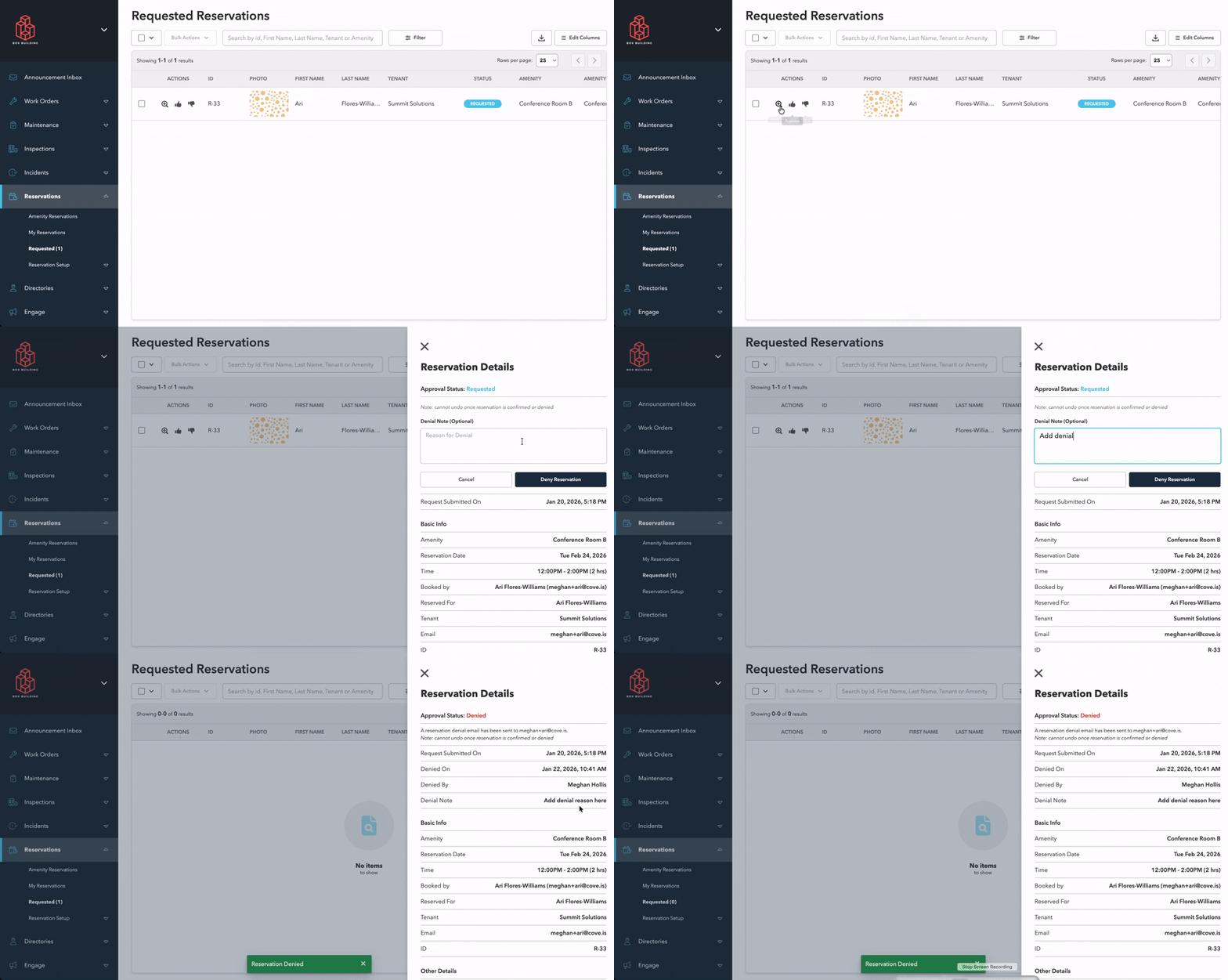
Cove / COI Management
Source date: 2026-09-03T19:28:37Z · en-us
Selected headings: The Tenant/Vendor COI Detail Page · Tenant COI Management Table · Coverage Destination · Coverage Set Forms · Status and Compliance Values
Related workflow
Cove / Customer Success Newsletters
Source date: 2026-09-03T03:45:01Z · en-us
Related workflow · 6 source assets
Cove / Common Questions
Source date: 2026-08-27T19:52:43Z · en-us
· 1 source assets
Cove / Reports and Analytics
Source date: 2026-09-01T18:31:25Z · en-us
Selected headings: Access & Permissions : · Supported Data Types · Creating a Board · Adding and Arranging Cards · Configuring a Card · Drilling Down Into Data
Related workflow · 15 source assets
Cove / Setup & Troubleshooting
Source date: 2026-07-30T18:46:41Z · en-us
Related workflow · 1 source assets
Cove / Self-Serve Launch Materials
Source date: 2026-07-17T14:28:39Z · en-us
Cove / Common Questions
Source date: 2026-08-17T15:39:48Z · en-us
Cove / Chat
Source date: 2026-06-18T19:54:50Z · en-us
Selected headings: Starting a New Conversation · Receiving Messages · Notifications
Related workflow · 5 source assets
Cove / Chat
Source date: 2026-06-18T19:55:51Z · en-us
Selected headings: Setting Up Chat Contacts · Starting a New Conversation · Receiving Messages · Notifications
Related workflow · 6 source assets
Cove / Packages
Source date: 2026-06-10T13:37:27Z · en-us
Selected headings: Package Check-In · Package Check-Out · Notifications
Related workflow · 5 source assets
Cove / Customer Success Newsletters
Source date: 2026-05-22T15:14:53Z · en-us
· 10 source assets
Cove / Customer Success Newsletters
Source date: 2026-05-22T15:07:15Z · en-us
Related workflow · 11 source assets
Cove / Customer Success Newsletters
Source date: 2026-05-22T14:46:31Z · en-us
· 9 source assets
Cove / Visitors
Source date: 2026-05-21T15:27:30Z · en-us
Selected headings: Register Visitors on the Dashboard · Register Visitors on the Mobile App · Bulk Upload Visitors
Related workflow · 7 source assets
Cove / Training Opportunities
Source date: 2026-05-20T17:16:16Z · en-us
Cove / Network Level Operations
Source date: 2026-05-19T16:41:12Z · en-us
Related workflow · 5 source assets
Cove / Network Level Operations
Source date: 2026-06-12T15:35:22Z · en-us
Related workflow · 4 source assets
Cove / Troubleshooting Errors
Source date: 2026-05-18T19:25:49Z · en-us
Selected headings: Basic Troubleshooting Steps · Advanced Troubleshooting Steps · Contact Support
Cove / Troubleshooting Errors
Source date: 2026-05-18T19:29:56Z · en-us
Selected headings: Basic Troubleshooting · Advanced Troubleshooting · Still Having Trouble?
Cove / Amenity Reservations
Source date: 2026-08-04T15:34:21Z · en-us
· 3 source assets
Cove / Announcements
Source date: 2026-05-01T16:31:33Z · en-us
Selected headings: Plain Text Email Templates · HTML Email Builder Templates · Using Email Templates · Editing Email Templates
Related workflow · 3 source assets
Cove / Announcements
Source date: 2026-07-29T21:12:06Z · en-us
Selected headings: Add Links via a Button · Hyperlinked Text · About the File Manager
· 15 source assets
Cove / Announcements
Source date: 2026-04-21T21:36:29Z · en-us
· 2 source assets
Cove / Cove Tech Support and FAQs
Source date: 2026-03-24T17:25:38Z · en-us
Selected headings: What is the Status Page? · When Should You Check It? · Subscribing to Updates · Need Additional Help?
Cove / Visitors
Source date: 2026-03-19T13:23:08Z · en-us
Selected headings: How license scanning works · Setting up the scanner · Registering visitors using a license scanner
· 1 source assets
Cove / Events
Source date: 2026-03-11T18:47:44Z · en-us
Selected headings: Creating Surveys · Setting up Auto-Send Within the Event · Manually Sending Surveys · How Users Take the Survey · Reviewing Survey Results · Troubleshooting
Related workflow · 4 source assets
Cove / Activity Log
Source date: 2026-02-10T18:29:40Z · en-us
Selected headings: Adding and editing Activity Log entries · Viewing and searching Activity Log entries · Exporting the Activity Log
Related workflow · 3 source assets
Cove / Time Cards
Source date: 2026-02-10T22:36:57Z · en-us
Selected headings: Add Hours · Edit Hours · Respond to Denied Hours
Related workflow · 3 source assets
Cove / Time Cards
Source date: 2026-02-09T16:49:52Z · en-us
Selected headings: Review submitted weeks · Approve a Time Card · Deny a Time Card (return for correction) · Edit & Adjust Time Card
Related workflow
Cove / Time Cards
Source date: 2026-02-09T17:11:50Z · en-us
Selected headings: Configure Building Team Member Profiles · Configure Time Types
Related workflow · 5 source assets
Cove / Time Cards
Source date: 2026-02-09T16:50:53Z · en-us
· 3 source assets
Cove / Setup & Troubleshooting
Source date: 2026-01-29T16:34:07Z · en-us
Selected headings: Setup · Troubleshooting
Related workflow · 2 source assets
Cove / Setup & Troubleshooting
Source date: 2026-01-29T16:31:40Z · en-us
Selected headings: Setup · Troubleshooting
Related workflow · 2 source assets
Cove / Setup & Troubleshooting
Source date: 2026-01-29T16:27:05Z · en-us
Selected headings: Setup · Troubleshooting
Related workflow · 2 source assets
Cove / Setup & Troubleshooting
Source date: 2026-01-29T16:22:58Z · en-us
Selected headings: Setup · Troubleshooting
· 3 source assets
Cove / Setup & Troubleshooting
Source date: 2026-01-29T16:23:24Z · en-us
Selected headings: Setup · Troubleshooting
Related workflow · 2 source assets
Cove / Setup & Troubleshooting
Source date: 2026-04-30T19:55:48Z · en-us
Selected headings: Troubleshooting
Related workflow · 2 source assets
Cove / Setup & Troubleshooting
Source date: 2026-01-29T16:27:40Z · en-us
Selected headings: Setup · Troubleshooting
Related workflow · 2 source assets
Cove / Work Orders
Source date: 2026-05-15T17:10:54Z · en-us
Selected headings: Billing setup · Add & Verify Billables · Reservation charges · Tenant statements and batches · One-off work order invoices
Related workflow · 9 source assets
Cove / Announcements
Source date: 2026-02-26T14:27:58Z · en-us
Related workflow
Cove / Reports and Analytics
Source date: 2026-01-13T15:58:05Z · en-us
Selected headings: Filtering and Exporting from Work Order, Maintenance & Inspection Modules · Reports & Analytics Module · Network-Level Reporting
Related workflow · 7 source assets
Cove / Visitors
Source date: 2026-08-04T16:20:48Z · en-us
Selected headings: Checking In an Individual Visitor · Checking In Visitors in Bulk · Automatic Check-In Using a QR Code at a Turnstile · Credential Status
Related workflow · 3 source assets
Cove / Announcements
Source date: 2025-12-08T17:17:55Z · en-us
Selected headings: Viewing SMS Metrics · How to Read the Aggregate Metrics · How to Read User-Level Details · Example Metrics · Troubleshooting SMS
Related workflow · 3 source assets
Cove / Announcements
Source date: 2025-12-10T16:43:14Z · en-us
Selected headings: Viewing Push Delivery Metrics · How to Read the Aggregate Metrics · How to Read User-Level Details · Example Metrics
Related workflow · 3 source assets
Cove / Troubleshooting Errors
Source date: 2026-05-12T18:11:47Z · en-us
· 2 source assets
Cove / Visitors
Source date: 2025-11-12T00:08:35Z · en-us
Selected headings: Purpose · Accessing Bulletins · Creating and Managing Bulletins · Real-Time Updates · Deleting Bulletins
Cove / Events
Source date: 2025-11-14T00:27:21Z · en-us
Related workflow · 6 source assets
Cove / Display Management
Source date: 2025-10-24T20:28:58Z · en-us
Selected headings: 📌 Supported Display Setups · 🧭 Orientation & Responsiveness · 📝 Content Guidelines · Setup Steps for Vertical Displays · Examples · Troubleshooting Orientation Issues
Related workflow · 3 source assets
Cove / Visitors
Source date: 2026-01-27T15:36:10Z · en-us
Selected headings: Setting Up Your Badge Printer · Visitor Management Check-in, Badge, and Photo Settings · Troubleshooting Badge Printing Issues
· 3 source assets
Cove / Setup & Troubleshooting
Source date: 2025-12-26T16:59:13Z · en-us
· 1 source assets
Cove / Announcements
Source date: 2026-02-27T23:30:23Z · en-us
Selected headings: Viewing Email Delivery and Engagement Metrics · How to Read the Aggregate Metrics · How to Read the User-Level Details · Example Metrics
Related workflow · 6 source assets
Cove / Visitors
Source date: 2026-06-30T19:14:54Z · en-us
Selected headings: Updating The Visitor Watch List Matching Method · Adding a User to the Watch List · What Happens When a User is Added
Related workflow · 12 source assets
Cove / App Home Screen
Source date: 2026-06-05T13:04:09Z · en-us
Selected headings: Create Quick Action Buttons
Related workflow · 1 source assets
Cove / Training Opportunities
Source date: 2026-08-05T16:44:02Z · en-us
Selected headings: Property Team Training Opportunities · Building Team Training Opportunities · Tenant Admin Training Opportunities
Cove / Training Opportunities
Source date: 2025-05-19T23:31:00Z · en-us
· 1 source assets
Cove / Getting Started for Residential Property Managers
Source date: 2025-01-27T15:10:32Z · en-us
Selected headings: Adding Household Members · Example
· 4 source assets
Cove / Announcements
Source date: 2025-04-07T17:52:16Z · en-us
Selected headings: Create, Edit, and Assign Email Templates at the Network Level · View and Use Network Email Templates at the Building Level
· 3 source assets
Cove / Property Setup Management
Source date: 2026-06-04T14:40:23Z · en-us
Selected headings: Add Manually · Adding a Building Address · Bulk Upload · Delete Buildings, Floors, and Suites
Related workflow · 3 source assets
Cove / Visitors
Source date: 2026-04-14T16:15:12Z · en-us
Selected headings: Setting Up A Tablet in Concierge Mode
· 1 source assets
Cove / Visitors
Source date: 2026-07-21T15:48:37Z · en-us
Selected headings: Register Visitors on the Dashboard · Register Visitors on the Mobile App · Bulk Upload Visitors · Editing Visitor Directions for Your Organization
Related workflow · 10 source assets
Cove / Directory Management
Source date: 2026-07-21T16:30:26Z · en-us
Selected headings: Overview of User Roles and How They Should Be Assigned
Related workflow
Cove / Visitors
Source date: 2025-01-27T15:09:41Z · en-us
Selected headings: Create a Group Visit · Visitor Notifications · Editing Visits
Related workflow · 5 source assets
Cove / Visitors
Source date: 2025-01-27T15:09:21Z · en-us
Selected headings: Step 1 · Step 2 · Step 3 · Step 4 · Step 5 · Step 6
Related workflow · 23 source assets
Cove / COI Management
Source date: 2026-09-09T17:26:40Z · en-us
Selected headings: What’s Included in the COI Module · Key Capabilities
· 3 source assets
Cove / Display Management
Source date: 2025-10-08T19:52:01Z · en-us
Selected headings: Display Setup Overview · Display Setup with Smart TV · Connect Your Display to the Cove Dashboard · Display Configuration Cheat Sheet · Managing Displays
Related workflow · 15 source assets
Cove / Training Opportunities
Source date: 2025-05-05T16:57:31Z · en-us
· 1 source assets
Cove / Maintenance
Source date: 2026-04-21T14:20:28Z · en-us
Selected headings: Assigning QR Codes To Equipment Items · Scanning QR Codes to Access Equipment
Related workflow · 8 source assets
Cove / Announcements
Source date: 2026-05-05T12:00:01Z · en-us
Selected headings: Delivery Methods · Announcement Types · Sending Announcements from the Dashboard · Sending Announcements from Your App
· 9 source assets
Cove / Purchase Orders
Source date: 2026-05-15T17:29:22Z · en-us
Selected headings: Purchase Order Module Overview · Approve Purchase Orders
Related workflow · 2 source assets
Cove / Incidents
Source date: 2025-06-25T13:22:32Z · en-us
Selected headings: Incident Module Overview
· 1 source assets
Cove / Purchase Orders
Source date: 2026-08-26T21:28:34Z · en-us
Selected headings: Edit Shipping and Billing Addresses · Edit Instructions and Terms and Conditions · Manage signature settings · Purchase Order Approval Notifications
Related workflow · 3 source assets
Cove / Purchase Orders
Source date: 2025-01-27T15:07:41Z · en-us
Selected headings: Create Purchase Orders · Manage Purchase Orders
Related workflow · 8 source assets
Cove / Training Guides
Source date: 2025-01-27T15:07:37Z · en-us
Selected headings: Click here to access this admin guide in PDF format.
Cove / Logging In & Platform Overview
Source date: 2026-08-05T18:39:40Z · en-us
· 6 source assets
Cove / App Home Screen
Source date: 2025-01-27T15:07:25Z · en-us
Selected headings: Creating App Screens · Creating and Organizing Content in Your App Screens · Publishing App Screens
Related workflow · 4 source assets
Cove / App Home Screen
Source date: 2025-01-27T15:07:17Z · en-us
Selected headings: App Screens and Spotlights Webinar · Webinar Slide Deck
Related workflow
Cove / App Home Screen
Source date: 2025-04-07T17:40:37Z · en-us
Selected headings: Creating App Spotlights · Adding Highlights to a Spotlight Section
Related workflow
Cove / Highlights
Source date: 2025-04-07T17:52:58Z · en-us
Selected headings: Creating Mobile Highlight Sections · Creating Mobile Highlights · Managing Mobile Highlights
Related workflow · 8 source assets
Cove / Announcements
Source date: 2026-03-20T19:50:14Z · en-us
Selected headings: Email Builder · Where to Find the Email Builder in the Dashboard: · Email Builder Use Cases: · Related Email Builder Articles:
· 1 source assets
Cove / Visitors
Source date: 2026-05-19T21:29:57Z · en-us
Selected headings: Visitor Registration Settings · Arrival Settings · Check-in, Badge, and Photo Settings · Parking Integration · Concierge Tablet Settings
Related workflow · 20 source assets
Cove / Surveys
Source date: 2026-07-30T16:00:19Z · en-us
Selected headings: Community Survey · Tips for Survey Engagement · Resources for Writing Effective Survey Questions
· 3 source assets
Cove / Highlights
Source date: 2026-02-10T21:00:48Z · en-us
Selected headings: Accessing and Navigating Highlights · Creating a Display Highlight · Managing Display Highlights
· 2 source assets
Cove / Announcements
Source date: 2026-04-30T18:05:54Z · en-us
Selected headings: How to create HTML / Email Builder emails · Adding Attachments to Emails (Including PDFs)
Related workflow · 9 source assets
Cove / Announcements
Source date: 2025-01-27T15:06:36Z · en-us
Related workflow · 1 source assets
Cove / Announcements
Source date: 2025-01-27T15:06:33Z · en-us
Selected headings: check the formatting of your email for desktop and mobile view · send a test email to yourself
Related workflow · 2 source assets
Cove / Surveys
Source date: 2025-01-27T15:06:28Z · en-us
Selected headings: Viewing Results · Reservation Table Layout · Filtering Results · Survey Edits · Exporting Results
Related workflow · 5 source assets
Cove / Surveys
Source date: 2026-07-30T15:07:33Z · en-us
Selected headings: Next Steps
Related workflow · 8 source assets
Cove / Waivers
Source date: 2025-04-07T17:37:54Z · en-us
Selected headings: Create a New Waiver · After creating a new waiver, there are five main sections to edit: · NEXT:
Related workflow · 2 source assets
Cove / Inspections
Source date: 2025-04-07T17:57:51Z · en-us
Selected headings: Step 1: Create an Inspection Template · Step 2: Create Inspection Sections & Questions · Step 3: Create Inspection Schedules
Related workflow · 4 source assets
Cove / Events
Source date: 2026-05-19T21:41:25Z · en-us
· 1 source assets
Cove / Visitors
Source date: 2025-04-07T17:50:12Z · en-us
· 1 source assets
Cove / Work Orders
Source date: 2026-05-15T16:59:28Z · en-us
Selected headings: Add a Labor Rate · Edit A Labor Rate
Related workflow · 6 source assets
Cove / Amenity Reservations
Source date: 2026-05-14T16:59:11Z · en-us
· 4 source assets
Cove / COI Management
Source date: 2026-08-13T16:00:18Z · en-us
Selected headings: COI General Setup · Create Policy Types · Create Coverage Categories · Set Coverage Requirements for a Tenant or Vendor · Add New Coverage Set
Related workflow · 7 source assets
Cove / Cove Tech Support and FAQs
Source date: 2026-06-26T13:18:47Z · en-us
Selected headings: Getting Started & Onboarding · Training and Resources · Roles, Permissions, and Team Setup · Signing In & Account Access · Managing Sites, and Users Building Access
Cove / Training Guides
Source date: 2026-06-15T15:01:44Z · en-us
Cove / Directory Management
Source date: 2025-08-22T22:19:00Z · en-us
Selected headings: Manually Add A User · Bulk Upload Users · Add Tenant Email Domains For User Self-Enrollment
Related workflow · 2 source assets
Cove / Display Management
Source date: 2025-10-08T19:51:28Z · en-us
Selected headings: 🧰 Installation · 🔌 Connect to the Airtame · 🌐 Connect the Airtame to Wi-Fi
Related workflow · 6 source assets
Cove / Property Setup Management
Source date: 2026-05-04T15:10:24Z · en-us
Selected headings: Create a New Consent Form · Add your Consent Form to a Space
· 2 source assets
Cove / Events
Source date: 2026-05-19T21:40:18Z · en-us
Selected headings: Basic Event Information · Configure Event RSVPs · Configure Event Ticket Prices · Configuring Events Shown on Displays · Configuring Event Email Notifications · Waivers
Related workflow · 19 source assets
Cove / Inspections
Source date: 2025-02-17T19:46:28Z · en-us
Selected headings: Inspections Layout
· 2 source assets
Cove / Logging In & Platform Overview
Source date: 2026-08-05T18:40:03Z · en-us
· 6 source assets
Cove / Incidents
Source date: 2025-11-07T14:42:53Z · en-us
Selected headings: Create Incident Categories · Create Incident Types · Route Incident Reports
Related workflow · 17 source assets
Cove / Surveys
Source date: 2025-04-07T17:44:38Z · en-us
Selected headings: Attaching Surveys to A Mobile Highlights · Sending Surveys Through Push Notifications · Next Steps
Related workflow · 9 source assets
Cove / Waivers
Source date: 2025-04-07T17:38:39Z · en-us
Selected headings: Automatic Data Gathered · Add or Remove Questions · Custom Questions · NEXT:
Related workflow · 1 source assets
Cove / Maintenance
Source date: 2026-08-12T15:37:13Z · en-us
Related workflow · 2 source assets
Cove / Getting Started for Residential Property Managers
Source date: 2026-06-30T14:46:46Z · en-us
Selected headings: Best Practices for Suspending Building Staff · Suspending an Individual User · Suspending Users in Bulk
· 7 source assets
Cove / COI Management
Source date: 2026-09-03T22:10:00Z · en-us
Selected headings: The AI Review Table · Uploading Documents · The Review Workflow · Policy Type Mapping · Certificate Holder Configuration
Related workflow · Related workflow · 6 source assets
Cove / Logging In & Platform Overview
Source date: 2026-06-04T14:00:33Z · en-us
Selected headings: What Appears on the Calendar · Navigating the Calendar · A Note on Work Orders and Due Dates
· 3 source assets
Cove / Work Orders
Source date: 2026-05-15T17:10:35Z · en-us
Selected headings: Add a Material · Edit a Material
Related workflow · 6 source assets
Cove / Amenity Reservations
Source date: 2025-11-17T18:45:45Z · en-us
Selected headings: How Time Zones Affect Reservations · Time Zone Reminder in the Dashboard · Troubleshooting
· 1 source assets
Cove / Property Setup Management
Source date: 2025-04-01T15:39:54Z · en-us
Related workflow · 3 source assets
Cove / Cove Tech Support and FAQs
Source date: 2026-06-30T14:48:03Z · en-us
Selected headings: Mobile App Minimum Operating Systems · Dashboard Requirements · Display Requirements: · Cove Kiosk Tablets (Reserve, Concierge, Events, or Package mode)
· 2 source assets
Cove / Directory Management
Source date: 2026-01-22T16:34:04Z · en-us
Selected headings: Adding a New Tenant · Understanding Tenant Field Options · Tenant-Specific Module Settings · Viewing Existing Tenants · Editing or Deleting a Tenant
Related workflow · 10 source assets
Cove / Events
Source date: 2026-05-19T21:22:11Z · en-us
Selected headings: Basic Recurring Event Information · Interval and Timing · Configure Recurring Event RSVPs · Configure Event Ticket Prices · Displays · Event Email Notifications · Event Survey · Tags
Related workflow · 21 source assets
Cove / Incidents
Source date: 2026-08-20T18:11:46Z · en-us
Selected headings: Opening Incident Reports · Managing Incidents · Resolving Incidents
Related workflow · 9 source assets
Cove / Waivers
Source date: 2025-01-27T15:06:03Z · en-us
Selected headings: Where To Find Responses · Sorting & Filtering Responses · Downloading Waiver Responses · Manually Adding Waiver Responses
Related workflow · 5 source assets
Cove / Inspections
Source date: 2025-01-27T15:05:49Z · en-us
Selected headings: Webinar Recording · Inspections Slide Deck
Related workflow · 4 source assets
Cove / Announcements
Source date: 2026-03-20T19:50:54Z · en-us
· 9 source assets
Cove / Maintenance
Source date: 2025-02-17T19:47:33Z · en-us
Selected headings: Demo
Related workflow · 1 source assets
Cove / COI Management
Source date: 2026-06-04T21:23:38Z · en-us
Selected headings: Manage Tenant and Vendor COIs · Tenant and Vendor COI detail pages · Waive a COI Coverage Requirement · COI Compliance Metrics
Related workflow · 5 source assets
Cove / Common Questions
Source date: 2026-07-09T14:21:58Z · en-us
Selected headings: How to Access Multiple Sites (Dashboard) · How to Access Multiple Sites (App) · Troubleshooting
· 2 source assets
Cove / Amenity Reservations
Source date: 2025-10-02T12:29:28Z · en-us
Selected headings: Creating a Reservation Policy · Assigning Policies to Spaces · How Policies Apply to Users · Policy Priority · Examples
Related workflow · 7 source assets
Cove / Directory Management
Source date: 2025-02-20T16:41:02Z · en-us
· 4 source assets
Cove / Events
Source date: 2025-02-17T21:27:29Z · en-us
Selected headings: Configure RSVP Slots · Slots · Waivers
Related workflow · 2 source assets
Cove / Logging In & Platform Overview
Source date: 2026-09-03T22:06:16Z · en-us
Selected headings: Edit Viewable Columns · Saved Views · Download Reports · Compact and Standard Views · Rows Per Page · All Notes Column (Work Orders)
Related workflow · 19 source assets
Cove / Maintenance
Source date: 2026-08-12T15:38:18Z · en-us
Selected headings: Creating Equipment Categories · Adding Custom Fields on Equipment Categories · Creating Equipment Items · Editing an Equipment Item · Deleting Equipment
Related workflow · 6 source assets
Cove / Waivers
Source date: 2025-04-07T17:36:49Z · en-us
Selected headings: Signature Settings · NEXT:
Related workflow · 1 source assets
Cove / Inspections
Source date: 2025-04-07T17:35:05Z · en-us
Selected headings: Inspections are organized by assignment and status.
Related workflow · 3 source assets
Cove / Work Orders
Source date: 2025-04-07T17:30:58Z · en-us
Selected headings: Steps · Mobile View: · Admin Dashboard:
· 2 source assets
Cove / Getting Started for Residential Property Managers
Source date: 2025-01-27T15:03:37Z · en-us
Selected headings: About Household Members vs. Full Accounts · Converting Household Members into Full Accounts
· 3 source assets
Cove / Cove Tech Support and FAQs
Source date: 2025-05-23T20:22:02Z · en-us
Selected headings: How to Access Your Mixpanel Mobile App Dashboard · Troubleshooting
· 1 source assets
Cove / Logging In & Platform Overview
Source date: 2025-04-03T13:23:49Z · en-us
Selected headings: Regular Users Accessing the Web Dashboard View: · A few notes about the Regular User web dashboard view:
· 3 source assets
Cove / Work Orders
Source date: 2026-06-09T20:07:25Z · en-us
Selected headings: Assigning and/or route Work Orders to Vendors and Vendor Users
· 1 source assets
Cove / Directory Management
Source date: 2026-04-17T19:23:32Z · en-us
· 2 source assets
Cove / Property Setup Management
Source date: 2026-01-06T21:46:47Z · en-us
Selected headings: Setup your Meet the Team section
· 4 source assets
Cove / Events
Source date: 2026-05-15T19:55:49Z · en-us
Selected headings: Setting up the Cove Kiosk Tablet App · Using the App During Events · Setting Up a New Event On Your Tablet
Related workflow · 12 source assets
Cove / Inspections
Source date: 2025-08-14T16:28:29Z · en-us
Selected headings: Viewing and Completing Inspections on the Dashboard · Viewing and Completing Inspections on the Mobile App
Related workflow · 2 source assets
Cove / Waivers
Source date: 2025-01-27T15:06:06Z · en-us
Selected headings: Visibility · Send Upon Completion · NEXT:
Related workflow · 2 source assets
Cove / Announcements
Source date: 2025-04-08T16:46:29Z · en-us
Selected headings: Webinar Recording · Webinar Slide Deck
Related workflow
Cove / Maintenance
Source date: 2025-03-23T15:58:47Z · en-us
Cove / Amenity Reservations
Source date: 2025-01-27T15:05:21Z · en-us
Selected headings: Creating a Seating Arrangement · Attaching A Seating Arrangement To An Existing Amenity Space
Related workflow · 4 source assets
Cove / Getting Started for Residential Property Managers
Source date: 2025-04-07T17:08:35Z · en-us
Selected headings: Handling Landlords & Tenants · Create Household/User for each Unit · Landlord uses Mobile App to add Tenants
· 1 source assets
Cove / Directory Management
Source date: 2026-05-20T19:42:43Z · en-us
Selected headings: How the enrollment request flow works · Reviewing and approving requests · What users see while they wait
Cove / Property Setup Management
Source date: 2026-04-14T15:32:32Z · en-us
Selected headings: Key Details · Dashboard Login Page · Property Hours · Property Closure Dates · Images · Communication and Notifications · Email Sender Name Settings · Website and Social Media
Related workflow · 4 source assets
Cove / Maintenance
Source date: 2025-05-23T19:27:24Z · en-us
Selected headings: Webinar · Maintenance Webinar Deck
Related workflow
Cove / Work Orders
Source date: 2026-08-13T17:47:43Z · en-us
Selected headings: Example Reports · Create Batch Reports
· 3 source assets
Cove / Logging In & Platform Overview
Source date: 2026-08-21T18:53:33Z · en-us
Selected headings: Password Setup for Mobile App · Password Setup for Dashboard
· 8 source assets
Cove / Amenity Reservations
Source date: 2025-03-05T22:03:41Z · en-us
Selected headings: Amenity Reservations Webinar · Webinar Slide Deck · Updates to Amenity Reservations:
Related workflow
Cove / Events
Source date: 2025-01-27T15:05:31Z · en-us
· 1 source assets
Cove / Mobile Access
Source date: 2026-08-17T15:43:30Z · en-us
· 1 source assets
Cove / Getting Started for Residential Property Managers
Source date: 2025-04-07T17:07:01Z · en-us
Selected headings: How households work · Create a new Household · Add current users to a household (Admin View) · Step 1 · Step 2 · Step 3
· 1 source assets
Cove / Directory Management
Source date: 2026-06-30T14:46:46Z · en-us
Selected headings: Best Practices for Suspending Building Staff · Suspending an Individual User · Suspending Users in Bulk
Related workflow · 7 source assets
Cove / Property Setup Management
Source date: 2025-12-18T17:52:08Z · en-us
Cove / Amenity Reservations
Source date: 2025-04-07T17:47:14Z · en-us
Selected headings: Create a reservable amenity space category:
Related workflow · 4 source assets
Cove / Cove Tech Support and FAQs
Source date: 2025-01-27T15:08:06Z · en-us
Selected headings: How to Check Your Building App Version · How to Update Your Building App (iPhone Users)
· 4 source assets
Cove / Maintenance
Source date: 2025-01-27T15:05:13Z · en-us
Related workflow · 2 source assets
Cove / Work Orders
Source date: 2025-01-27T15:04:38Z · en-us
· 1 source assets
Cove / Getting Started for Residential Property Managers
Source date: 2025-01-27T15:04:00Z · en-us
Selected headings: Adding Household Members · Example
· 3 source assets
Cove / Directory Management
Source date: 2026-03-20T13:37:44Z · en-us
Selected headings: Best Practices for Suspending Building Staff · Suspending an Individual User · Suspending Users in Bulk
Related workflow · 6 source assets
Cove / Property Setup Management
Source date: 2026-04-17T15:09:43Z · en-us
Selected headings: Creating a New Questionnaire · Attaching a Questionnaire
· 3 source assets
Cove / Common Questions
Source date: 2025-12-26T17:21:29Z · en-us
Cove / Amenity Reservations
Source date: 2026-07-28T19:24:10Z · en-us
Selected headings: Create a reservable amenity space: · Amenity Space Key Details · Amenity Space Workflows · Amenity Space Hours and Availability · Amenity Space Billing
Related workflow · 10 source assets
Cove / Work Orders
Source date: 2025-01-27T15:05:09Z · en-us
· 1 source assets
Cove / Maintenance
Source date: 2026-04-28T13:32:28Z · en-us
Selected headings: Task Templates · Procedures · Schedules
Related workflow · 2 source assets
Cove / Getting Started for Residential Property Managers
Source date: 2025-01-27T15:04:14Z · en-us
Selected headings: Using Guest Passes
· 2 source assets
Cove / Property Setup Management
Source date: 2026-07-10T15:56:11Z · en-us
Selected headings: Upload and manage handbooks
Related workflow · 2 source assets
Cove / Directory Management
Source date: 2026-09-08T16:05:34Z · en-us
Selected headings: Downloading the Template · Filling out & Formatting The Template · Uploading the Template
Related workflow · 4 source assets
Cove / Amenity Reservations
Source date: 2025-11-17T02:02:34Z · en-us
Selected headings: Setting Up an Amenity for Overnight Reservations · How Overnight Reservations Display · How to Schedule an Overnight Reservation · Rules & Limitations
· 4 source assets
Cove / Maintenance
Source date: 2025-01-27T15:04:56Z · en-us
Selected headings: Key Highlights of the Feature Change:
Cove / Work Orders
Source date: 2025-06-11T22:28:08Z · en-us
Selected headings: Closing Work Orders · Verifying Work Orders · Reversing Charges · Exporting Work Orders
· 5 source assets
Cove / Amenity Reservations
Source date: 2026-07-28T22:18:48Z · en-us
Selected headings: How it works · How to enable it · Frequently asked questions
Related workflow · 2 source assets
Cove / Maintenance
Source date: 2026-01-22T15:54:38Z · en-us
Selected headings: How to Set Up a Seasonal Maintenance Schedule
Related workflow · 1 source assets
Cove / Property Setup Management
Source date: 2026-05-05T13:06:19Z · en-us
Selected headings: Creating a Forwarding Rule · Viewing and Managing Rules · How Forwarding Works · Example · Troubleshooting and Notes
· 4 source assets
Cove / Work Orders
Source date: 2025-12-15T19:54:43Z · en-us
Selected headings: Create Custom Reports · Custom Report Mapping
Related workflow · 10 source assets
Cove / Directory Management
Source date: 2026-04-17T19:45:05Z · en-us
Selected headings: Who Can Manage The Directory? · Users and Staff Table Overview · Tenant Table Overview · Vendor Table Overview · Deleting and Suspending Users
· 5 source assets
Cove / Amenity Reservations
Source date: 2026-08-04T15:32:00Z · en-us
Selected headings: Create a Reservation on the Mobile App · Create a Reservation from the Dashboard · Editing Reservations · Reservations That Require Approval
Related workflow · 3 source assets
Cove / Work Orders
Source date: 2025-01-27T15:08:27Z · en-us
Selected headings: Creating Custom Reports · Customizing Reports
· 2 source assets
Cove / Directory Management
Source date: 2025-10-21T15:49:58Z · en-us
Selected headings: Directory Management Webinar · Webinar Slide Deck
Related workflow
Cove / Work Orders
Source date: 2026-08-13T20:30:08Z · en-us
Selected headings: Opening a Work Order · Updating Status and Assignment · Your Work Log · Logging Labor · Logging Notes · Logging Materials
Related workflow · 12 source assets
Cove / Directory Management
Source date: 2026-06-10T18:34:36Z · en-us
Selected headings: Add a Lease · Mark a Lease as Month-to-Month · How Lease Codes Are Applied to Work Orders · Archive a Lease · RentRoll Import
Related workflow · 1 source assets
Cove / Amenity Reservations
Source date: 2025-11-12T00:33:06Z · en-us
Selected headings: Credit Basics · Credit Calculation and Cost Display · Managing and Viewing Credits · Credits with Other Payment Types · Examples
Related workflow · 2 source assets
Cove / Directory Management
Source date: 2026-06-24T17:10:34Z · en-us
Selected headings: Tenants · Users · Needs Approval
· 3 source assets
Cove / Amenity Reservations
Source date: 2026-08-04T15:36:43Z · en-us
Selected headings: Create a Reservation on the Mobile App · Create a Reservation from the Dashboard · Editing Reservations · Reservations That Require Approval
Related workflow · 2 source assets
Cove / Work Orders
Source date: 2025-01-27T15:10:26Z · en-us
· 1 source assets
Cove / Amenity Reservations
Source date: 2026-01-22T15:45:44Z · en-us
Selected headings: Setting Up The Reservation Approval Process · Approving and Denying Reservations · What Users Will See During the Approval Process
Related workflow · 5 source assets
Cove / Directory Management
Source date: 2025-02-16T19:39:06Z · en-us
Related workflow · 3 source assets
Cove / Work Orders
Source date: 2026-09-01T20:22:20Z · en-us
Selected headings: Quick-Select Labor Rates · Selecting Additional Rates · Automatic Pre-Selection
· 2 source assets
Cove / Directory Management
Source date: 2026-08-21T15:10:14Z · en-us
Selected headings: How to Suspend or Suspend a User
Related workflow · 1 source assets
Cove / Work Orders
Source date: 2026-03-18T19:03:47Z · en-us
Selected headings: Accessing The Public Work Order Page · Submitting a Work Order · How Public Work Orders Appear In Your System
Related workflow · 7 source assets
Cove / Directory Management
Source date: 2025-10-01T21:46:04Z · en-us
Selected headings: How to make a Tenant Admin a User Manager · How User Managers Can Add, Edit, or Suspend Users
Related workflow · 4 source assets
Cove / Amenity Reservations
Source date: 2025-01-27T15:08:21Z · en-us
Selected headings: Adding Custom Charges to an Amenity Reservation · Adding Custom Rebates to an Amenity Reservation
Related workflow · 2 source assets
Cove / Directory Management
Source date: 2026-04-17T19:22:44Z · en-us
Selected headings: Tenant Configuration Page vs. Tenant Overview Page · Tenant Configuration Page · Key Info · Building Location · Additional Contact Information · Reservation Settings · Visitor Management Settings
· 8 source assets
Cove / Work Orders
Source date: 2025-08-01T14:21:29Z · en-us
Selected headings: Create Recurring Work Order Templates · Edit Recurring Work Orders · Recurring Work Orders Notifications and Routing
Related workflow · 10 source assets
Cove / Amenity Reservations
Source date: 2026-04-14T16:15:00Z · en-us
Selected headings: Setting Up A Tablet in Reserve Mode · Reconfiguring The App for a New Amenity Space or Adjusting The Configurations
Related workflow · 4 source assets
Cove / Work Orders
Source date: 2026-03-04T21:20:42Z · en-us
Related workflow
Cove / Directory Management
Source date: 2026-05-04T15:08:01Z · en-us
Selected headings: Overview: · Where Can I See User Tags? · Creating User Tags · Individually Adding User Tags · Bulk Adding User Tags · Bulk Removing User Tags
· 7 source assets
Cove / Work Orders
Source date: 2026-08-31T20:05:08Z · en-us
Selected headings: Managing Saved Note Templates · Network-Level vs. Site-Level Templates · Using a Saved Note on a Maintenance Task —Dashboard
Related workflow · 7 source assets
Cove / Directory Management
Source date: 2025-03-31T15:38:39Z · en-us
· 1 source assets
Cove / Directory Management
Source date: 2025-02-21T13:41:23Z · en-us
· 1 source assets
Cove / Work Orders
Source date: 2026-08-13T20:45:43Z · en-us
Selected headings: Submitting a Work Order on the App · Submitting a Work Order on the Dashboard
Related workflow · 3 source assets
Cove / Work Orders
Source date: 2026-09-01T14:51:44Z · en-us
Selected headings: Enabling Travel for a Site · Logging Travel on the Dashboard · Logging Travel on Mobile
Related workflow · 5 source assets
Cove / Work Orders
Source date: 2026-01-15T03:26:10Z · en-us
Selected headings: Use Case Example: · Notification Types and Use Cases · Notification Hours · Creating Work Groups
Related workflow · 9 source assets
Cove / Work Orders
Source date: 2025-04-14T15:34:49Z · en-us
Selected headings: Use Case Examples: · Routing for All Buildings (Default) vs. Routing by Building · Assignments and Notifications · Step-by-Step Guide
Related workflow · 5 source assets
Cove / Work Orders
Source date: 2025-08-28T13:48:53Z · en-us
Related workflow
Cove / Work Orders
Source date: 2026-03-25T13:45:06Z · en-us
· 4 source assets
Cove / Work Orders
Source date: 2026-09-01T20:10:44Z · en-us
Selected headings: Available Completion Requirements · Enabling Completion Requirements · How Requirements Are Enforced · Bulk Completion
Related workflow · 4 source assets
Cove / Work Orders
Source date: 2025-07-24T15:08:43Z · en-us
Selected headings: Work Order General Setup · Work Order Restrictions · Invoices and Statements
· 2 source assets
Cove / Work Orders
Source date: 2026-05-05T14:38:34Z · en-us
Selected headings: Summary of Default Notifications Received · Manage Notifications Property-Wide · Notifications for Work Order Notes · Notifications When A Tenant Updates a Work Order
Related workflow · 7 source assets
Cove / Work Orders
Source date: 2025-10-01T21:26:21Z · en-us
· 1 source assets
Cove / Work Orders
Source date: 2026-07-28T23:14:47Z · en-us
Selected headings: User Roles · Module Layout · Day-to Day Management of Work Orders
Related workflow · 1 source assets
Cove / Work Orders
Source date: 2026-05-20T16:59:11Z · en-us
Selected headings: Create An Escalation Rule
Related workflow · 3 source assets
Cove / Work Orders
Source date: 2025-01-27T15:08:13Z · en-us
Selected headings: Default Work Order Scheduling · Issue-Type Specific Work Order Scheduling
Related workflow · 6 source assets
Cove / Work Orders
Source date: 2025-08-15T00:13:49Z · en-us
Selected headings: Statuses · Updates & Communication
· 1 source assets
Cove / Work Orders
Source date: 2025-11-18T21:10:10Z · en-us
Selected headings: Setting Up a Work Order Survey · How Surveys Are Sent · Completing a Work Order Survey · Viewing Survey Responses · Example
· 5 source assets
Cove / Work Orders
Source date: 2026-01-14T19:42:50Z · en-us
Selected headings: Sharing Work Order Estimates With Tenants · Tenant View of Estimates
Related workflow · 11 source assets
Visitt / Property Management
Source date: 2025-02-25T21:58:56Z · en
Selected headings: General View · Editing Floors · Floor Overview
Related workflow · 6 source assets
Visitt / Property Management
Source date: 2025-04-27T12:00:49Z · en
Selected headings: General View · Space Overview · Creating a Space · Create a Base Building Space · Create a Leasable Space · Editing a Space
Related workflow · 8 source assets
Visitt / Property Management
Source date: 2026-06-24T13:54:08Z · en
Selected headings: Accessing the Equipment Tab · Filtering Equipment · Equipment Overview · Creating New Equipment · Importing Equipment · Editing Equipment · Equipment Files
Related workflow · 4 source assets
Visitt / Getting Started
Source date: 2026-06-14T08:56:47Z · en
Selected headings: 1. Log In with a One-Time Code · 2. Log In with Your Password · Troubleshooting Login Issues
Related workflow · 4 source assets
Visitt / Tenants & Communication
Source date: 2026-06-24T07:17:45Z · en
Selected headings: What can Content pages be used for? · How to Add a New Page · Draft and Publish Flow
Related workflow · 6 source assets
Visitt / Users & Teams
Source date: 2026-05-15T09:21:56Z · en
Selected headings: Add the New User · Remove the Leaving User and Transfer Responsibilities
Related workflow · 4 source assets
Visitt / Team Members
Source date: 2025-03-25T19:26:32Z · en
Selected headings: My Property Page · Mobile Phone View
· 4 source assets
Visitt / Tenants & Communication
Source date: 2025-04-20T14:32:13Z · en
Selected headings: Archiving a Contact · Restoring a Contact from the Archive
Related workflow · 5 source assets
Visitt / Property Management
Source date: 2025-05-20T13:58:18Z · en
Selected headings: 1. How to access asset lifecycle · 2. Asset lifecycle view · Top section: summary insights · Bottom section: data input
Related workflow · 5 source assets
Visitt / Property Management
Source date: 2025-06-09T10:36:39Z · en
Selected headings: What Happens When You Scan a QR Code? · Where to Find QR Codes in the System
Related workflow · 3 source assets
Visitt / Inspections
Source date: 2026-06-17T06:45:16Z · en
Selected headings: How It Works · Reopening Rules · Step-by-Step: Reopen and Complete a Missed Inspection · Reporting and Scoring
Related workflow · 4 source assets
Visitt / Inspections
Source date: 2026-06-14T07:07:20Z · en
Selected headings: 🔍 How It Works · How to Add a QR Task to your Inspection · Example Scenario
Related workflow · 4 source assets
Visitt / Team Members
Source date: 2025-08-26T06:25:13Z · en
Selected headings: How Can I Troubleshoot Work Order Visibility Issues in the Visitt App?
Related workflow
Visitt / Work Orders
Source date: 2025-11-30T13:34:30Z · en
Selected headings: Can an Excel file be uploaded to a Work Order after it has been closed? · How to Set an SLA Automation
Visitt / Tenants & Communication
Source date: 2025-11-25T12:35:50Z · en
Selected headings: 1. Contact Roles for Tenants and How to Change Them
Visitt / Visitors
Source date: 2025-12-01T07:29:04Z · en
Selected headings: How the Watchlist Works · Add and Manage Watchlist Entries · Filter the Watchlist by Tenant · Adding a Watchlist Entry · AI-Powered Match Alerts (Beta)
Related workflow · 6 source assets
Visitt / Team Members
Source date: 2025-11-25T13:17:00Z · en
Selected headings: My team members not see their inspections · How can I view and edit amenities as a team member?
Visitt / Work Orders
Source date: 2026-05-13T09:53:05Z · en
Selected headings: What You Can Do with Recurring Work Orders · How to Create a Recurring Schedule · Schedule Frequencies · Automations Behavior
Related workflow · 4 source assets
Visitt / Work Orders
Source date: 2026-04-09T12:00:04Z · en
Selected headings: Accepting a Work Order · How to Accept a Work Order · What Happens after accepting a Work Order? · Auto-accept · What Happens?
Related workflow · 4 source assets
Visitt / Work Orders
Source date: 2026-02-25T12:30:35Z · en
Selected headings: What are work order subscribers · How users become subscribers · Managing subscription · What subscribers get notified about
Related workflow · 2 source assets
Visitt / Settings & Administration
Source date: 2026-06-07T10:07:14Z · en
Selected headings: What is access by Property Group? · How it works · Step 1 — Check your permissions · Common scenarios · FAQ
Related workflow · 1 source assets
Visitt / COI
Source date: 2026-07-23T16:33:18Z · en
Selected headings: What is a Certificate of Insurance (COI)? · What are tenant COI requirements? · Who can set requirements · FAQ
Related workflow · Related workflow · 7 source assets
Visitt / Users & Teams
Source date: 2026-05-26T16:36:07Z · en
Selected headings: What is on-call scheduling? · Create an on-call schedule · Edit or delete a schedule · Export a schedule · FAQ
Related workflow · 7 source assets
Visitt / Settings & Administration
Source date: 2026-05-12T12:27:43Z · en
Selected headings: What is Out of Office? · How it works · Set up your OOO period · Set up delegation · Common scenarios · FAQ
Related workflow · 4 source assets
Visitt / Work Orders
Source date: 2026-04-30T10:04:59Z · en
Selected headings: What are views? · How it works · Create a new view · Use a saved view · Update sharing on an existing view
Related workflow · 3 source assets
Visitt / Settings & Administration
Source date: 2026-05-18T16:47:56Z · en
Selected headings: What is the Buildings page? · How it works · Access the Buildings page · Read the buildings table · Search for a building · FAQ
Related workflow · 3 source assets
Visitt / Settings & Administration
Source date: 2026-05-18T17:17:45Z · en
Selected headings: What is Settings? · How to Open Settings · Account Settings · Property Settings · Permissions · FAQ
· 3 source assets
Visitt / Getting Started
Source date: 2026-07-16T16:35:17Z · en
Selected headings: Opening your profile settings · Active — control your availability · Language · Profile · Details · Notifications · Permissions
Related workflow · 3 source assets
Visitt / Getting Started
Source date: 2026-06-14T07:34:12Z · en
Selected headings: Who is Visitt for? · What can you do with Visitt?
· 1 source assets
Visitt / Work Orders
Source date: 2026-05-29T17:06:45Z · en
Selected headings: Deleting Multiple Work Orders (Bulk Delete) · Deleting a Single Work Order
Related workflow · 2 source assets
Visitt / Settings & Administration
Source date: 2026-05-25T07:49:27Z · en
Selected headings: What is the Properties page? · How it works - View all properties · Search for a property · Common scenarios · FAQ
Related workflow · 4 source assets
Visitt / Getting Started
Source date: 2026-06-14T07:54:25Z · en
Selected headings: Centralized Work Order Management · Seamless Tenant and Team Communication · End-to-End Vendor and Compliance Management · Integrated Billing and Financial Tracking
· 5 source assets
Visitt / Inspections
Source date: 2026-06-07T08:55:39Z · en
Selected headings: Access and User Permissions · Understanding the Inspections Tabs · Open Inspections · Calendar · Closed Inspections · Manage Inspections
Visitt / Settings & Administration
Source date: 2026-07-23T15:38:42Z · en
Selected headings: 1. Access Global Categories · 2. Set up your category structure · 3. Create the default category list · 4. How categories apply to properties
Related workflow · 3 source assets
Visitt / Property Management
Source date: 2026-08-05T12:38:35Z · en
Selected headings: What is Primary Properties? · How it works · Enable Primary Properties · Set primary properties for a single user · Bulk-assign primary properties
Related workflow · 5 source assets
Visitt / Visitt+ (Tenant App)
Source date: 2026-09-09T08:10:33Z · en
Selected headings: Reserving an Amenity · Managing Amenity Bookings
Related workflow · 3 source assets
Visitt / Visitt+ (Tenant App)
Source date: 2026-09-09T07:55:01Z · en
Selected headings: What is Visitors? · How it works · Managing visitors as a property admin via Visitt · Adding a visitor as a tenant via Visitt+
Related workflow · 4 source assets
Visitt / Visitt+ (Tenant App)
Source date: 2026-09-09T07:39:24Z · en
Selected headings: Submitting a Work Order · How to View Your Requests · If You Can't Find a Closed Request
Related workflow · 4 source assets
Visitt / Visitt+ (Tenant App)
Source date: 2026-09-09T07:30:34Z · en
Selected headings: Getting Started with Visitt+ Settings · Language Preferences · Switch Properties · Managing Notifications · Update Contact Information · Updating Your Name · Changing Email and Phone Number
Related workflow · 6 source assets
Visitt / Visitt+ (Tenant App)
Source date: 2026-09-09T07:09:05Z · en
Selected headings: What can Content pages be used for? · How to Add a New Page · Draft and Publish Flow
Related workflow · 6 source assets
Visitt / Vendors
Source date: 2026-08-26T06:43:07Z · en
Selected headings: Vendor Types in Visitt · How it works · Property vendors vs. global vendors · The Verified badge · Common scenarios · FAQ
Related workflow · 8 source assets
Visitt / Visitt+ (Tenant App)
Source date: 2026-09-09T18:41:19Z · en
Selected headings: Step 1 — Log In · Step 2 — Submit a Request · Switching Between Properties · Detailed Guides
Related workflow · Related workflow · 10 source assets
Visitt / Inspections
Source date: 2026-06-07T09:29:41Z · en
Selected headings: How to Add a New Inspection · Step 1: Main Info · Step 2: Tasks and Spaces · Step 3: Order
Related workflow · 22 source assets
Visitt / Reporting & Analytics
Source date: 2024-12-18T11:50:04Z · en
Selected headings: Work Order Reports · Inspections Reports · Tenant Reports
Related workflow · 5 source assets
Visitt / Work Orders
Source date: 2026-05-31T10:54:08Z · en
Selected headings: What are Automations? · How to Create an Automation · Understanding the Automation Logic · When (The Event) · Users (The Recipients)
Related workflow · 7 source assets
Visitt / Inspections
Source date: 2025-07-23T17:07:53Z · en
Selected headings: View Open Inspections: · Completing an Open Inspection: · Creating a Work Order from an Inspection · Marking Task Completion
Related workflow · 12 source assets
Visitt / Inspections
Source date: 2026-06-14T09:52:37Z · en
Selected headings: What is a Missed Inspection? · Accessing Your Closed Inspections · Reviewing and Editing Inspection Data · Exporting Inspection Records
Related workflow · 3 source assets
Visitt / Inspections
Source date: 2025-04-16T09:20:43Z · en
Selected headings: Accessing Editing Mode · Stage 1: Main Information · Stage 2: Customize tasks and associated spaces for the inspection · Removing Inspections
Related workflow · 21 source assets
Visitt / Settings & Administration
Source date: 2026-08-28T14:31:21Z · en
Selected headings: Inspection Templates · Creating a New Template · Copying an Existing Inspection to the Library · Broadcast Templates
Related workflow · 3 source assets
Visitt / Settings & Administration
Source date: 2026-05-14T12:39:37Z · en
Selected headings: What are categories? · How to manage your Categories/Subcategories: · Creating a new category: · Creating a Sub Category · Common scenarios · FAQ
Related workflow · 9 source assets
Visitt / Users & Teams
Source date: 2026-05-15T10:30:05Z · en
Selected headings: 1. Start Here · 2. Choose the Action You Need
Related workflow · 3 source assets
Visitt / Users & Teams
Source date: 2026-05-19T13:00:43Z · en
Selected headings: 1. Start by navigating to the Users tab · 2. Managing User Profiles
Related workflow · 6 source assets
Visitt / Tenants & Communication
Source date: 2026-06-07T10:34:51Z · en
Selected headings: General: Customize Your App's Appearance · 💡 Enabling Visitt AI Smart Category Selection · Requests: Manage Tenant Request Categories · Visitt+ Live Edit
Related workflow · 6 source assets
Visitt / Users & Teams
Source date: 2026-05-13T20:26:18Z · en
Selected headings: 1. Start by navigating to the User Tab · 2. Adding an Existing User to a Property:
Related workflow · 9 source assets
Visitt / Getting Started
Source date: 2026-06-14T08:38:41Z · en
Selected headings: 1. Status Page · 2. My Work · 3. Notifications · 4. Reports · 5. Work Orders
· 2 source assets
Visitt / Status Page
Source date: 2024-12-18T11:50:41Z · en
Selected headings: What is the Status Page? · Different Status Page Views: · Daily Status View · Visitt+ User Reviews · Metrics View · Portfolio View
Related workflow · 4 source assets
Visitt / Property Management
Source date: 2026-09-02T13:21:54Z · en
Selected headings: Understanding the Billing Lifecycle · How The Billing Flow Works · Add a Charge to an Open Request · Review and Verify Work Orders
Related workflow · 3 source assets
Visitt / Tenants & Communication
Source date: 2026-09-09T08:35:48Z · en
Selected headings: Navigate to Broadcasts · Sending a Broadcast · Broadcast Groups · Accessing Broadcast Groups · Creating a Broadcast Group
Related workflow · 5 source assets
Visitt / Tenants & Communication
Source date: 2025-02-23T10:42:55Z · en
Selected headings: Managing Tenants · Overview : · Contacts · Authorized Spaces · Documents · Billing · Creating and Archiving Tenants · Adding Contacts · Updating Contacts
Related workflow · 8 source assets
Visitt / Property Management
Source date: 2026-06-14T09:10:30Z · en
Selected headings: How does the Amenities feature help property managers? · Bookings · How to Process Tenant Bookings · Filters · Creating and Managing Amenities
Related workflow · 3 source assets
Visitt / Visitors
Source date: 2024-08-19T21:24:39Z · en
Selected headings: How to Manage Your Visitors in Visitt+ · Visitt+ Tenant View
Related workflow · 4 source assets
Visitt / Tenants & Communication
Source date: 2024-08-19T21:21:24Z · en
Selected headings: What is the Packages Feature? · Adding a Package · Viewing and Editing Package Details · Notifications
Related workflow · 3 source assets
Visitt / Property Management
Source date: 2026-06-17T07:20:44Z · en
Selected headings: Viewing and Creating Documents · Uploading Files · History · Removing Documents · Managing Tags · Exporting Documents
Related workflow · 10 source assets
Visitt / Vendors
Source date: 2026-08-26T06:45:52Z · en
Selected headings: Adding Vendors · Assigning a Vendor to Work Orders · Additional Features
Related workflow · 3 source assets
Visitt / Getting Started
Source date: 2024-08-19T21:30:12Z · en
Selected headings: Similarity Detection in Work Orders · AI-Generated Titles for Work Orders · Enhanced Communication with AI-Assisted Chat · Work Order Categorization
Related workflow · 6 source assets
Visitt / Property Management
Source date: 2024-08-21T10:49:33Z · en
Selected headings: Billing Page · Exporting Charges
Related workflow · 3 source assets
Visitt / Visitors
Source date: 2025-09-09T10:18:49Z · en
Selected headings: Start Here · Adding a New Visitor · Viewing and Managing Added Visitors · Filtering and Viewing Visitor Information
Related workflow · 5 source assets
Visitt / Users & Teams
Source date: 2026-08-25T17:27:21Z · en
Related workflow · 4 source assets
Visitt / Team Members
Source date: 2024-09-24T08:37:31Z · en
· 1 source assets
Visitt / Team Members
Source date: 2024-09-23T23:26:58Z · en
Selected headings: Viewing Your Inspections · Completing an Open Inspection:
· 3 source assets
Visitt / Property Management
Source date: 2025-10-21T11:40:37Z · en
Selected headings: Start Here · Navigating through the building · Removing a building: · Building Address · Main Screen Display · Search and Filtering Functionalities
Related workflow · 24 source assets
Visitt / Other language / unclassified
Source date: 2025-05-06T10:57:04Z · he
Selected headings: התחל כאן · ניהול שטחים מתוך טבלת הדיירים · ניהול שטחים דרך פרופיל הדייר · שטחים מושכרים · אתרים מורשים · הוספת שטחים משותפים
Related workflow · 7 source assets
Visitt / Other language / unclassified
Source date: 2026-08-04T18:52:26Z · he
Selected headings: תחילה, יש להיות רשומים · התחברות לחשבון · מעבר בין נכסים · פתרון בעיות בהתחברות
· 1 source assets
Visitt / Other language / unclassified
Source date: 2025-07-01T08:07:45Z · he
Selected headings: מהו הציון התפעולי בעמוד הסטאטוס , ולמה הוא חשוב? · מהם 5 התחומים? · ממה מורכב הציון? · דוגמא: · אחזקה מונעת · מסמכים
Related workflow · 7 source assets
Visitt / Other language / unclassified
Source date: 2025-06-23T11:11:33Z · he
Selected headings: מי יכול לפתוח מחדש משימות שפוספסו? · אילו סוגי משימות ניתן לפתוח מחדש? · שלב אחר שלב: איך פותחים משימה שהוחמצה? · 💡נקודות חשובות
Related workflow · 9 source assets
Visitt / Other language / unclassified
Source date: 2026-08-04T11:40:12Z · he
Selected headings: 1. התחלה · 2. הוספת אישור ביטוחי לדייר · 3. הוספת אישור ביטוחי לקבלני משנה · 5. כיצד לחדש אישור ביטוחי
Related workflow · 3 source assets
Visitt / Other language / unclassified
Source date: 2026-09-09T07:50:15Z · he
Selected headings: תחילה, יש להיות רשומים · התחברות לחשבון · מעבר בין נכסים · פתרון בעיות בהתחברות
Related workflow · 3 source assets
Visitt / Other language / unclassified
Source date: 2025-08-11T07:14:25Z · he
Selected headings: קריאות פתוחות · כל הקריאות · יומן · אוטומציות · תבניות · ייצוא קריאות
Related workflow · 7 source assets
Visitt / Other language / unclassified
Source date: 2025-10-19T12:30:57Z · he
· 2 source assets
Visitt / Other language / unclassified
Source date: 2026-08-12T07:24:03Z · he
· 2 source assets
Visitt / Other language / unclassified
Source date: 2025-07-27T12:58:05Z · he
Selected headings: פתיחת קריאת עבודה · מעקב אחר קריאות העבודה
Related workflow · 3 source assets
Visitt / Other language / unclassified
Source date: 2025-02-16T10:21:44Z · he
Selected headings: הזמנת שירות · ניהול ההזמנות שלי
· 7 source assets
Visitt / Other language / unclassified
Source date: 2025-09-01T12:18:03Z · he
Selected headings: מנהלים: · אנשי שטח: · איך מטפלים בקריאה · התאמת התצוגה (זמין באפליקציה בלבד)
Related workflow · 8 source assets
Visitt / Other language / unclassified
Source date: 2025-07-06T10:46:16Z · he
Related workflow · 2 source assets
Visitt / Other language / unclassified
Source date: 2026-08-12T06:50:04Z · he
Selected headings: התחל כאן · שינוי שפה: · בחירת נכס · התראות: · עדכון פרטים אישיים: · עדכון שם · עדכון כתובת המייל או הטלפון
· 5 source assets
Visitt / Other language / unclassified
Source date: 2025-09-01T12:16:55Z · he
Selected headings: איך לצפות בקריאות שלי · התאמת התצוגה · איך לטפל בקריאה · צפיה ועריכה של פרטי הקריאה · תקשורת תוך צוותית
Related workflow · Related workflow · 8 source assets
Visitt / Other language / unclassified
Source date: 2026-08-04T08:57:04Z · he
Selected headings: שלב 1: פתיחת טופס הקריאה · שלב 2: מילוי הפרטים · שלב 3: שיוך והגדרת עדיפות
Related workflow · 3 source assets
Visitt / Property Management
Source date: 2025-11-16T11:25:23Z · en
Selected headings: I want to remove a property from my account,What should I do? · What file types can be uploaded?
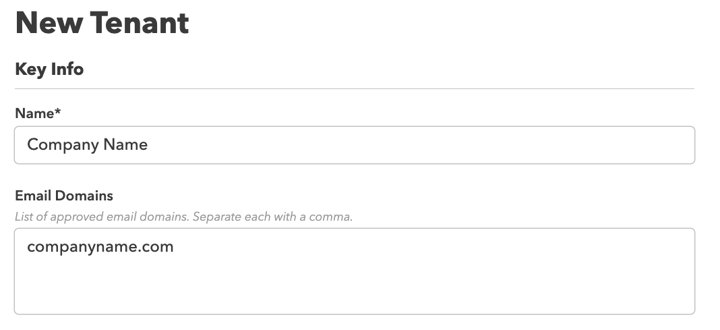
 Adding Users · figure 1
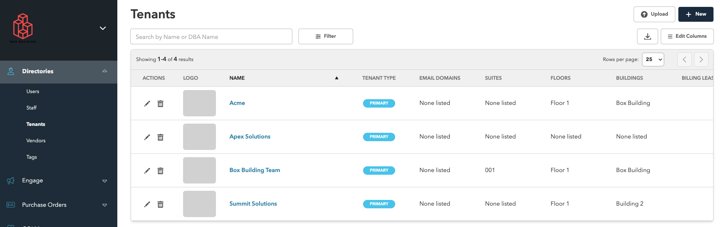
 Adding Users · figure 2
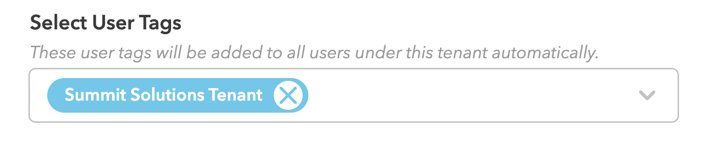
 Adding and Managing Tenant Organizations · figure 1
 Adding and Managing Tenant Organizations · figure 2
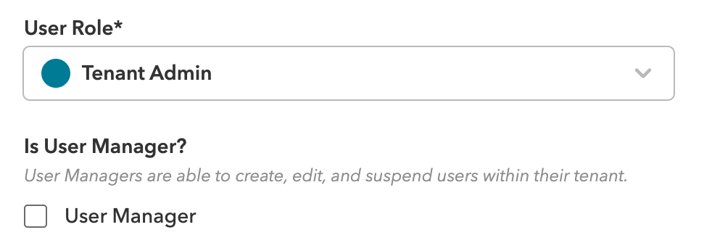 Tenant Admin User Manager · figure 1
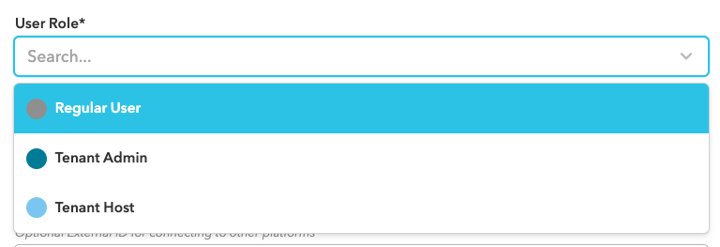 Tenant Admin User Manager · figure 2
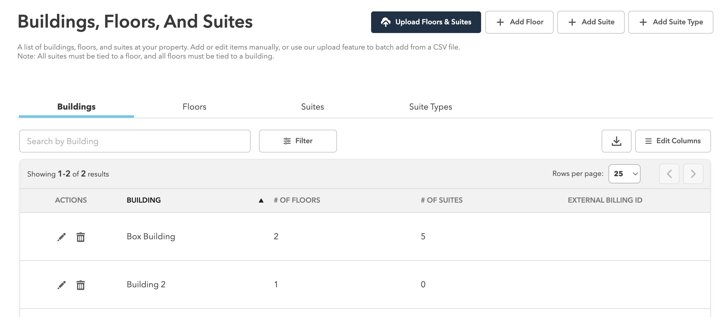
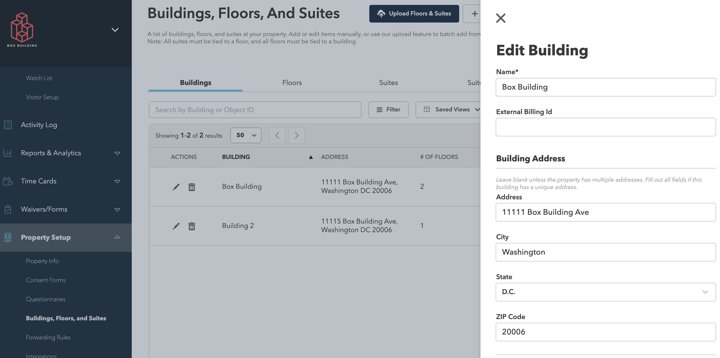 Buildings, Floors, And Suites · figure 1
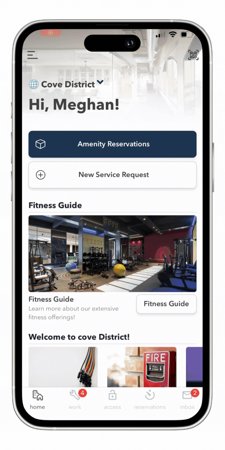
 Buildings, Floors, And Suites · figure 2
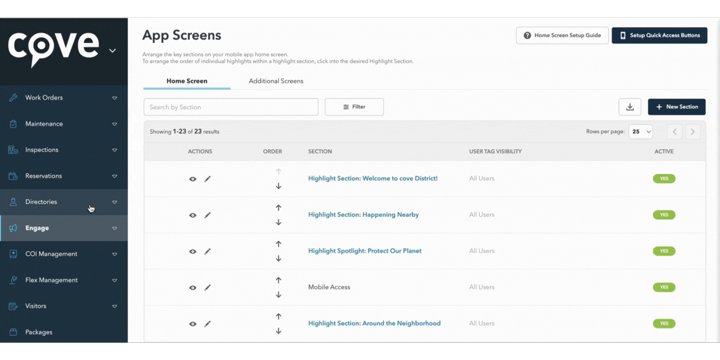
 App Screens · figure 1
 App Screens · figure 2
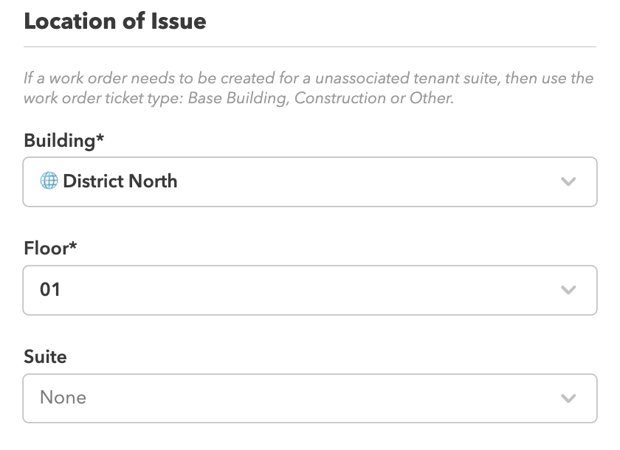
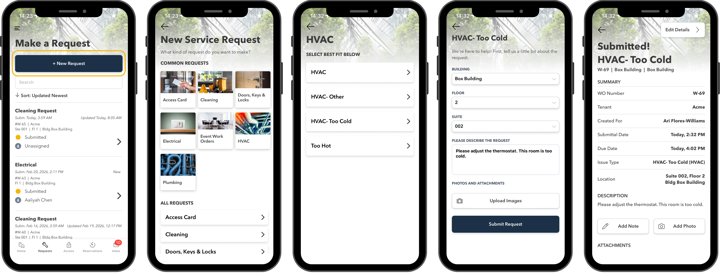 Submitting a Work Order · figure 1
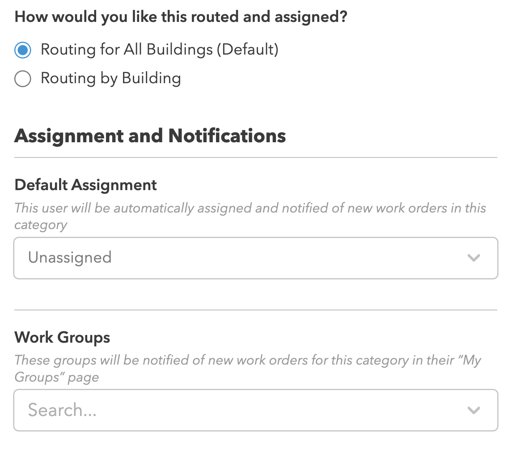
 Submitting a Work Order · figure 2
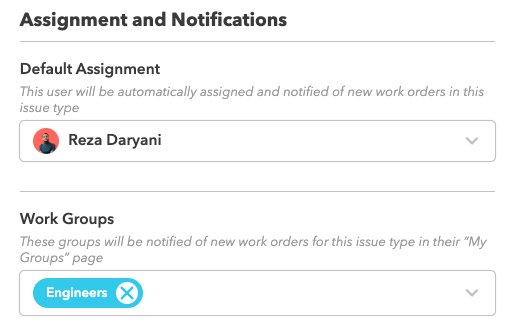
 Work Order Assignments and Routing · figure 1
 Work Order Assignments and Routing · figure 2
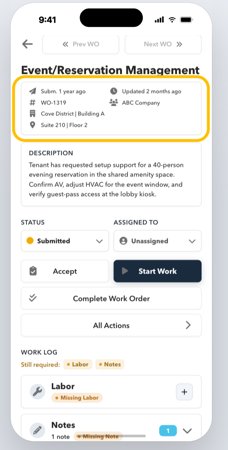 Core order information
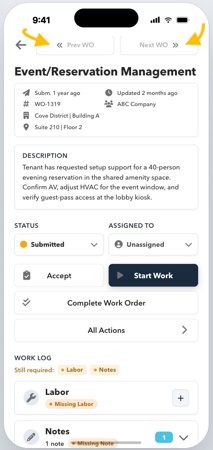 Work-order detail
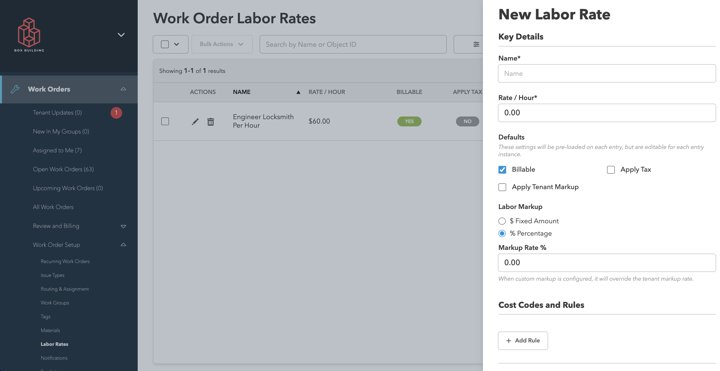 Adding Labor Rates to Your Work Order Library · figure 1
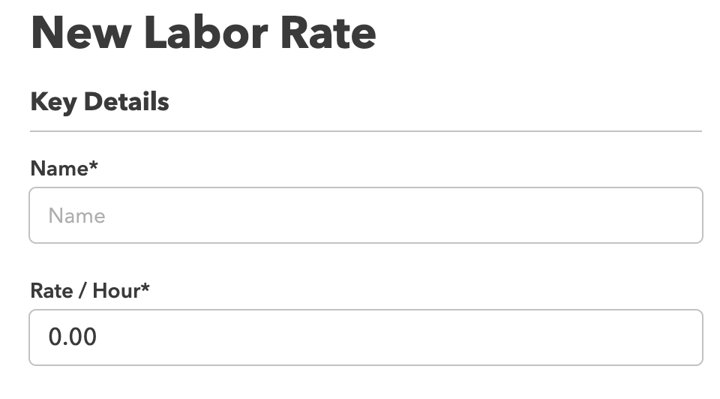 Adding Labor Rates to Your Work Order Library · figure 2
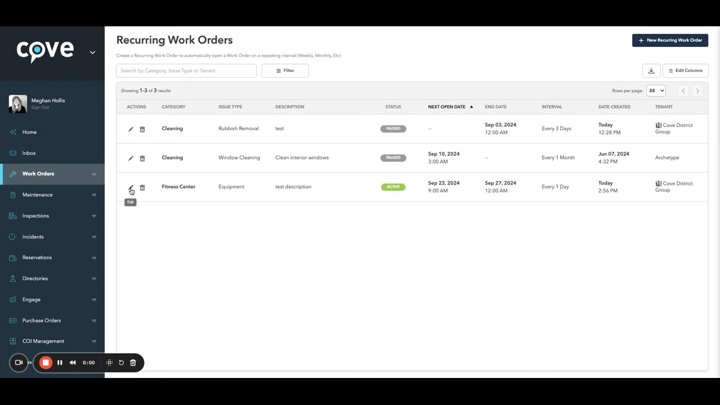 Edit Recurring Work Orders · sample 1
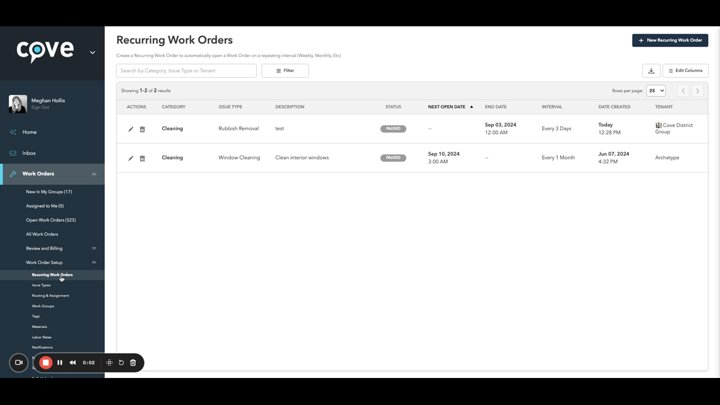 Create Recurring Work Order Templates · sample 1
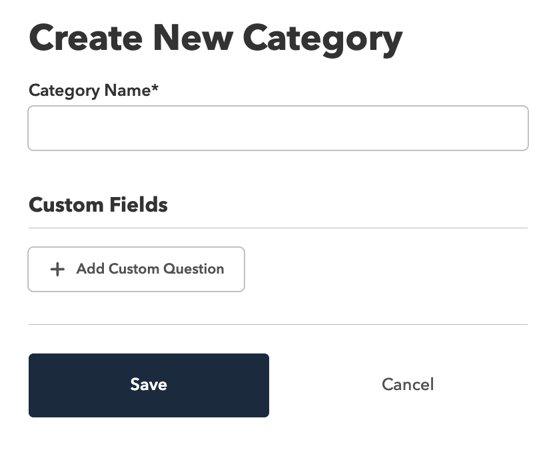 Equipment Libraries · figure 1
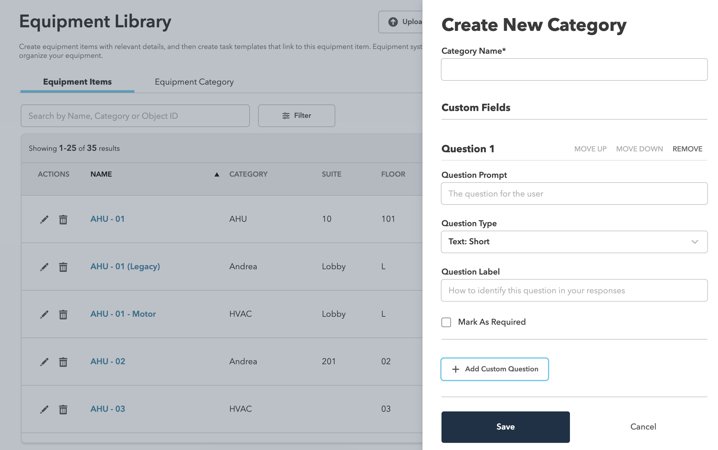 Equipment Libraries · figure 2
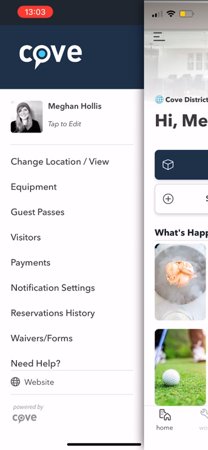 Equipment QR Codes- Scanning QR codes · sample 1
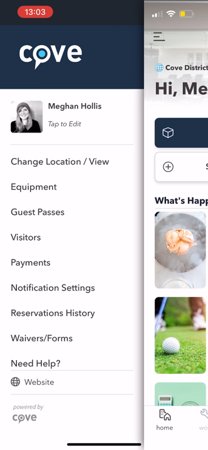 Equipment QR Codes- Associating QR Codes · sample 1
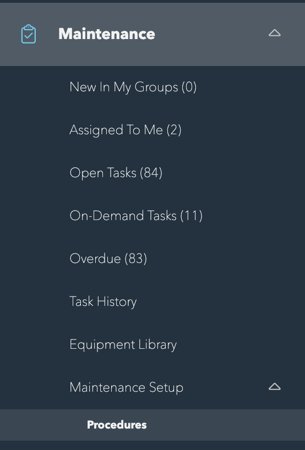 Maintenance at the Network Level · figure 1
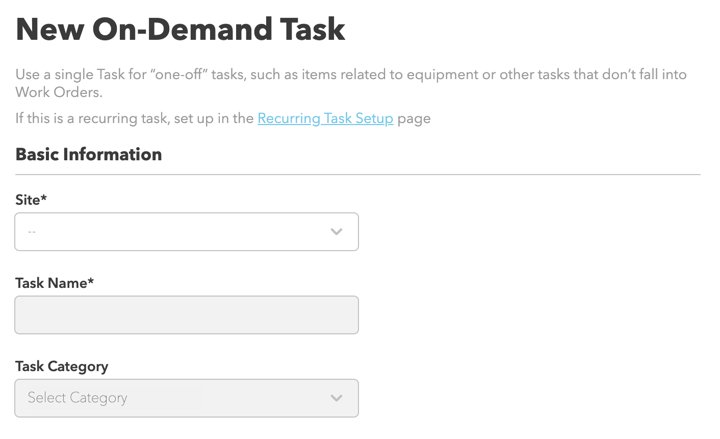 Maintenance at the Network Level · figure 2
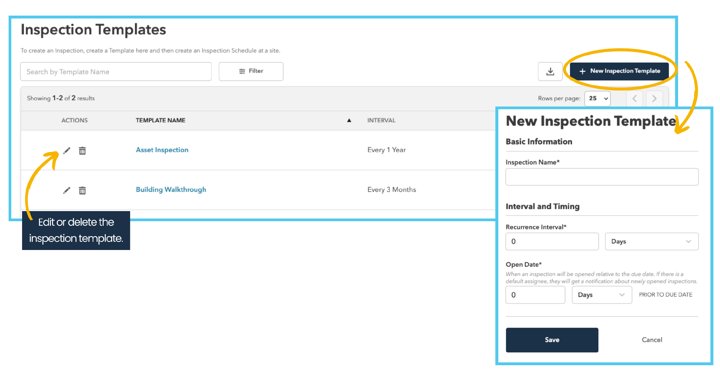 Creating Inspections · figure 1
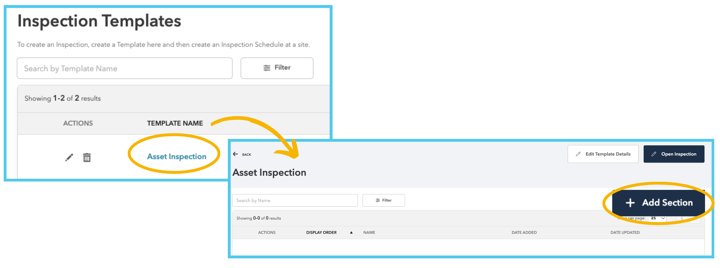 Creating Inspections · figure 2
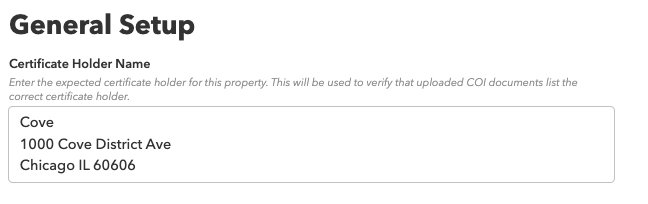 COI Setup · figure 1
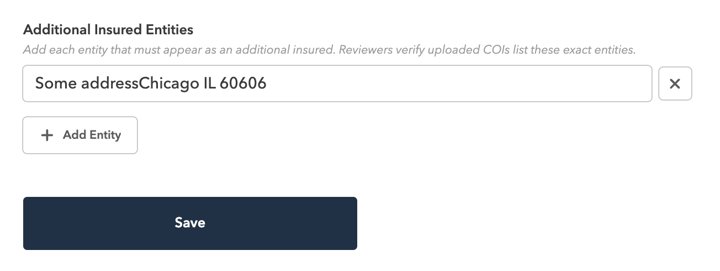 COI Setup · figure 2
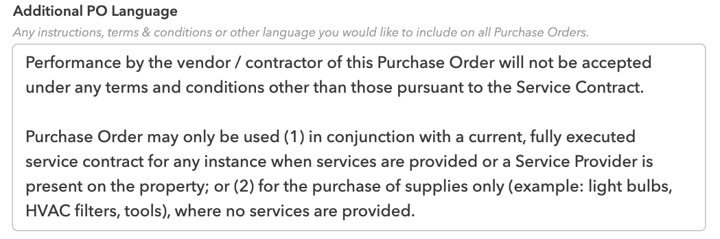 Purchase Order Setup · figure 1
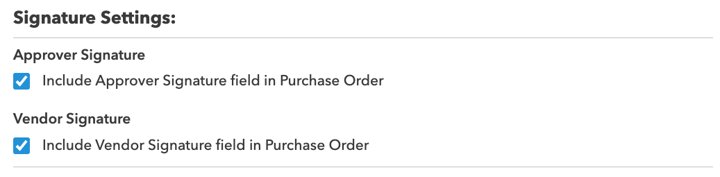 Purchase Order Setup · figure 2
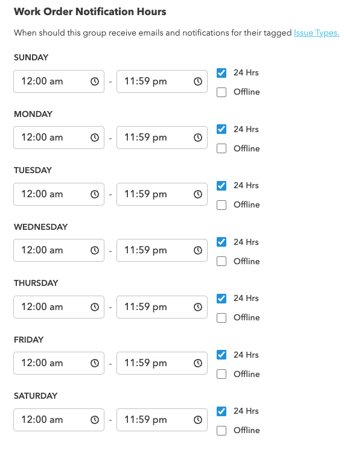 Incident Setup · figure 1
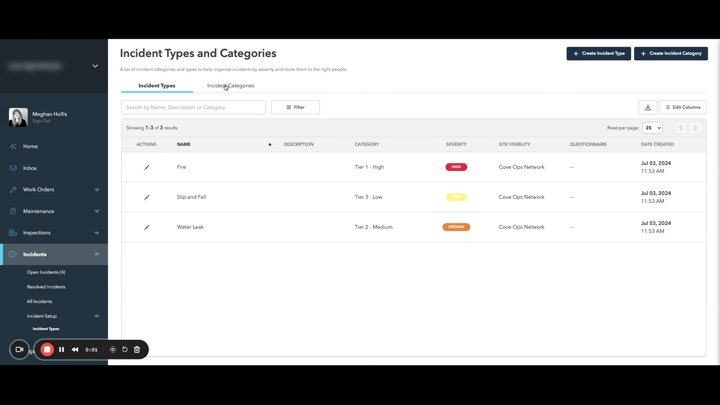 Create Incident Categories · sample 1
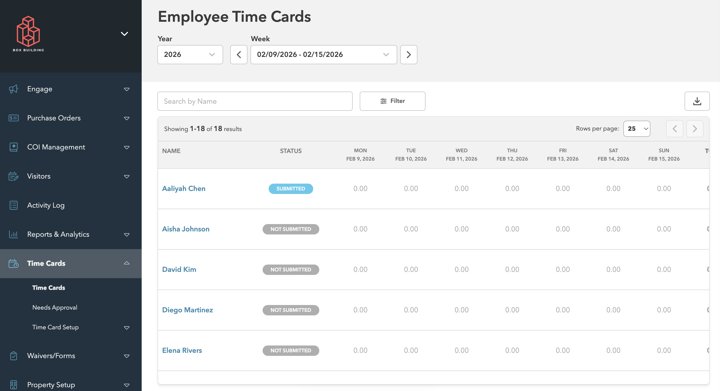 Time Cards Setup (Property Teams) · figure 1
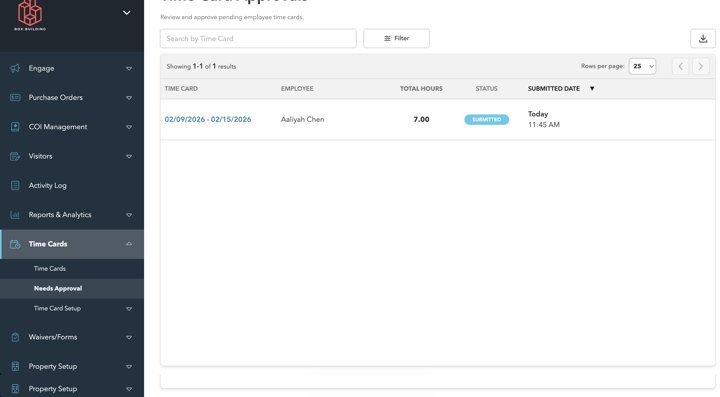 Time Cards Setup (Property Teams) · figure 2
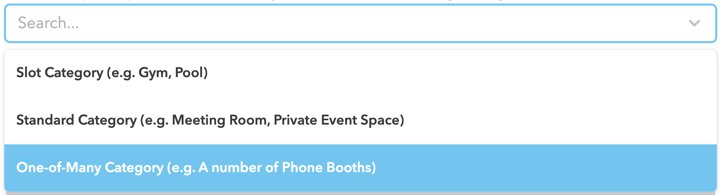 Create an Amenity Space Category · figure 1
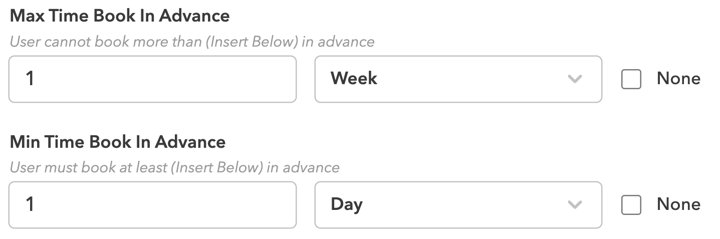 Create an Amenity Space Category · figure 2
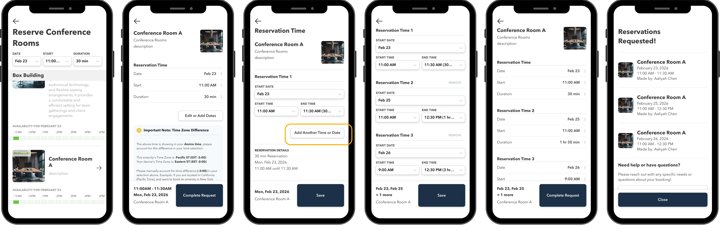 Reserving Amenities: Tenant Admins · figure 1
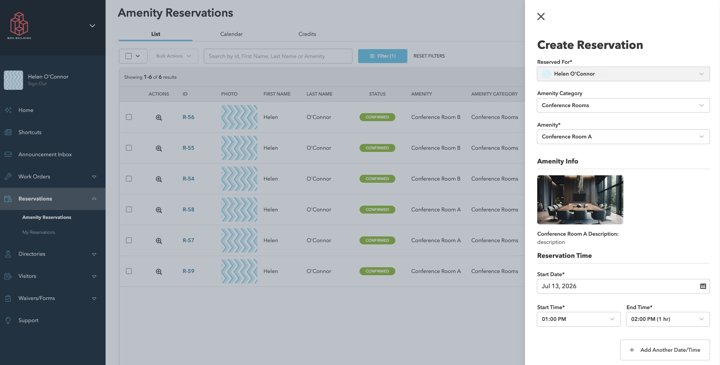 Reserving Amenities: Tenant Admins · figure 2
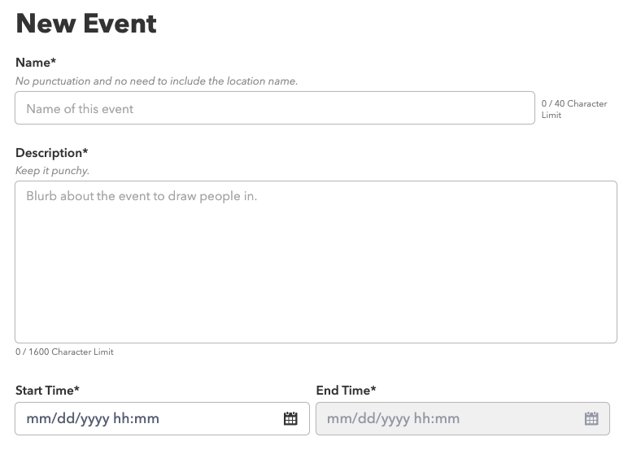 Creating & Managing Events · figure 1
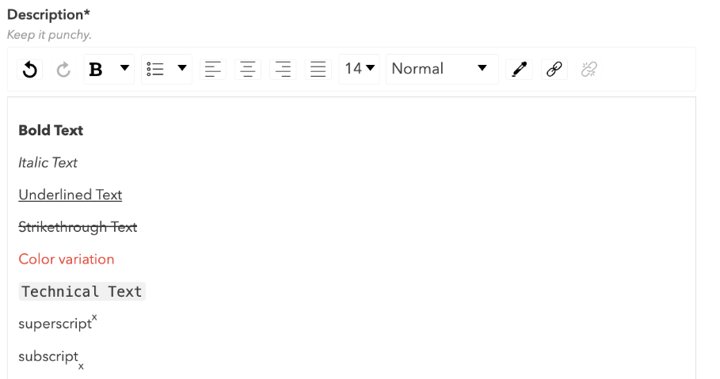 Creating & Managing Events · figure 2
 Email Templates · figure 1
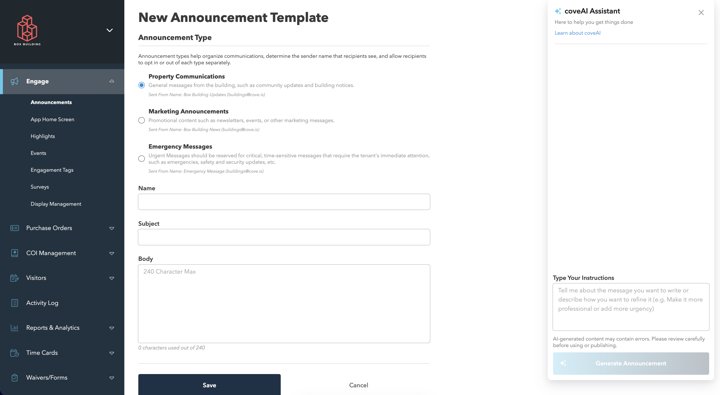 Email Templates · figure 2
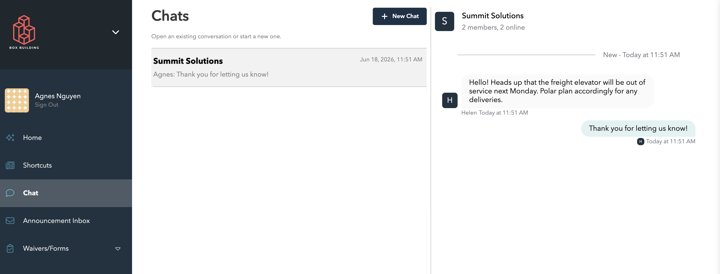 Chat: Tenants · figure 1
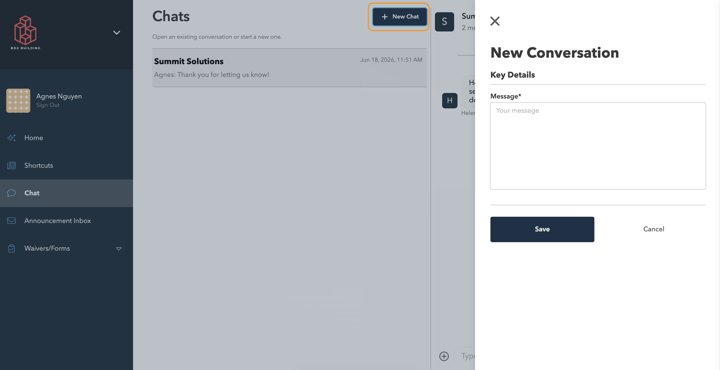 Chat: Tenants · figure 2
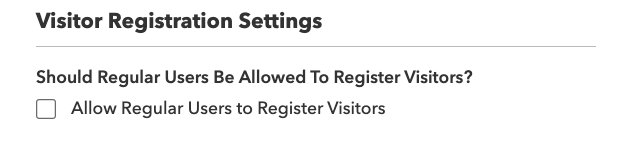 Visitor Management Setup · figure 1
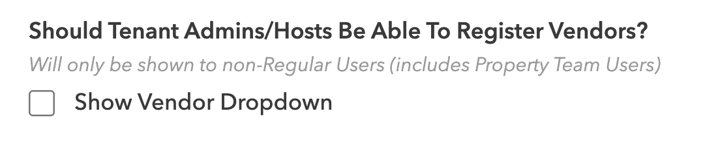 Visitor Management Setup · figure 2
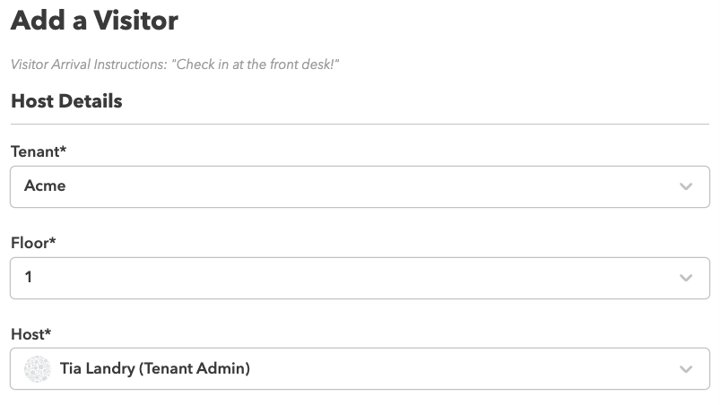 Group Visits · figure 1
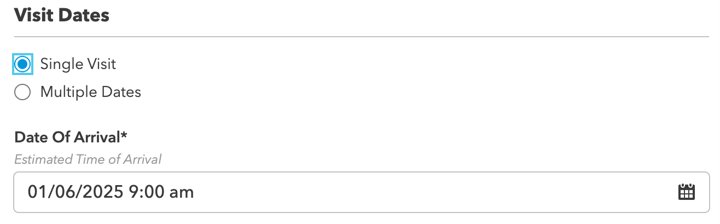 Group Visits · figure 2
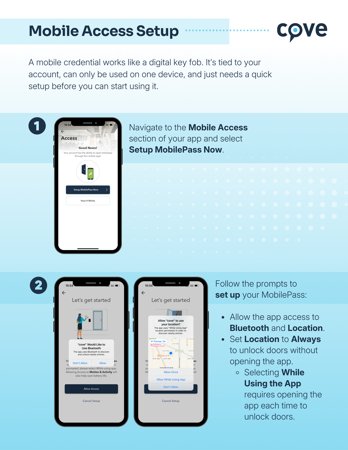 HID Bluetooth (Apple & Google) · figure 1
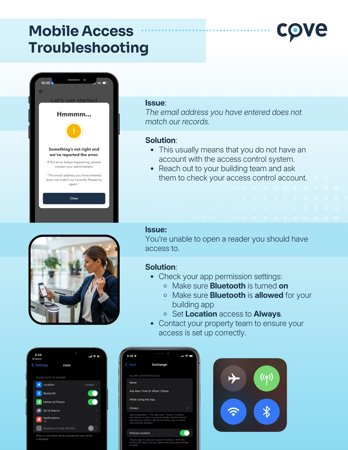 HID Bluetooth (Apple & Google) · figure 2
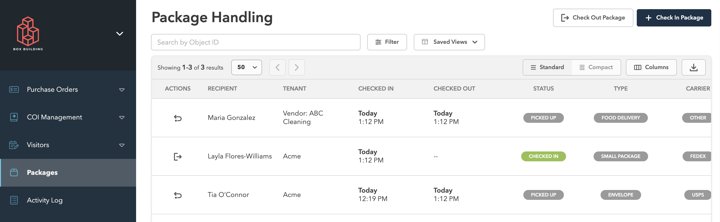 Packages · figure 1
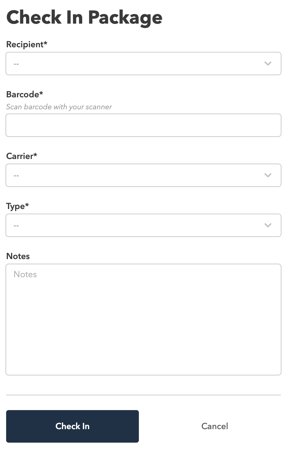 Packages · figure 2
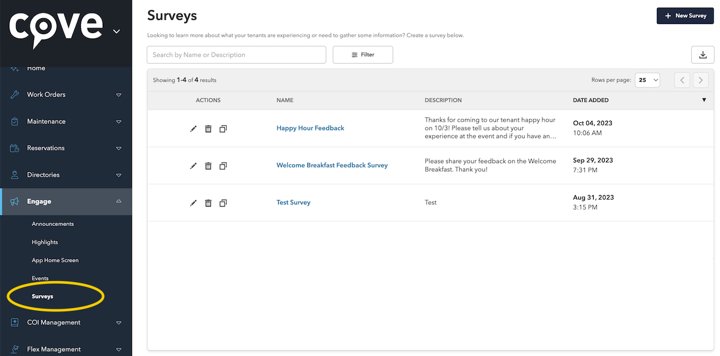 Surveys: Creating a Survey · figure 1
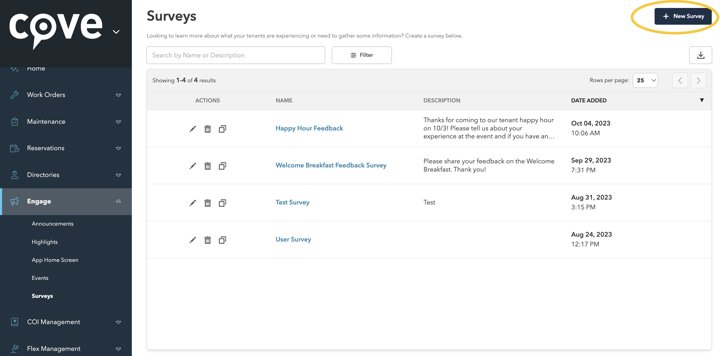 Surveys: Creating a Survey · figure 2
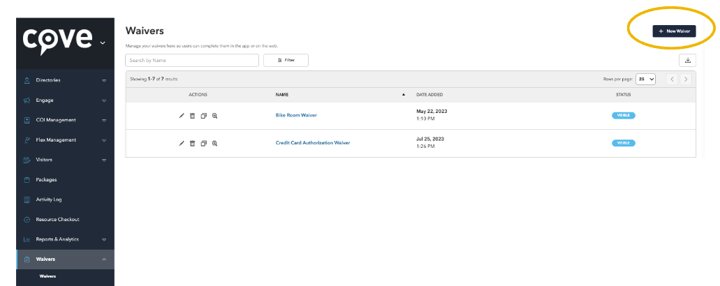 Waivers: Overview · figure 1
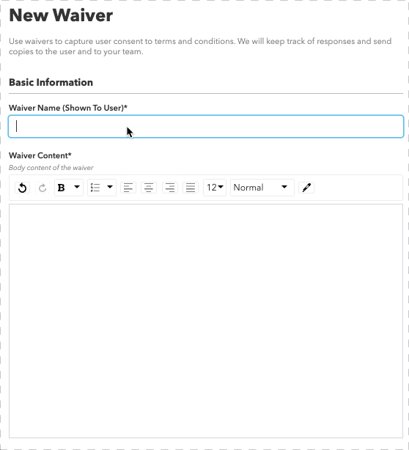 Waivers: Overview · figure 2
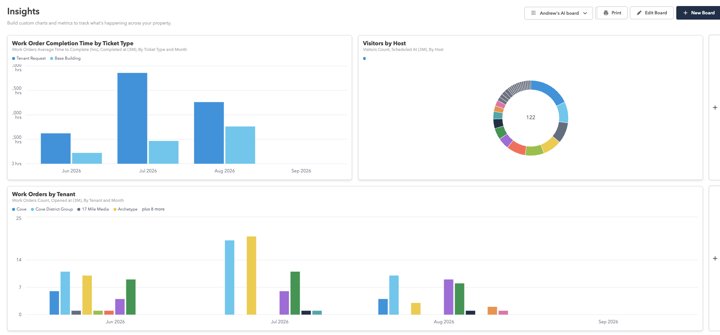 Dashboard
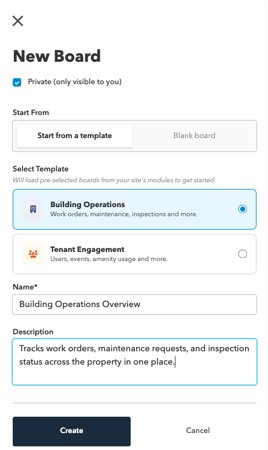 New board
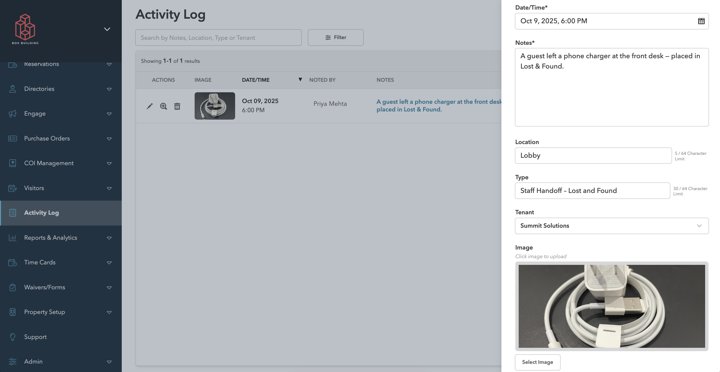 Activity Log · figure 1
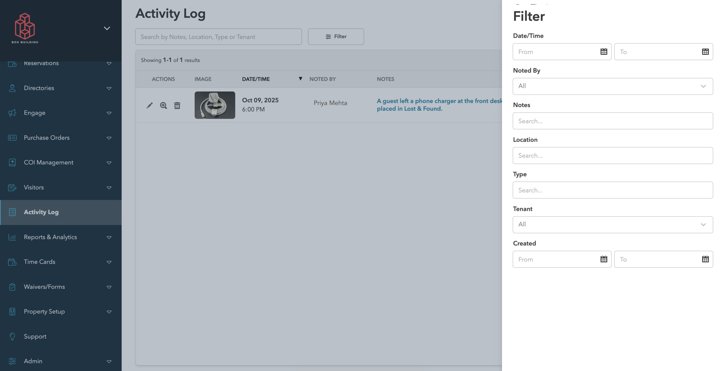 Activity Log · figure 3
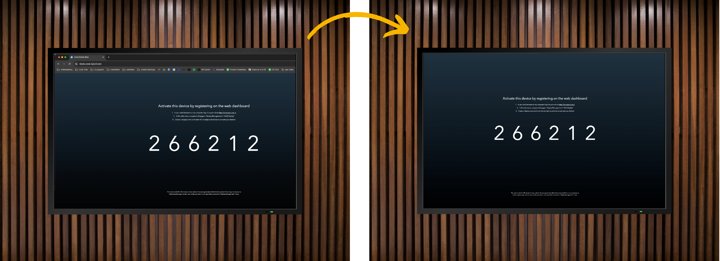 Displays · figure 1
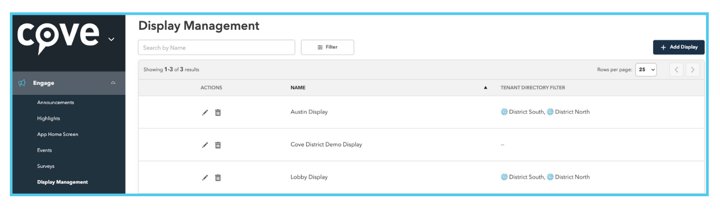 Displays · figure 2
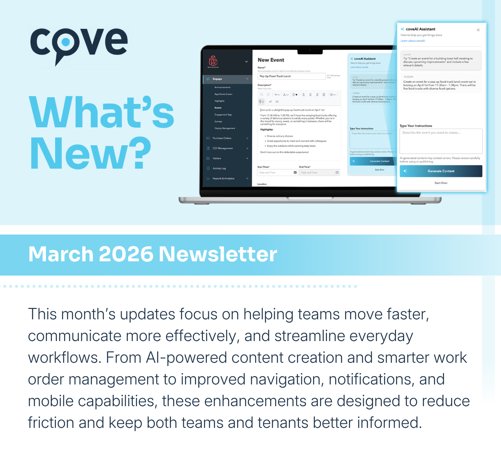 March 2026: Introducing CoveAI for Tenant Experience and Operations · figure 1
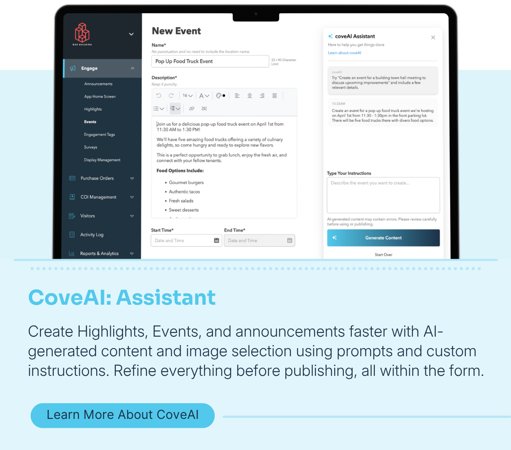 March 2026: Introducing CoveAI for Tenant Experience and Operations · figure 2
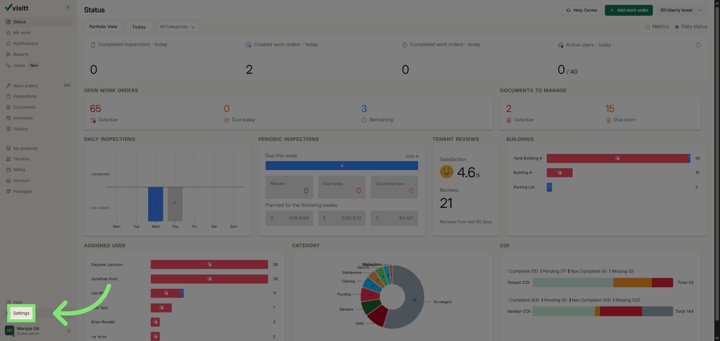 How to Manage Your Categories · figure 2
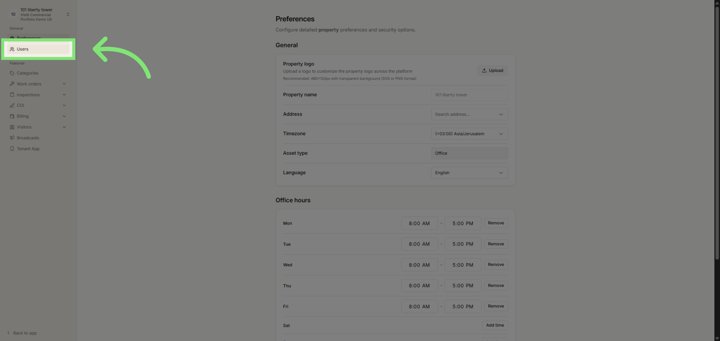 How to Add Users to Your Property · figure 2
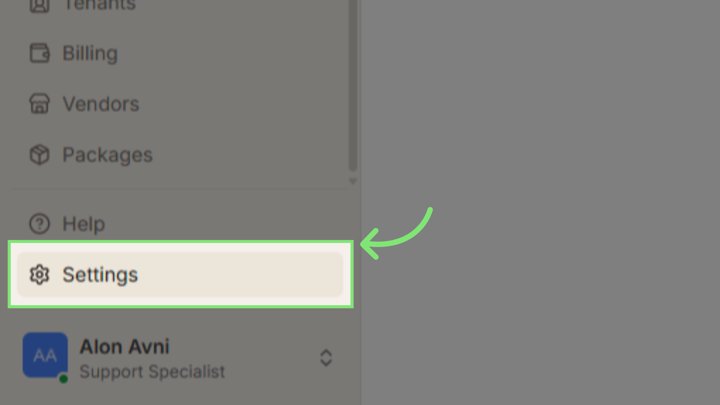 Global Settings: Buildings · figure 1
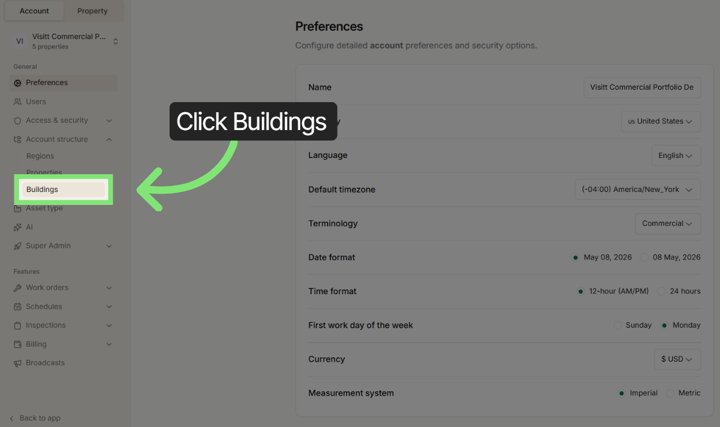 Global Settings: Buildings · figure 2
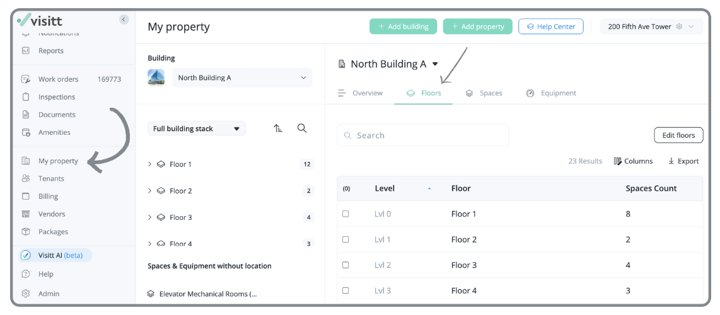 My Property - Floors · figure 1
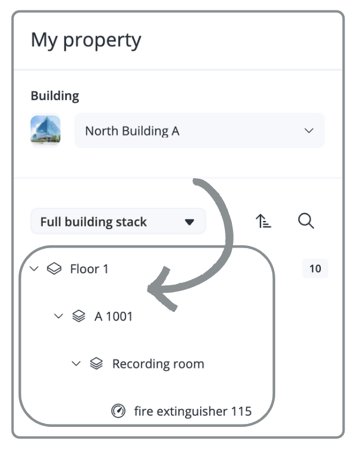 My Property - Floors · figure 2
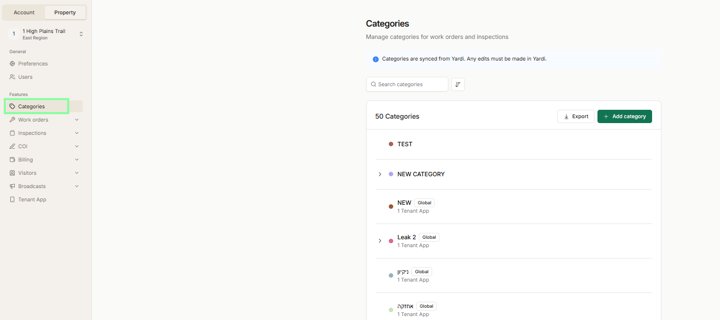 Global Categories · figure 1
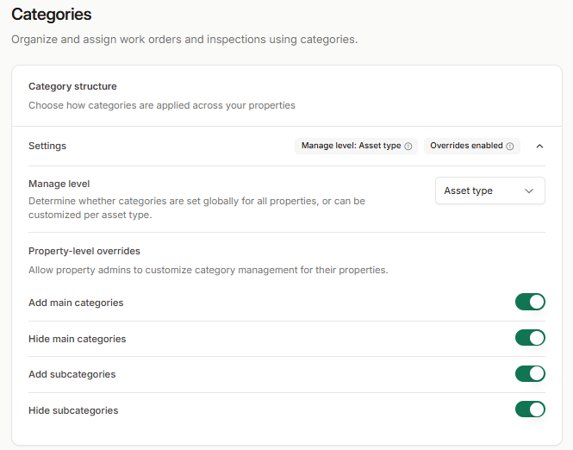 Global Categories · figure 2
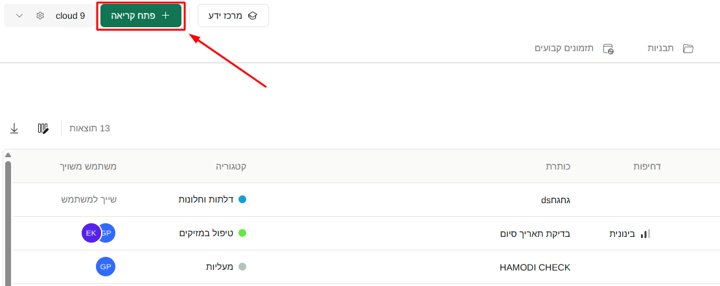 כיצד ליצור קריאת עבודה: תהליך חדש ומשופר · figure 1
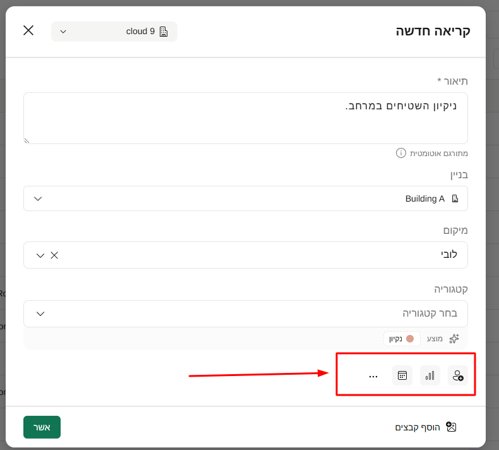 כיצד ליצור קריאת עבודה: תהליך חדש ומשופר · figure 2
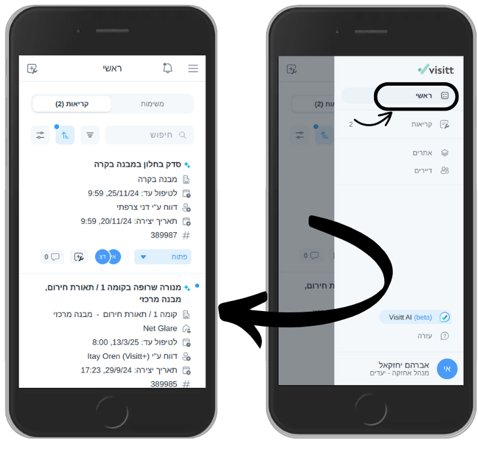 ניהול וביצוע קריאות שבר (אנשי שטח) · figure 1
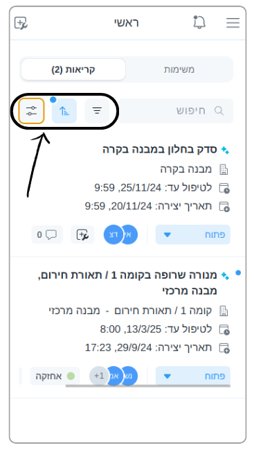 ניהול וביצוע קריאות שבר (אנשי שטח) · figure 2
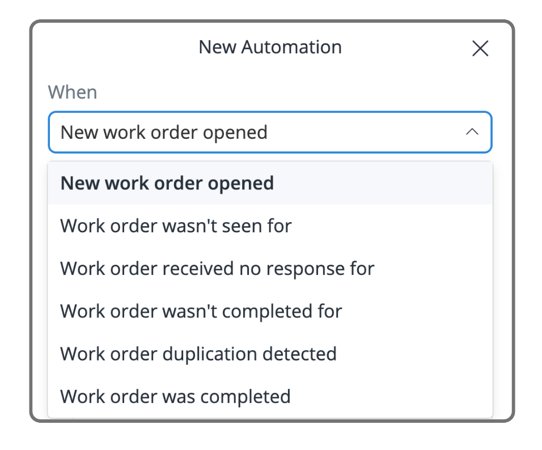 Automation triggers
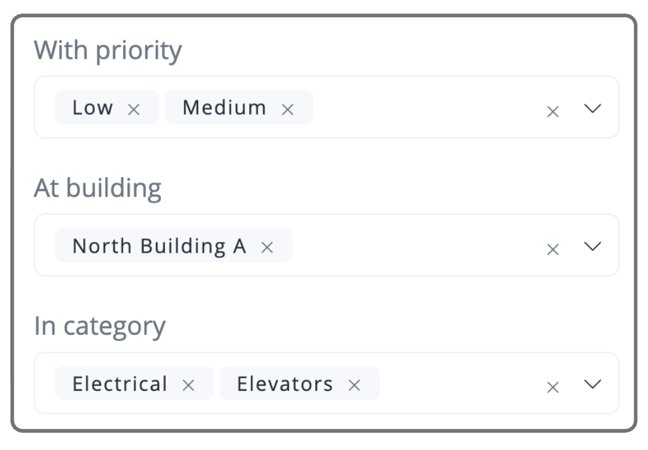 Automation conditions
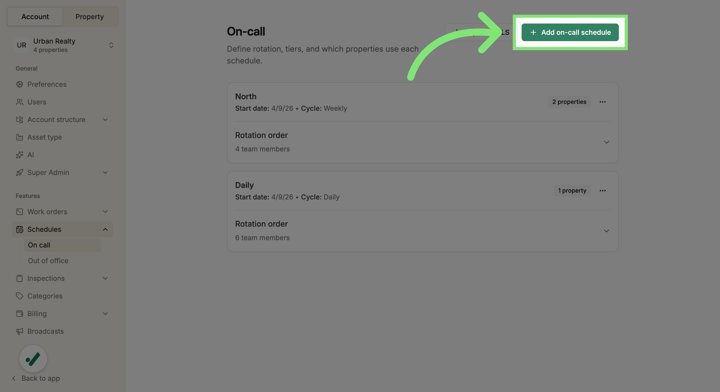 Set up and manage on-call schedules · figure 1
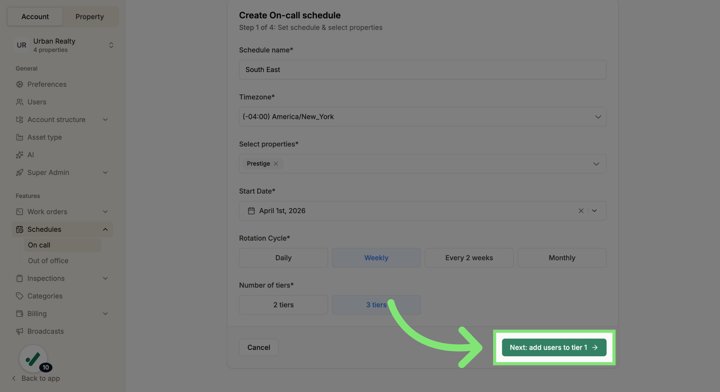 Set up and manage on-call schedules · figure 2
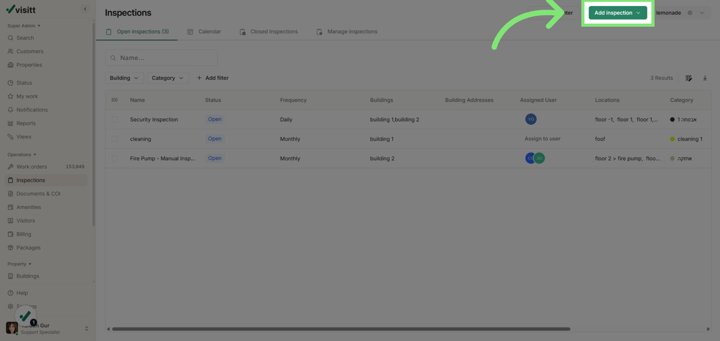 How to Create and Edit Inspections · figure 1
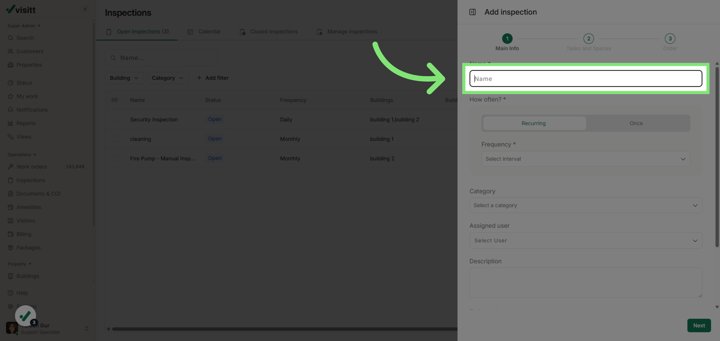 How to Create and Edit Inspections · figure 2
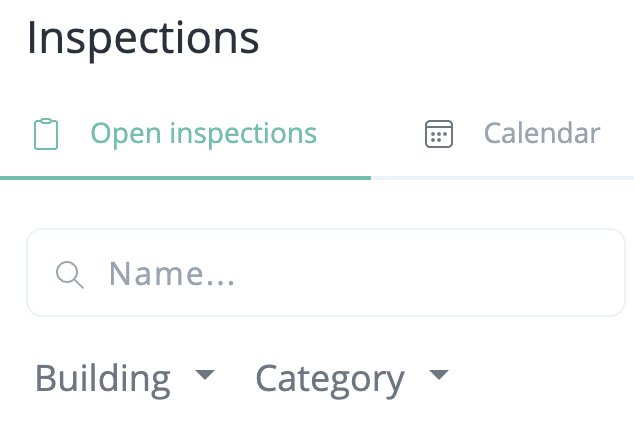 How to View and Complete Open Inspections · figure 1
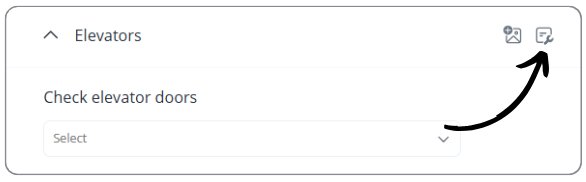 How to View and Complete Open Inspections · figure 2
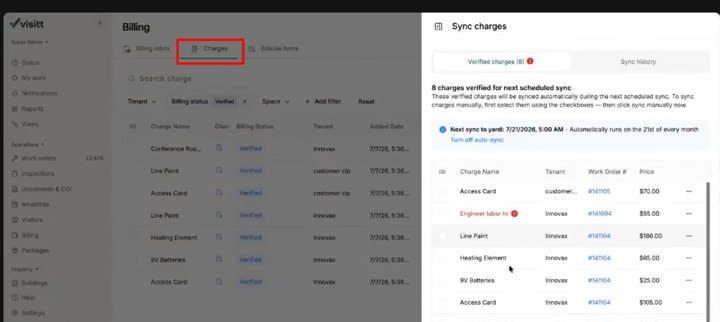 Billing Management · figure 1
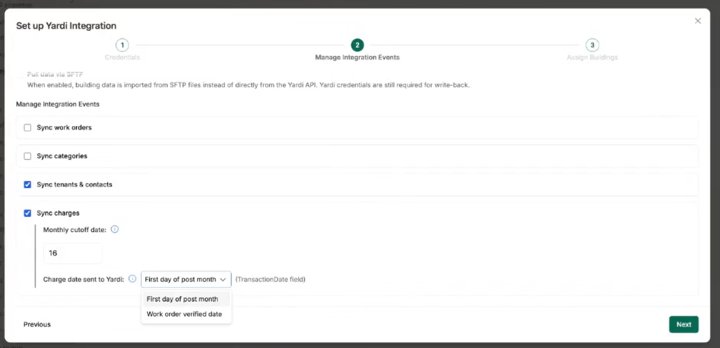 Billing Management · figure 2
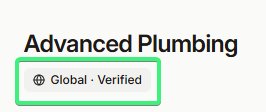 Manage Global Vendors Across Your Portfolio · figure 1
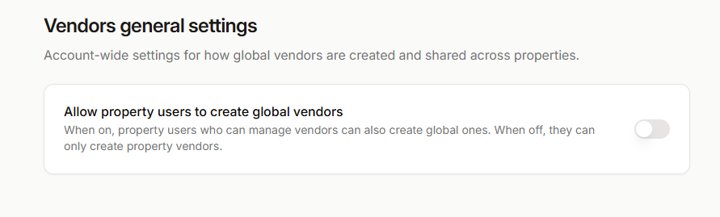 Manage Global Vendors Across Your Portfolio · figure 2
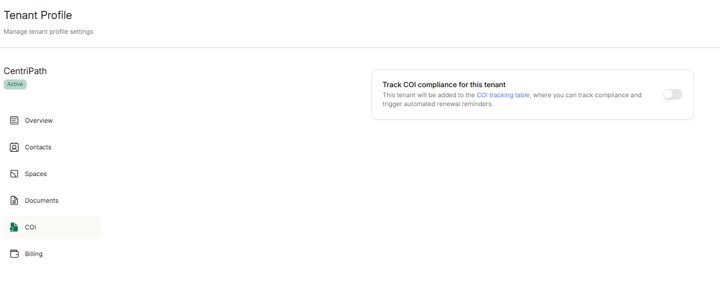 Tenant COI tracking disabled
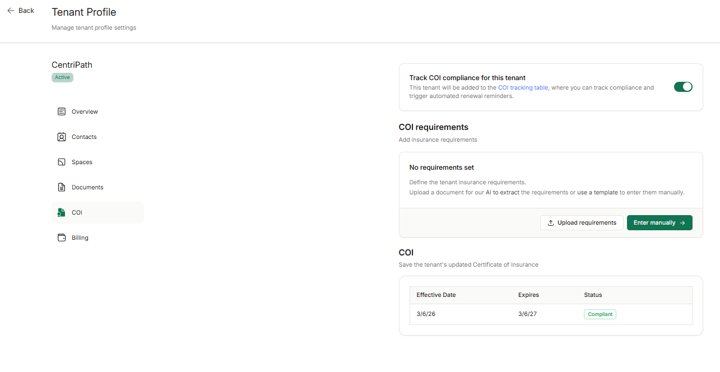 Tenant COI overview
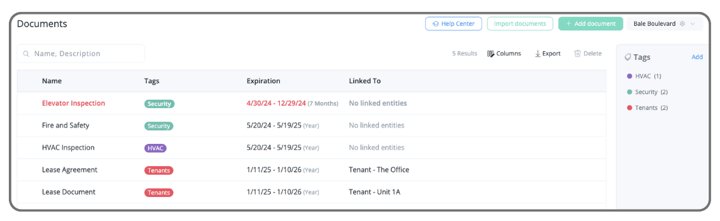 Documents in Visitt · figure 1
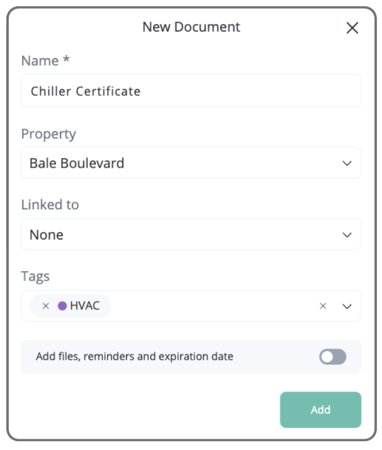 Documents in Visitt · figure 2
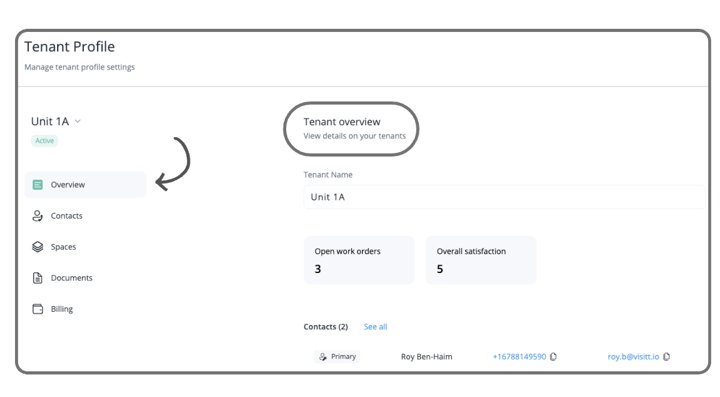 Manage Your Tenants in Visitt · figure 1
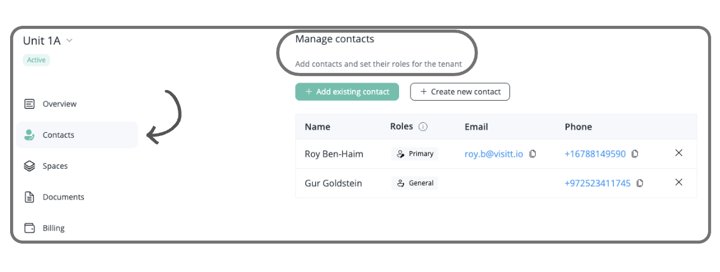 Manage Your Tenants in Visitt · figure 2
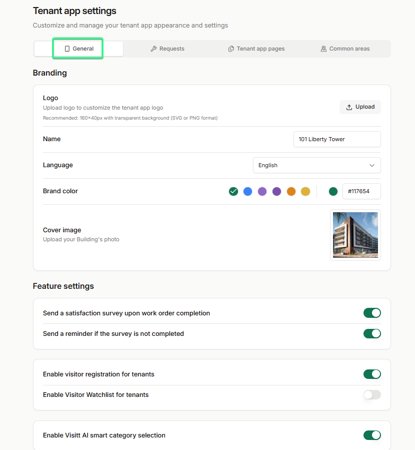 Managing Your Tenant App · figure 1
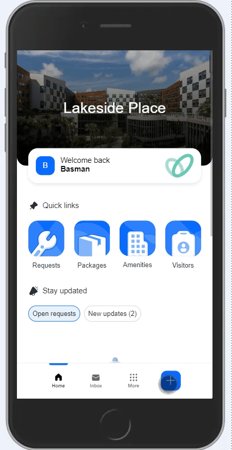 Managing Your Tenant App · figure 2
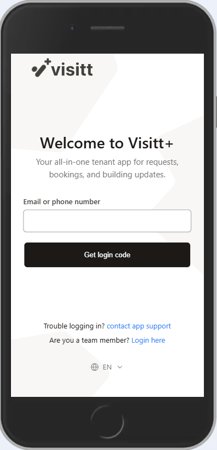 Getting Started with Visitt+: A Guide for Tenants · figure 1
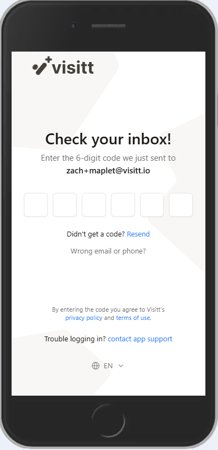 Getting Started with Visitt+: A Guide for Tenants · figure 2
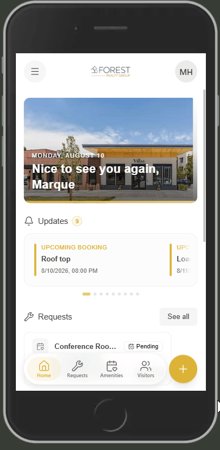 Visitt+ Work Orders: Create and track requests · figure 1
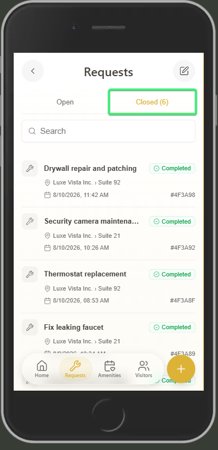 Visitt+ Work Orders: Create and track requests · figure 2
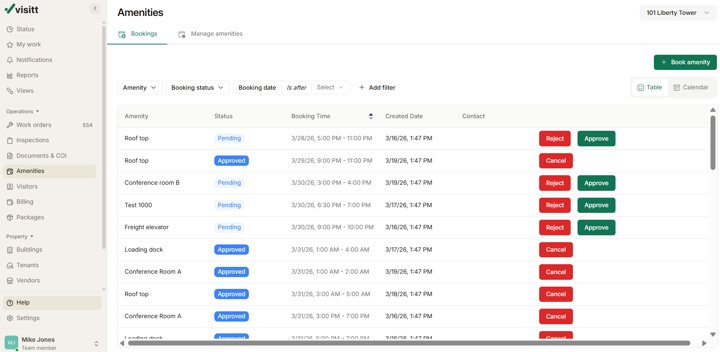 Visitt Amenities for Property Managers · figure 1
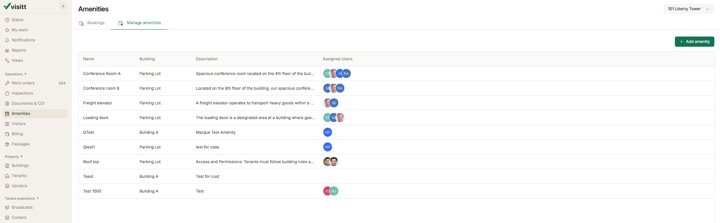 Visitt Amenities for Property Managers · figure 2
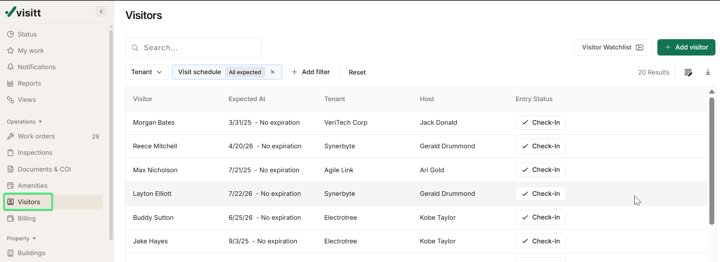 Visitors Overview · figure 1
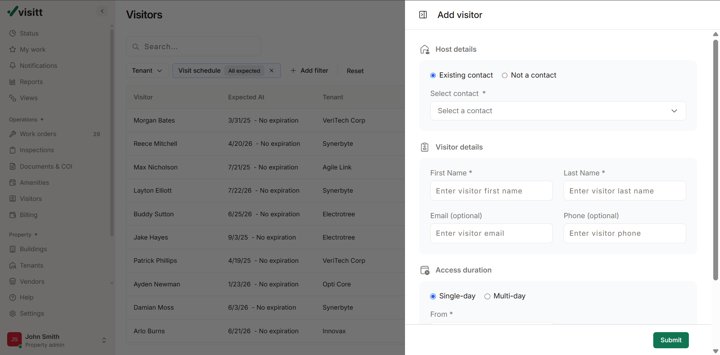 Visitors Overview · figure 2
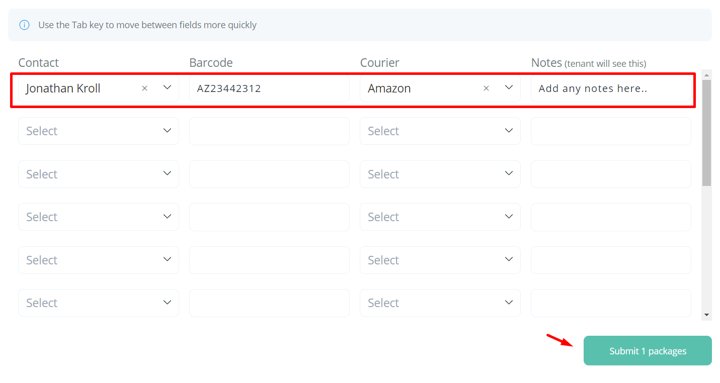 Managing Packages · figure 1
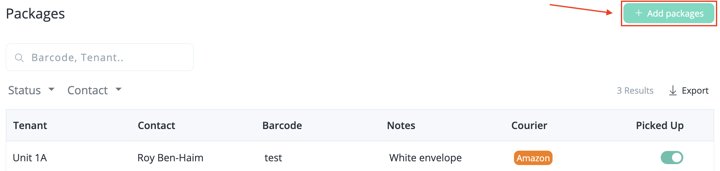 Managing Packages · figure 2
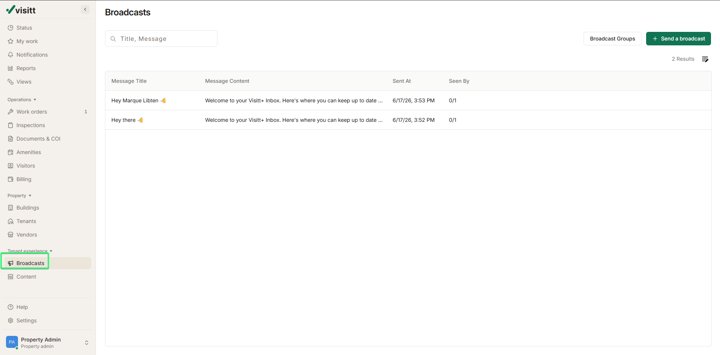 How to Use Visitt's Broadcast Messaging · figure 1
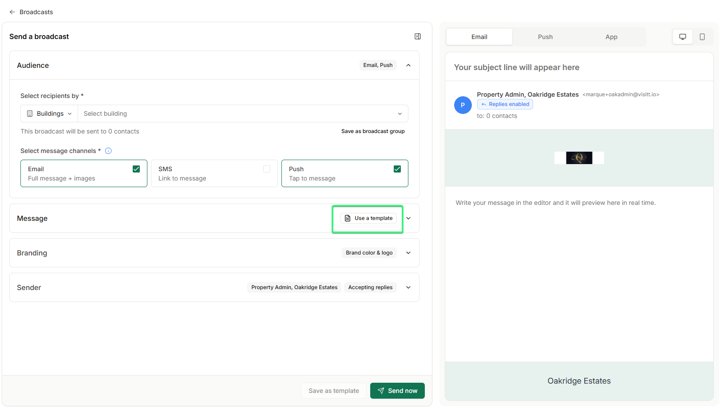 How to Use Visitt's Broadcast Messaging · figure 2
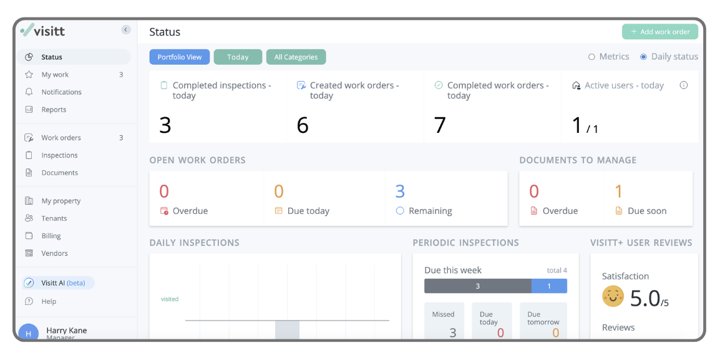 Status Page Explained · figure 1
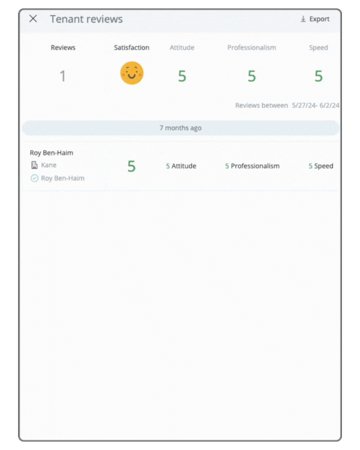 Tenant-rating drill-down
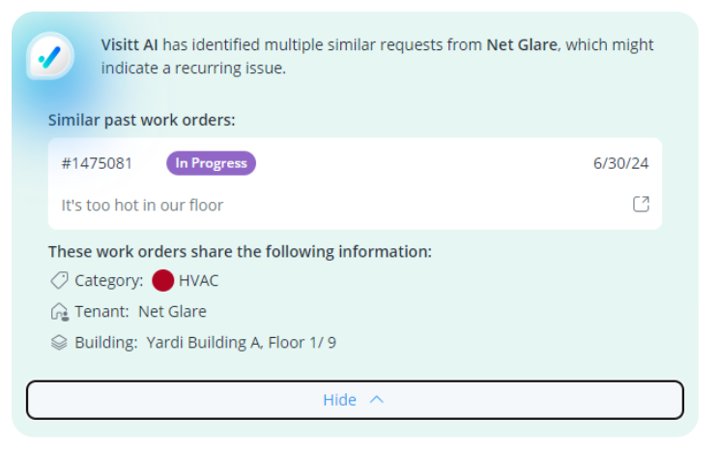 Similarity alert
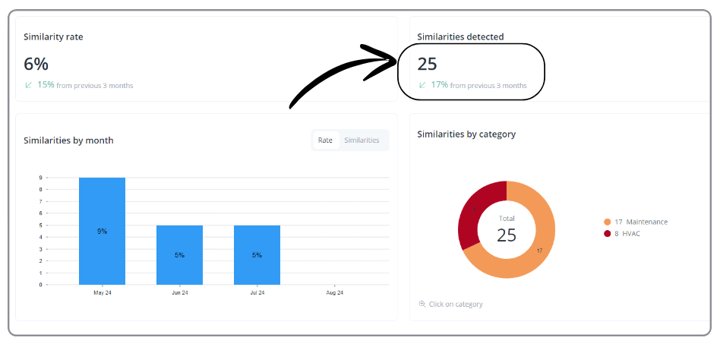 Discovery report
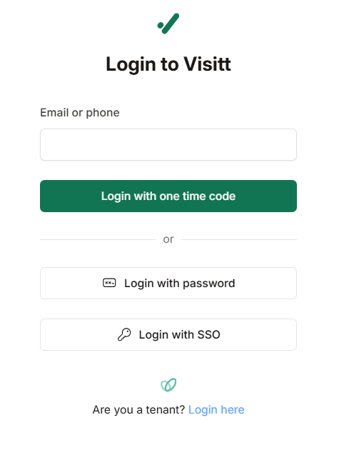 How to Log In to Your Account · figure 1
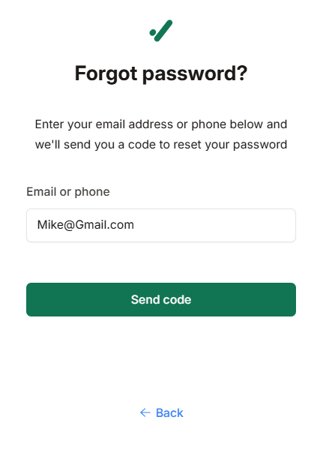 How to Log In to Your Account · figure 2